53
Using the Web User Interface (WebUI)
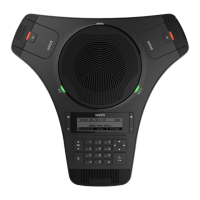
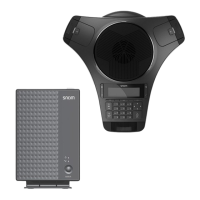
Use an Internet Web browser to access the Web User Interface (WebUI) of the
conference phone. Aer you log on to the WebUI, you can congure the following
features:
• Call Sengs (See page 55)
• User Preferences (See page 57)
• Program Dial so keys (See page 58)
• Speed Dial (See page 59)
• Local Directory (See page 60)
• Blacklist (See page 63)
• Call History (View only. You can click numbers that have hyperlinks to dial them.)
• User Password (See page 63)
The WebUI also has a status page, where you can view status and informaon.
Accessing the WebUI
1. Ensure that your computer is connected to the same network as your phone.
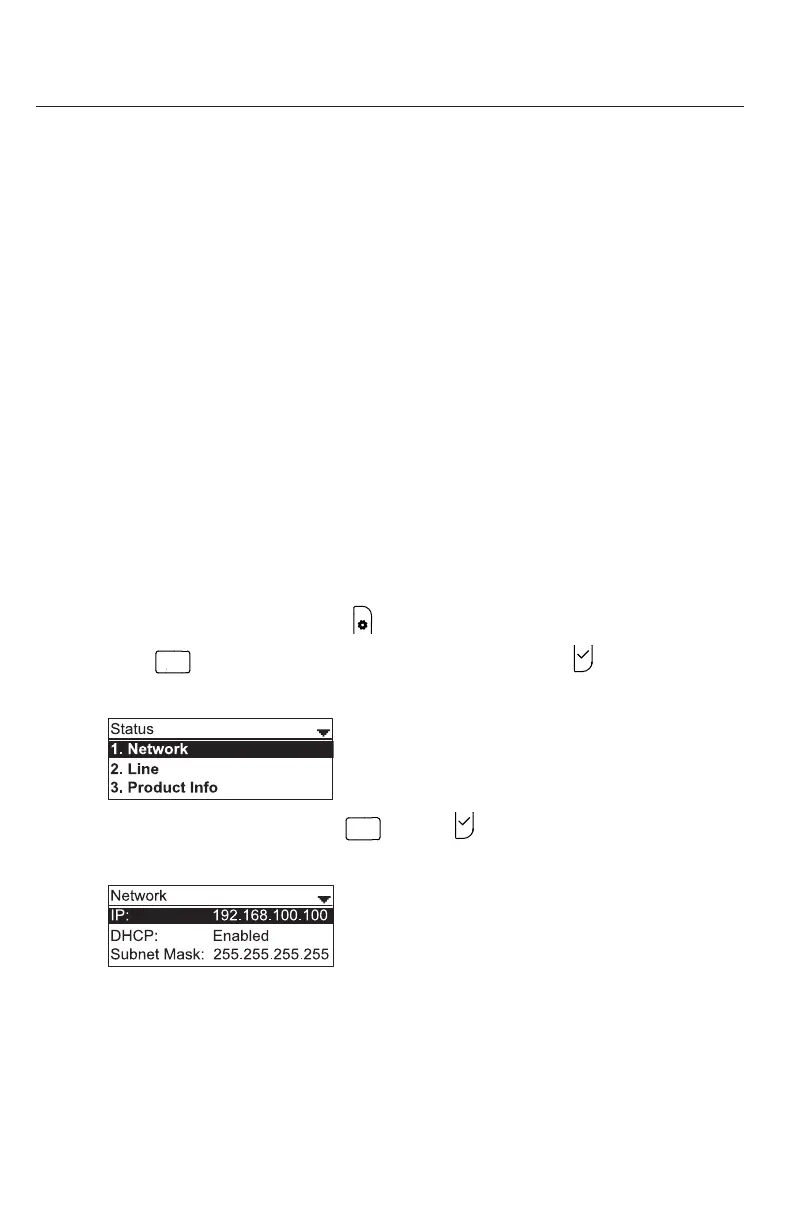
2. Find the IP address of your phone:
a. When the phone is idle, press .
b. Press
A B C
OR press q to highlight Status and then press ).
The Status menu appears.
c. From the Status menu, press
or press with 1 Network highlighted.
The Network screen with the IP address appears.
3. On your computer, open an Internet Web browser. Depending on your browser, some
of the pages presented here may look dierent and have dierent controls.
4. Type the phone's IP address in the Web browser address bar and press ENTER on
your computer keyboard.
The login window appears.
5. Enter your User Name and Password or your Admin Name and Password.
WebUI



 To Next Page