29
Pager saved
6. To return to Normal Mode, press the key three times to exit out of all menus. MAXPage then restarts
and is ready for use.
Deleting a Pager
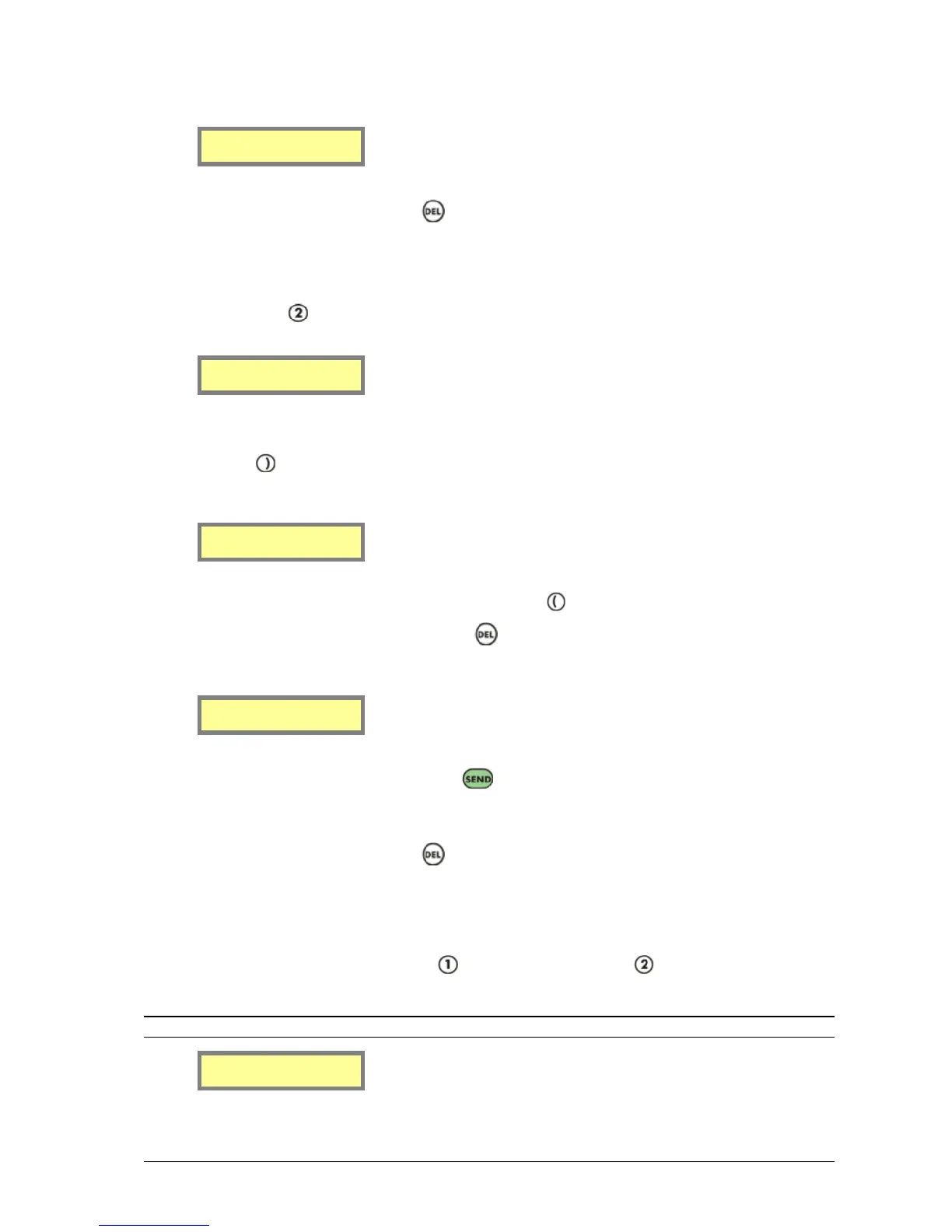
To delete a pager, press to select Delete Pager at the Pager Menu shown below.
1.Add/Edit Pager
2.Delete Pager
1. Enter the Pager ID of the pager you wish to delete in the ID field.
2. Click the key. If the pager exists in the database, the details are displayed in the fields on the screen. If
the Pager ID does not exist in the database, a warning message displaying Invalid Pager ID is shown.
ID[1 ] [Alpha]
Capcode[1234567]
3. If this is not the entry you wish to delete, you can press the key to enter another Pager ID in the ID field.
4. If this is the entry you wish to delete, press the key. A new screen is shown, prompting to confirm
deletion of this Pager ID as shown below:
ID[1 ] DELETE
(Send confirms)
5. If you wish to delete this Pager ID, press the key again and the screen displays Pager Deleted.
6. If you do not wish to delete that Pager ID from the database, press any numeric key on the keypad, and you
are returned to the Pager Menu without deleting it.
7. To return to Normal Mode, press the key three times to exit out of all menus. MAXPage then restarts
and is ready for use.
Groups
You need to register a group in the database before you can send messages to it.
1. At the Config Mode menu screen, press to select Pagers followed by Groups.
2. From here you can choose between the following menu options. This is referred to as the Group Menu.
NOTE: MAXPage is capable of storing a maximum of 20 groups, each with up to 10 members.
1.Add/Edit Group
2.Delete Group
Adding or Editing a Group


 To Next Page