Windows MAXPage Software Installation & Configuration Guide for MAXPage
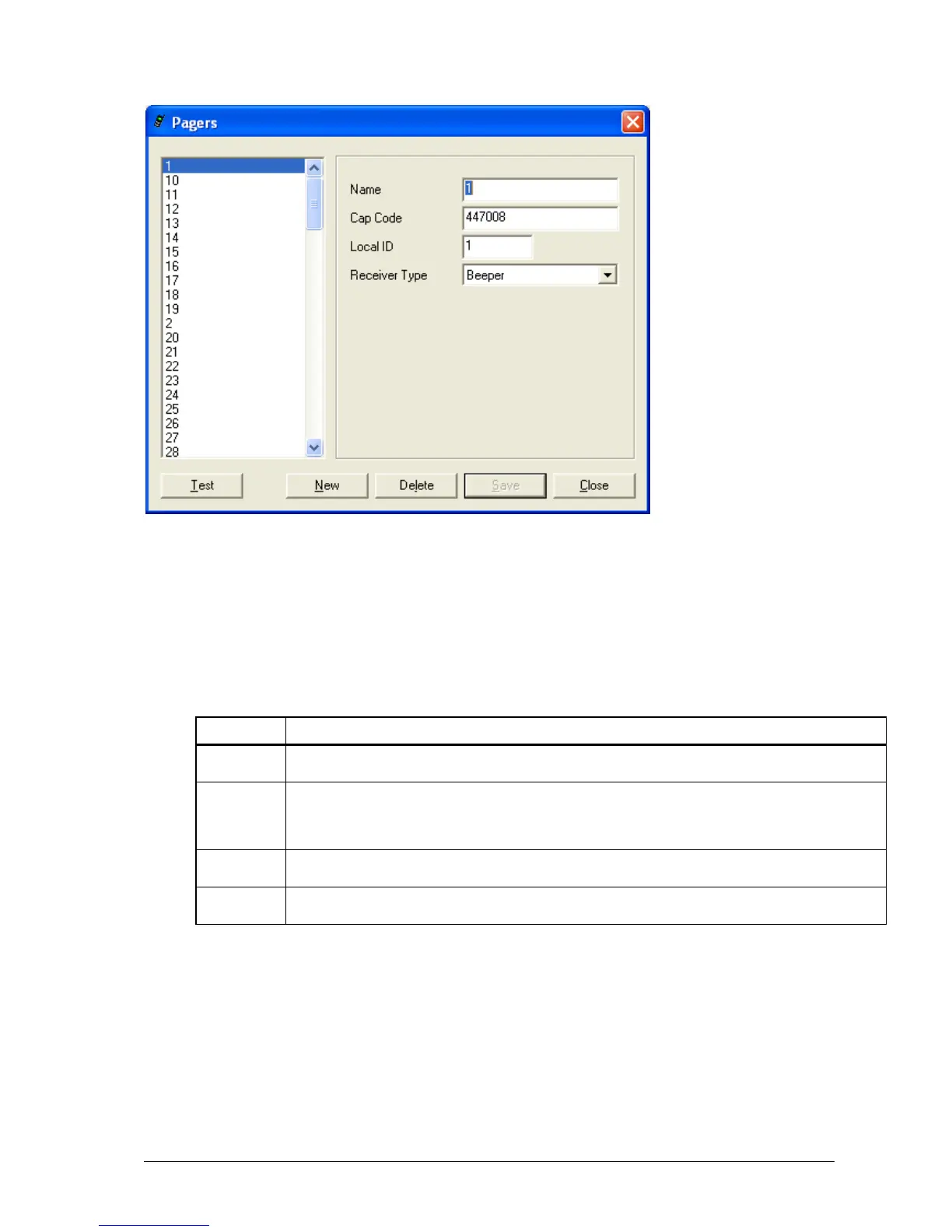
1. Press the New button to create a new pager entry in the database.
2. Once all fields have been filled out correctly, press the Save button to save changes.
3. Choose a user in the left window and then press the Delete button to delete a pager.
4. When you have finished with the Pagers screen, click the Close button to return to the main screen.
5. To test a pager by sending a test message to it, select the recipient’s name on the left hand side.
6. Click the Test button.
This is a reference name that identifies the Local ID in the database. Assign a useful name to the pager entry
such as “John” or “Kitchen.”
The seven digit number is like a seven-digit phone number for a pager, except a pager can have as many as
six cap codes. The cap codes are usually supplied or written on the pager at time of purchase. The valid cap
code range is 0000008 – 2097151. If the pager is a voice pager, the cap code is the three digit code assigned
to it.
A Local ID is a reference number that identifies a pager or group in the database. This field is automatically
selected by the software.
Select the correct device type here (Alphanumeric, Numeric, Tone only, Coaster, Two Tone Pager, Group
Tone Pager)
Configuring Groups
The Groups button is used to add, edit, and delete groups within a database.
The Groups screen displays.


 To Next Page