73
Clear Button
The Clear button is used to clear the Message window of all text.
Updating the MAXPage Firmware
NOTE: Updating the firmware may erase the pager’s database and other settings. It is important that you back up
MAXPage prior to the update. See the Saving current database in software to PC section above.
Firmware updates have a .hex file extension. Only install firmware files from an authorized distributor or dealer if
required. Follow the directions below:
1. Choose File|Login to login to the MAXPage software using the Maint password, but do not Connect to
MAXPage.
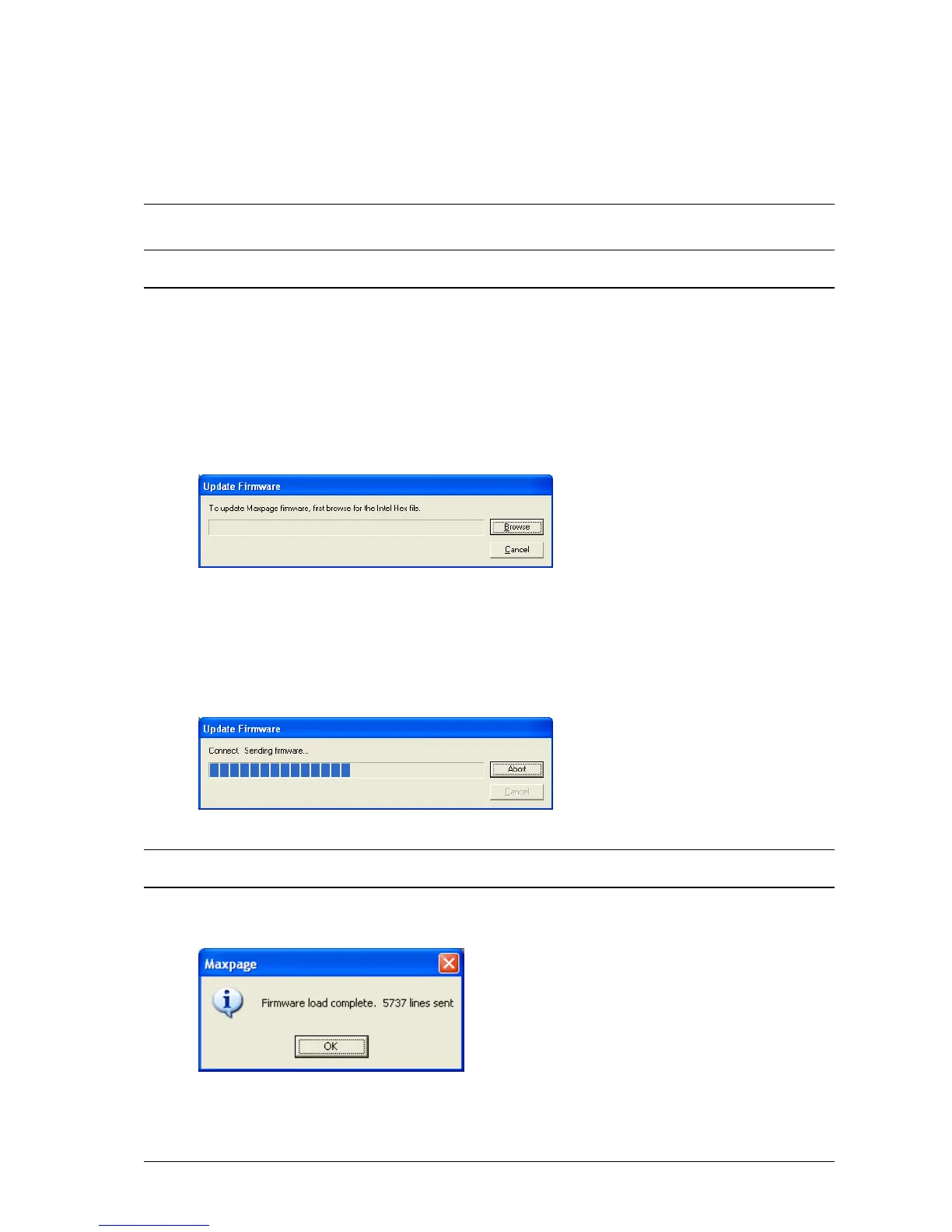
2. Choose File|Update MAXPage to send the new firmware to the MAXPage unit. The window shown below
is displayed.
3. Click the Browse button to go to the location of the new .hex firmware file.
4. Turn off the MAXPage unit. There is a switch at the back of the case to power the unit off.
5. Once the unit is turned off, click the Start button.
6. Use the switch on the back of the case to turn the power on. The firmware then automatically begins
transferring.
NOTE: The only Connection Setting that needs to match that of the MAXPage unit is the com Port field. The speed,
bits, and parity are ignored when updating the firmware.
7. The MAXPage unit restarts in Normal Mode. When the transfer is complete, ready for use.
8. Restore the database from a backup if required. Technical Specifications


 To Next Page