General Operation Installation & Configuration Guide for MAXPage
9. To return to Normal Mode, press the key three times to exit out of all menus. MAXPage then restarts
and is ready for use.
Ports
The Ports Menu screen is used to configure the transmitter, telephone interface, and RS232 interface.
1. At the Config Mode menu screen, press to select Ports. The Ports Menu screen is shown.
NOTE: The “PBX” and “RS232” menu items may not be available on all units as it is a licensed option. Contact
your place of purchase to enable these functions.
1.Transmitter
2.PBX 3.RS232
Transmitter
This menu is used to configure transmitter-specific settings such as baud rate and ignore busy.
1. At the Config Mode menu screen, press to select Transmitter. The Transmitter Menu screen displays.
The first field for editing is the Baud Rate.
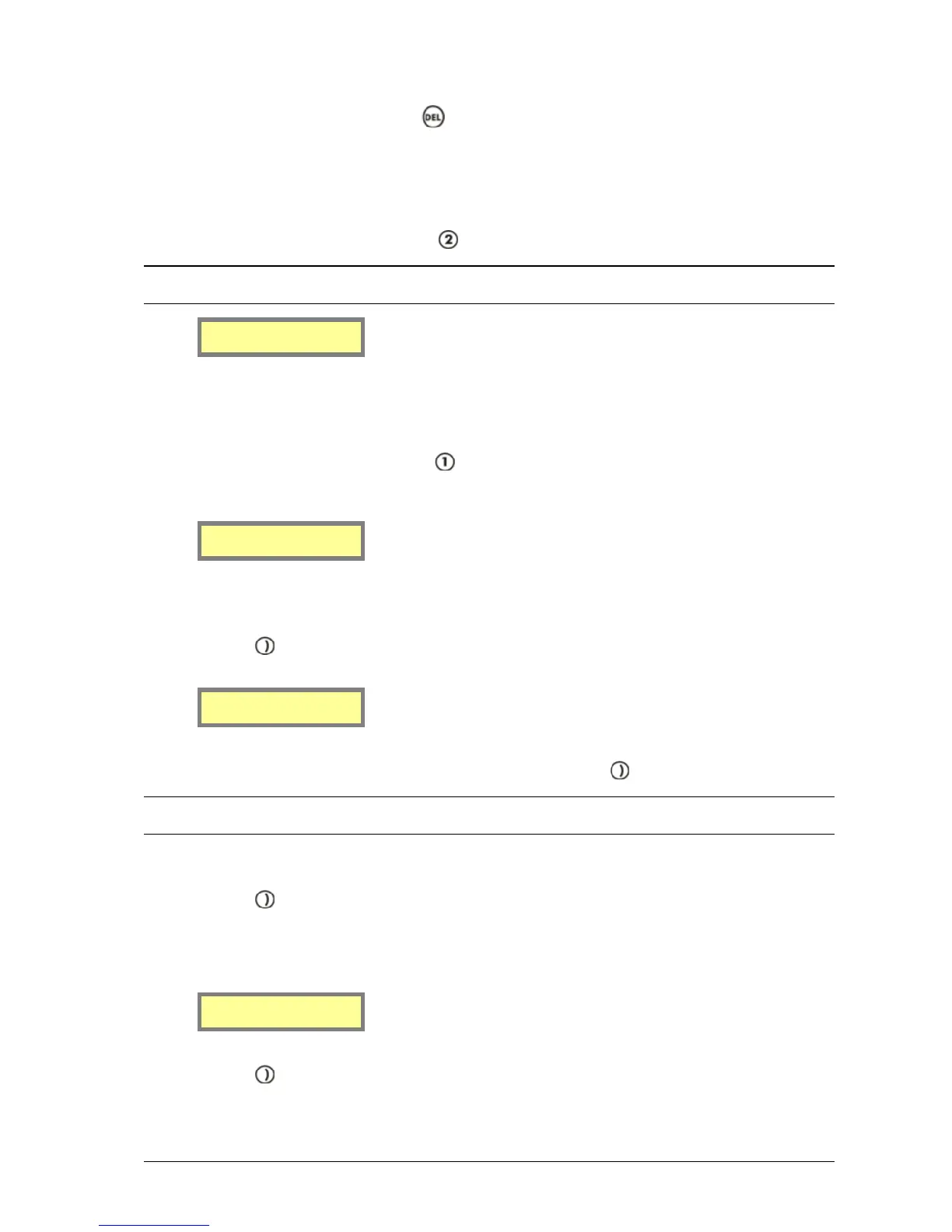
Baud rate [ 512]
Ignore Busy [Y]
2. Press any key on the keypad to toggle between 512, 1200 or 2400 bps. This must match the pagers used at
the site.
3. Press the key to move along to the next field.
Baud rate [ 512]
Ignore Busy [Y]
4. The next field is Ignore Busy. This field must be set to [Y]. Press the key to save changes when ready.
NOTE: If N is chosen, MAXPage Lite needs to have a special transmitter module internally installed, capable of
detecting “channel busy.” This is not installed by default.
5. The first field on the next screen is Invert Data. This should be left at the default setting of [N] unless the
pagers on the system are programmed to receive the POCSAG data signal inverted.
6. Press the key to move along to the next field.
7. The second field is Pocsag Tone. This field sets the default beep code sent to the receiving device.
8. Press any key on the keypad to toggle between tone A, B, C, or D.
Invert Data [N]
Pocsag Tone [A]
9. Press the key to move along to the next screen.


 To Next Page