31
9. To confirm deletion, you need to press the key again. The screen shows Member removed.
10. Press any numeric key to cancel deletion.
11. Otherwise use the key to go back to the Add field and add another pager or press the key to save
the group to the database.
12. The screen briefly displays the words “Group saved” once all fields have been correctly filled. You are then
returned to the Group Menu screen where you can choose to add or edit another group.
Group saved
13. To return to Normal Mode, press the key three times to exit out of all menus. MAXPage then restarts
and is ready for use.
Deleting a Group
1. To delete a group, press to select Delete Group from the Group Menu.
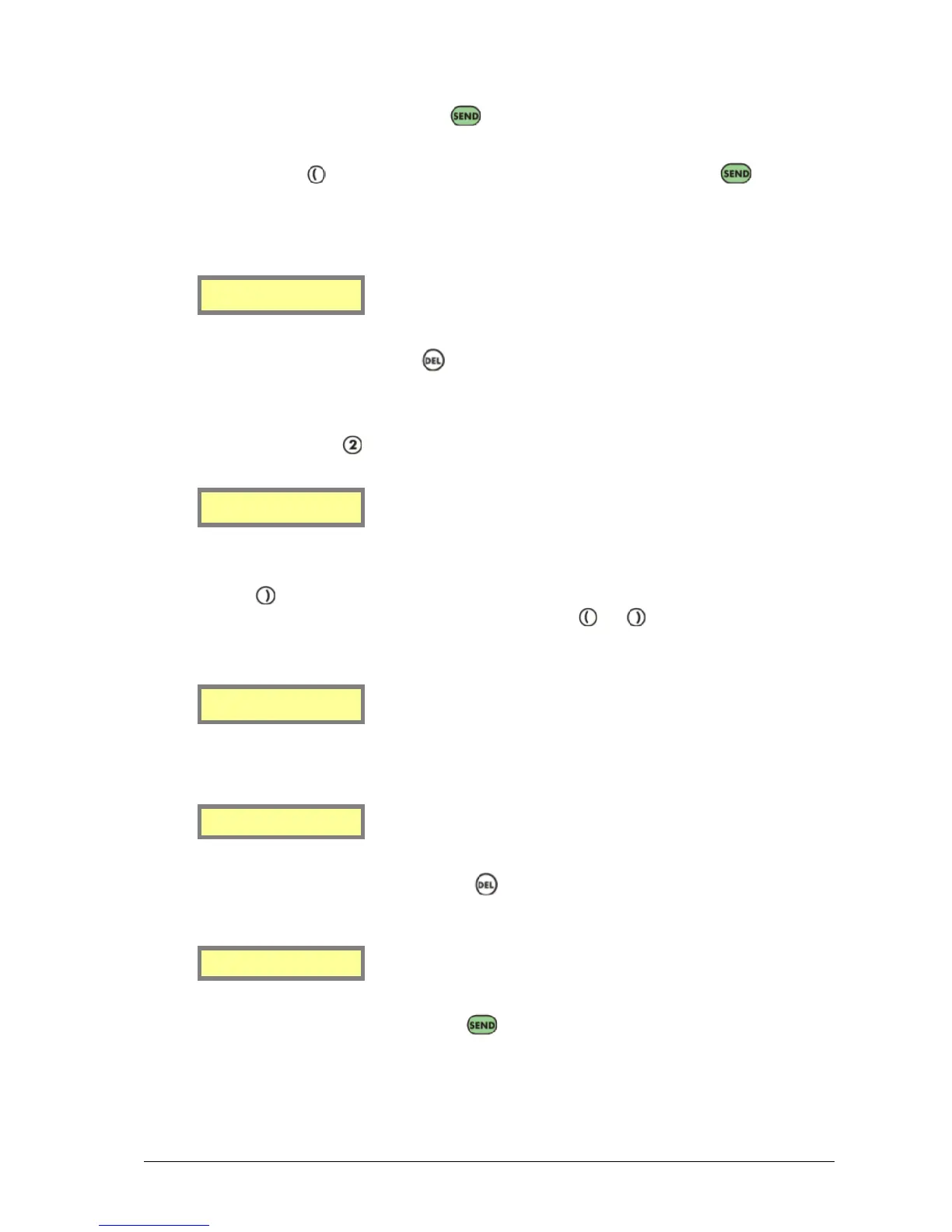
1.Add/Edit Group
2.Delete Group
2. Enter the Group ID of the group you wish to delete in the ID field.
3. Click the key. If the group exists in the database the details are displayed on the screen. You can scroll
through the stored ID’s within the group before deletion, use the and keys.
4. If the Group ID does not exist in the database, this warning message is displayed:
<ID not found>
5. If the ID is used by a pager and not a group, the following message is displayed:
ID used by pager
6. If this is the entry you wish to delete, press the key. A new screen is shown prompting to confirm
deletion of this ID as shown below:
ID[1 ] DELETE
(Send confirms)
7. If you wish to delete this Group ID, press the key again and the screen displays Group Deleted
before returning you to the Group Menu.
8. If you do not wish to delete that Group ID from the database, press a numeric key on the keypad, and you
are then returned to the Group Menu without deleting it.


 To Next Page