17
PROCESSING YOUR STL FILE FOR PRINTING
OPENING PRINT WIZARD
Create an STL file using your CAD software. Refer to your CAD software help section for more information
about converting your CAD drawings into STL files.
There are several ways of starting Print Wizard:
• From the Start Menu, select Print Wizard and then select one or more STL files from the STL
file list. Holding the Ctrl key down allows the selection of multiple parts. Use the Windows
Explorer tool bar to select the viewing options.
• From Windows Explorer, select the path where you store your STL files and then double-click a
single STL file to open.
• From Windows Explorer, select the path where you store your STL file and using the Windows
Explorer function, select several STL files. Use Ctrl left-click to select more than one STL file.
Right-click and select Print 3D to open the files.
Select Large Icons or Extra Large Icons to view thumbnail images of the parts.
SELECTING A PRINTER
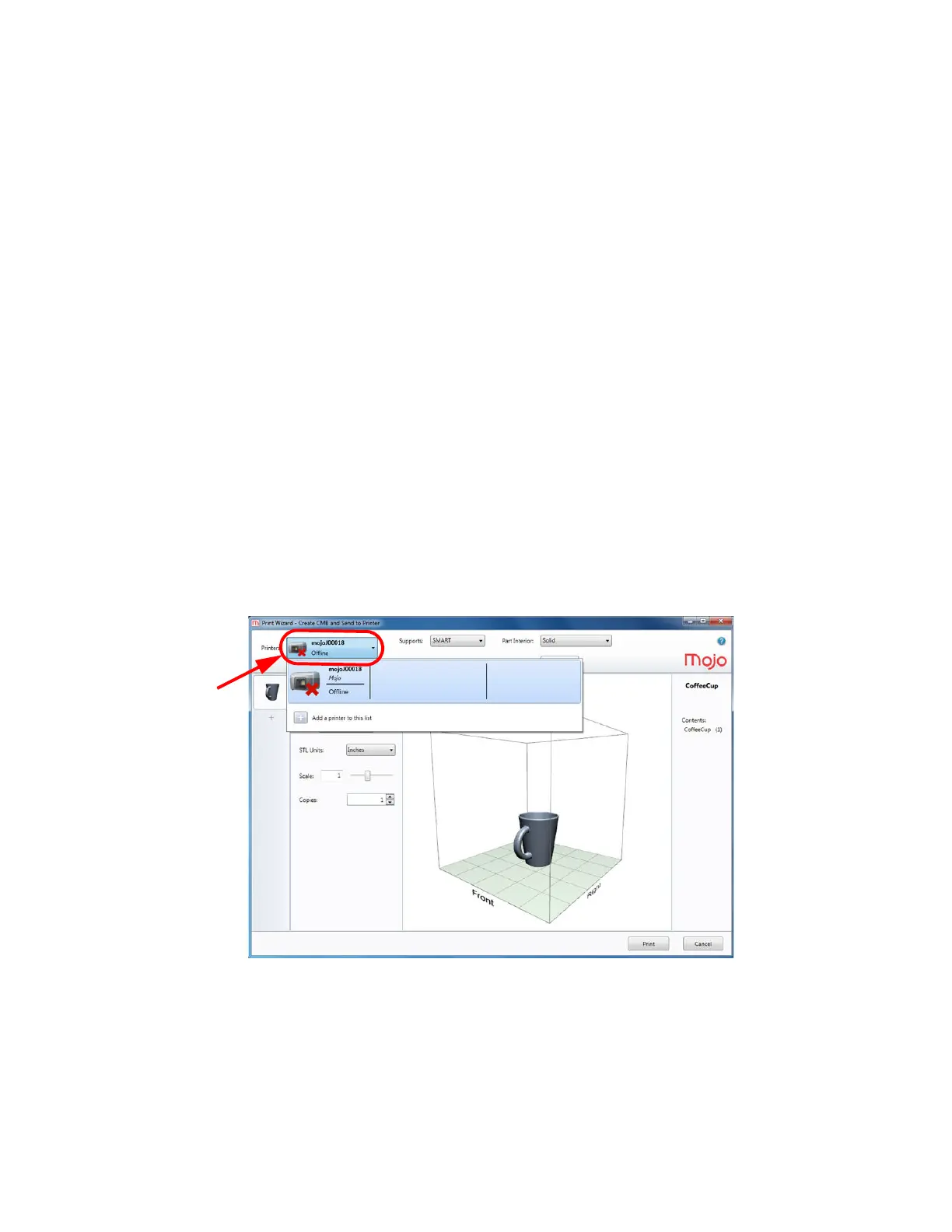
1. Click MyPrinter and the following drop-down menu will appear.
2. Select the printer to be used.
3. For adding additional printers see “Adding additional printers” on page 18.
Figure 4-16: Selecting a printer












 To Next Page