22
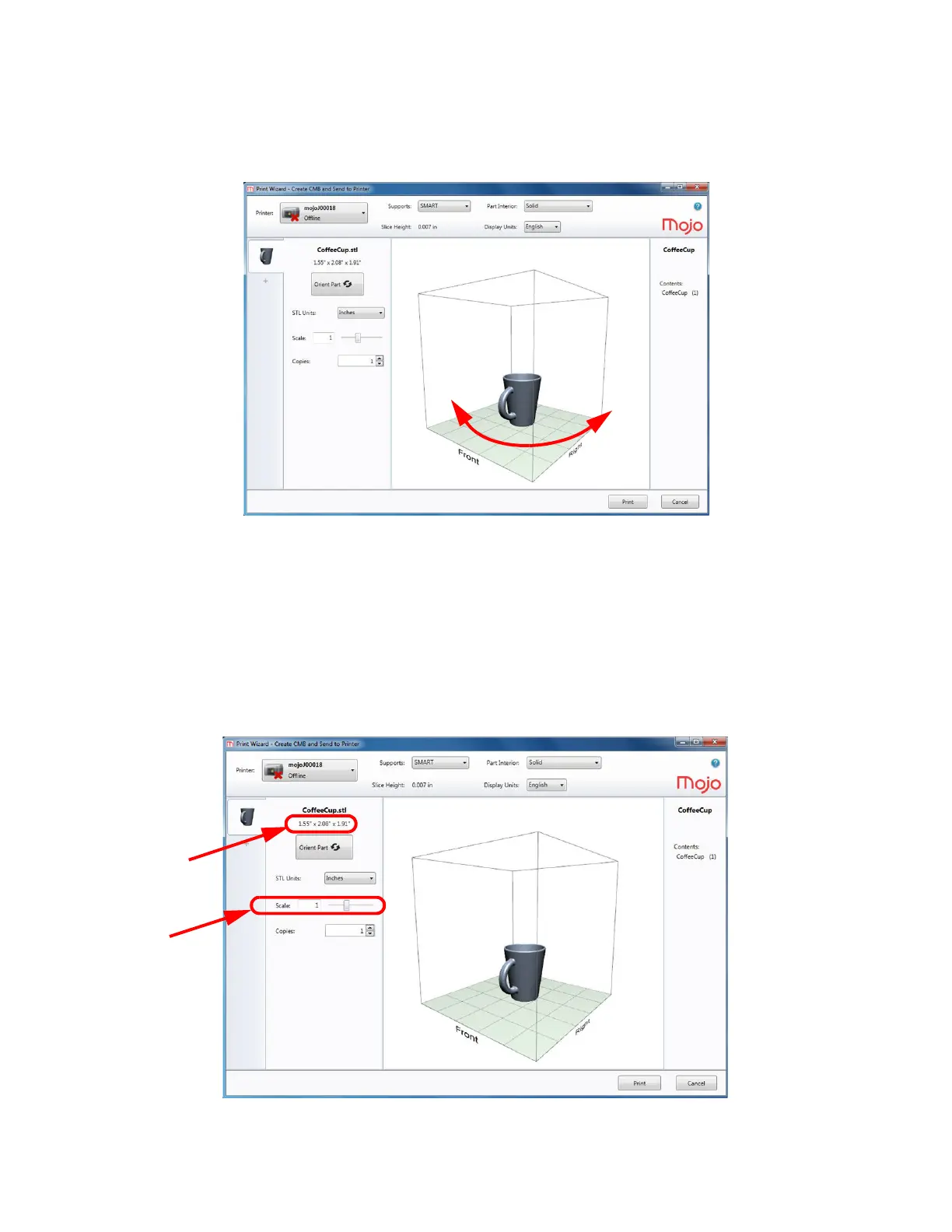
ROTATING THE PART VIEW
Left click on the part and then drag the mouse to the left or right to rotate the view within the chamber. This will
provide viewing of the front, left side, back, and right side views of the part(s) being printed.
Figure 4-23: Rotating the view
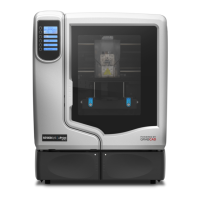
SELECTING THE SCALE OF YOUR PART
Before you process a part for printing, you can change the size of the part within the build chamber. If parts are
too large to fit in the build chamber when the STL file is first loaded, they are automatically scaled to fit the build
chamber. If the part is automatically scaled to fit the build chamber, the scale box will turn red. The part size can
be changed by entering a scale number or by using the slider control. Every part has a pre-defined size within
the STL file. After you have opened the file you can change the size of the part produced by changing the scale.
The scale always relates to the original STL size of the part as defined in the STL file.
Figure 4-24: Scaling












 To Next Page