Objet260 User Guide 5 Using Objet Studio
DOC-37004 Rev.E 5-70
Hiding the
Ribbon
Tomakemoreroomfordisplayingthebuildtray,youcanhidetheObjet
Studioribbons.
Tohidetheribbons:
1. Right-clickanywhereontheribbonoronthemenubar,orintheObjet
StudioCommandsmenu .
2. SelectMinimizetheRibbon.
Theribbonsdisappear,butyoucantemporarilydisplaytheribboniconsby
clickingTraySettingsorJobManageronthemenubar.Whenyounext
clickoutsideoftheribbon,itdisappearsagain.
Toreturnthepermanentribbondisplay:
➢ RepeatthestepsabovetocancelMinimize the Ribbon.
Display Colors
YoucancustomizesomeofthecolorsusedfordisplayingObjetStudioscreens
andfordisplayingobjectsonthebuildtray.
TochangethecolorsusedinObjetStudioscreens:
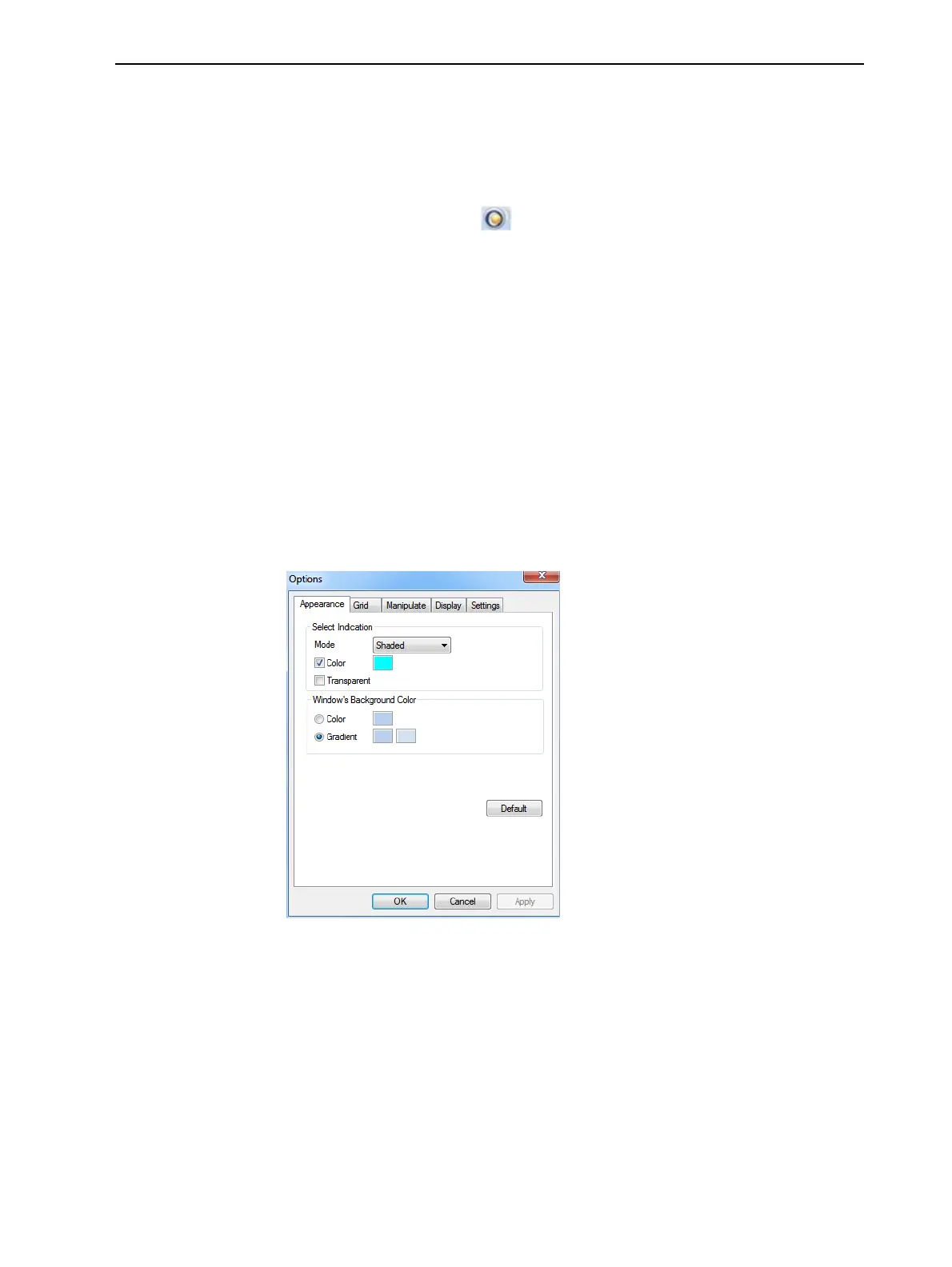
1. FromtheToolsmenu,selectOptions.
Figure5-87Displaysettings
2. IntheAppearancetaboftheOptionsdialogbox,youcanconfigurethe
display.
❒ TheModeselectiondetermineshowmodelsappearonthebuildtray.
Thedefaultmethodfordisplayingmodelsonthebuildtrayisassolid
(“shaded”)objects.TheotheroptionsareWireFrameandPoints.












 To Next Page