Objet260 User Guide 5 Using Objet Studio
DOC-37004 Rev.E 5-21
Selecting
Objects
Tomanipulateanobjectonthebuildtrayorassigncharacteristicstoit(model
material,buildingstyleetc.),youmustfirstselecttheobject.Youselectan
objectbyclickingit,eitheronthetrayorinthemodeltree.Itsimageonthe
buildtraychangescolor(tolightblue,bydefault)anditsnameishighlighted
inthemodeltree.Youcanselectmultipleobjectsbydrawingaboxaround
themwiththemousecursor,orbypressingtheCtrlorShiftkeyswhile
clickingadditionalobjects.
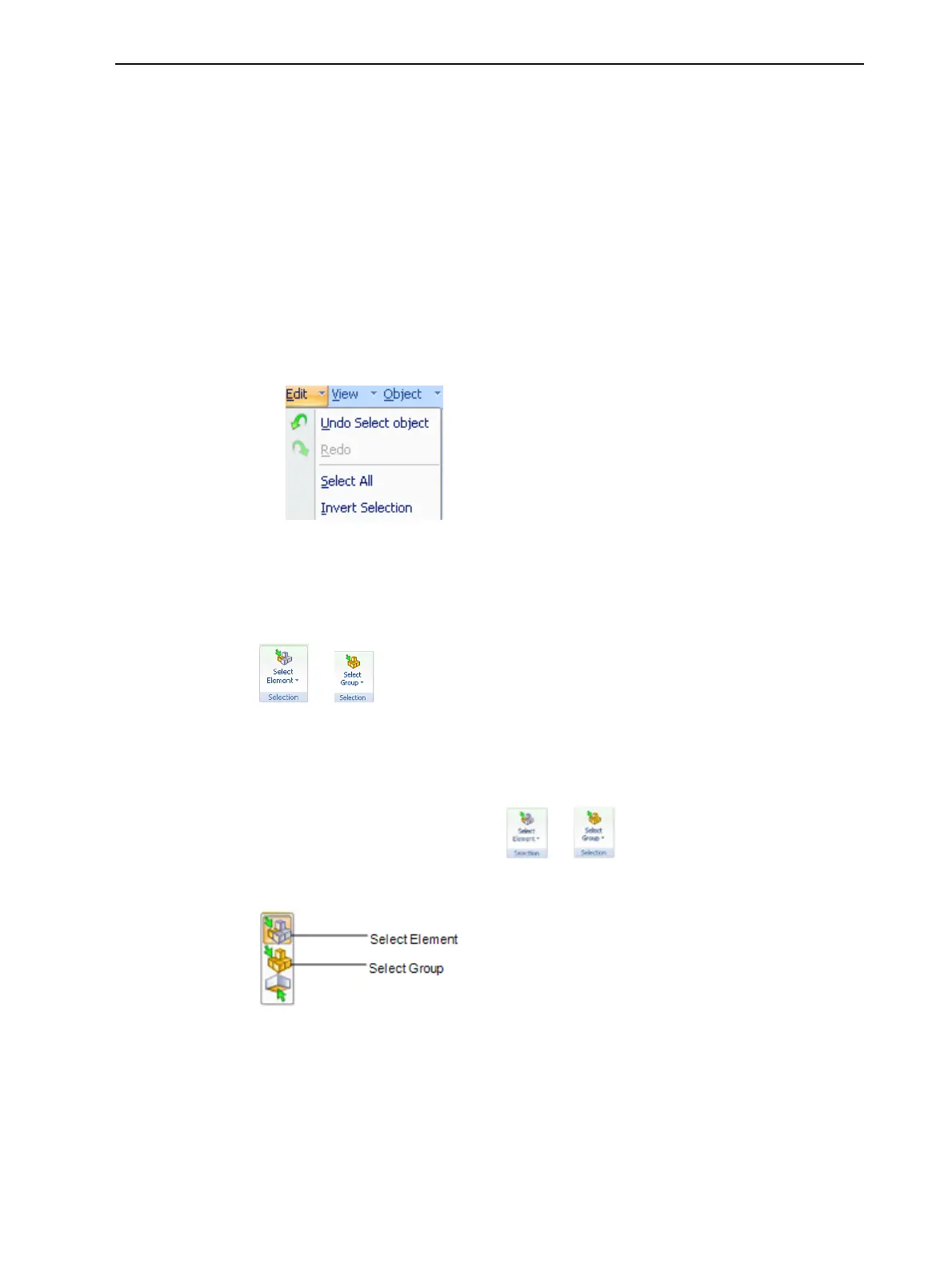
Alternatively,selectorde-selectobjectsusingthefollowingEditmenu
commands:
•SelectAll
•InvertSelection
•UndoSelectobject
Figure5-19Edit menu
Sometimes,youneedtoselectindividualelementsofanassembly.Other
times,youneedtoselecttheentireassembly.TheSelectionicondisplayedon
theribbondetermineswhatwillbeselectedwhenyouclickonthemodel:
or
Tochangetheselectionaction:
1. OntheTray Settings orModel Settingsribbon—
a. ClicktheSelectionicon: or .
b. Ontheflyouttoolbar,clicktheappropriateicon:
Figure5-20Selection flyouttoolbar
Copying and
Pasting
Objects
Ifyouneedtoduplicateobjectsonthebuildtray,youcaninsertthesame
objectfromitsfilemorethanonce.Aneasierway,however,istocopyand
pastetheobject.Youcancopyobjectsfromthebuildtrayorthemodeltree—
individualormultiplepartsorassemblies.Theobjectscopiedremaininthe
Windowsclipboarduntilyoupastethemontothebuildtray.












 To Next Page