25
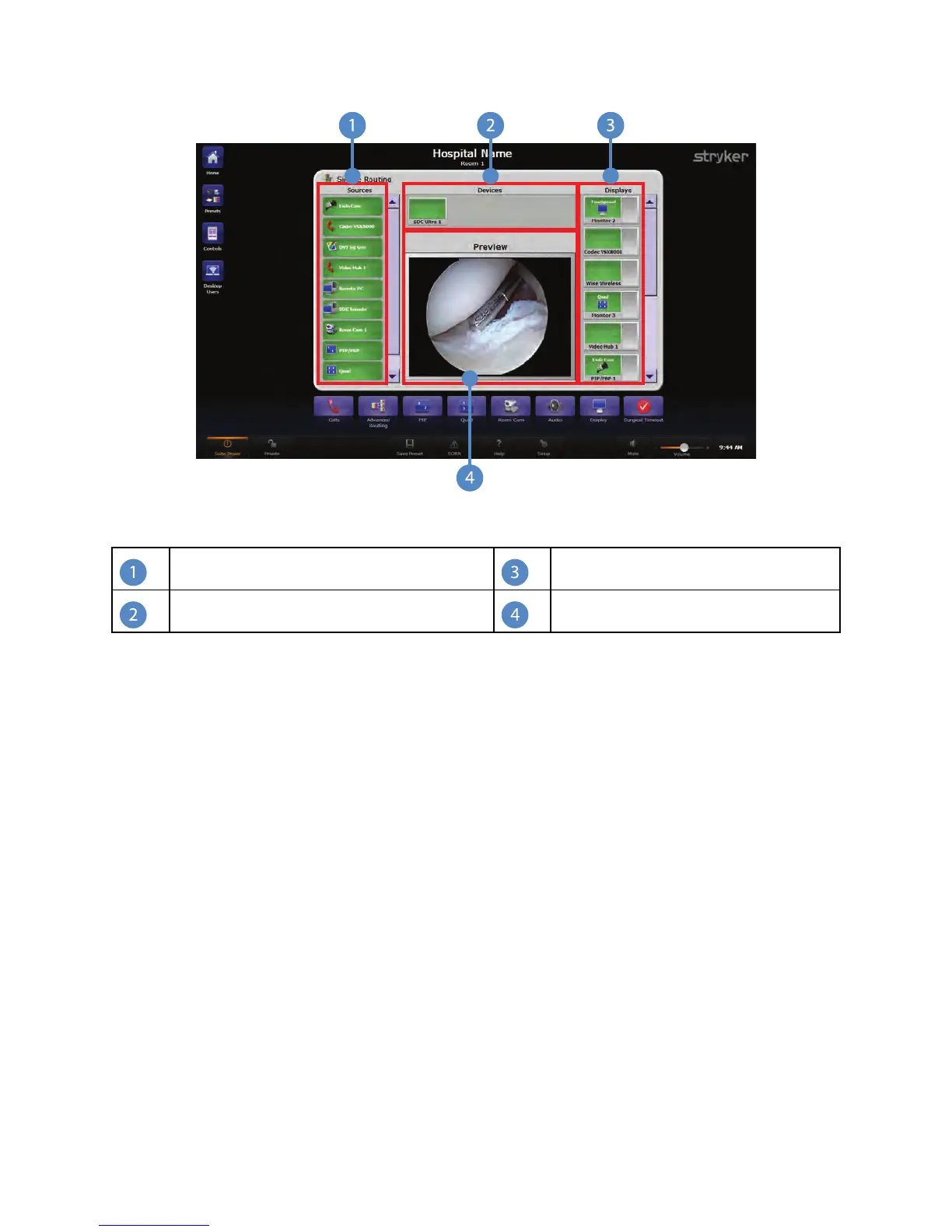
FFiigguurree 77.. SSiimmppllee RRoouuttiinngg MMaaiinn SSccrreeeenn
Sources
Displays
Devices Preview
NNoottee:: TThhee ttoouucchh ppaanneell iiss nnoott lliisstteedd aass aa ssoouurrccee iinn SSiimmppllee RRoouuttiinngg ffoorr AAllll--IInn--OOnnee
ssyysstteemmss..
7.1.1 Viewing a Source on a Display
To view a source on a display, perform the following steps:
1. Select a source (Item 1), such as the Endo Cam, from the Sources area located on
the left side of the screen. The button will turn orange, indicating it has been
selected.
2. Select a display (Item 3), such as Monitor 2, from the Displays area located on the
right side of the screen. The button will turn orange for a few seconds, indicating it
has been selected, and the route has been completed. The icon for the video source
being routed to the display will appear on the display button.


 To Next Page