32
8.1.3 Swap Images
The SSwwaapp IImmaaggeess button swaps the position of the images on the screen. Pressing this
button cycles the image in position 1 to position 2 and vice versa.
Select Destinations
The “Select Destination” drop down menu allows the user to select where to route the
PIP/PBP image. A preview of the display will appear in the box in the upper right hand
corner of the screen.
8.1.4 PIP Small / PIP Large
The two buttons located in the Inset Size box is used to choose between displaying the
PIP as a large or small image. The large inset will fill up approximately 1/4 of the screen,
and the small inset will fill up approximately 1/9 of the screen.
This option only applies to the PIP feature.
8.2 Quad View
NNoottee:: QQUUAADD vviieeww iiss nnoott aavvaaiillaabbllee ffoorr SSPPII33--LLiittee..
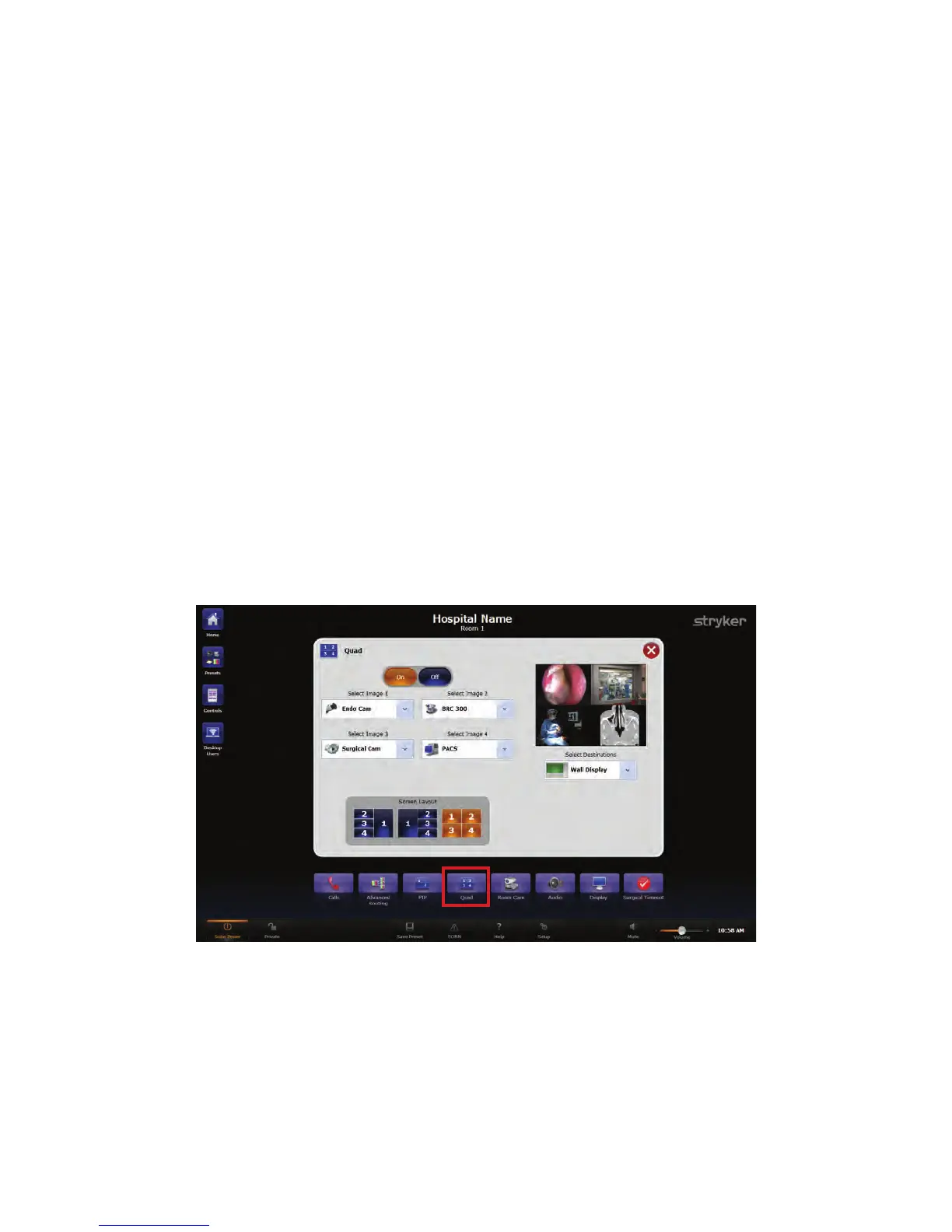
The Quad View Generator enables the ability to simultaneously view four images on one
monitor. Using this option three images can be displayed down one side of the monitor
with one larger image on the opposite side, or view all four images in equal.
FFiigguurree 1133.. QQuuaadd VViieeww SSccrreeeenn
The OOnn and OOffff buttons at the top of the Quad screen are used to turn the option on or
off.


 To Next Page