26
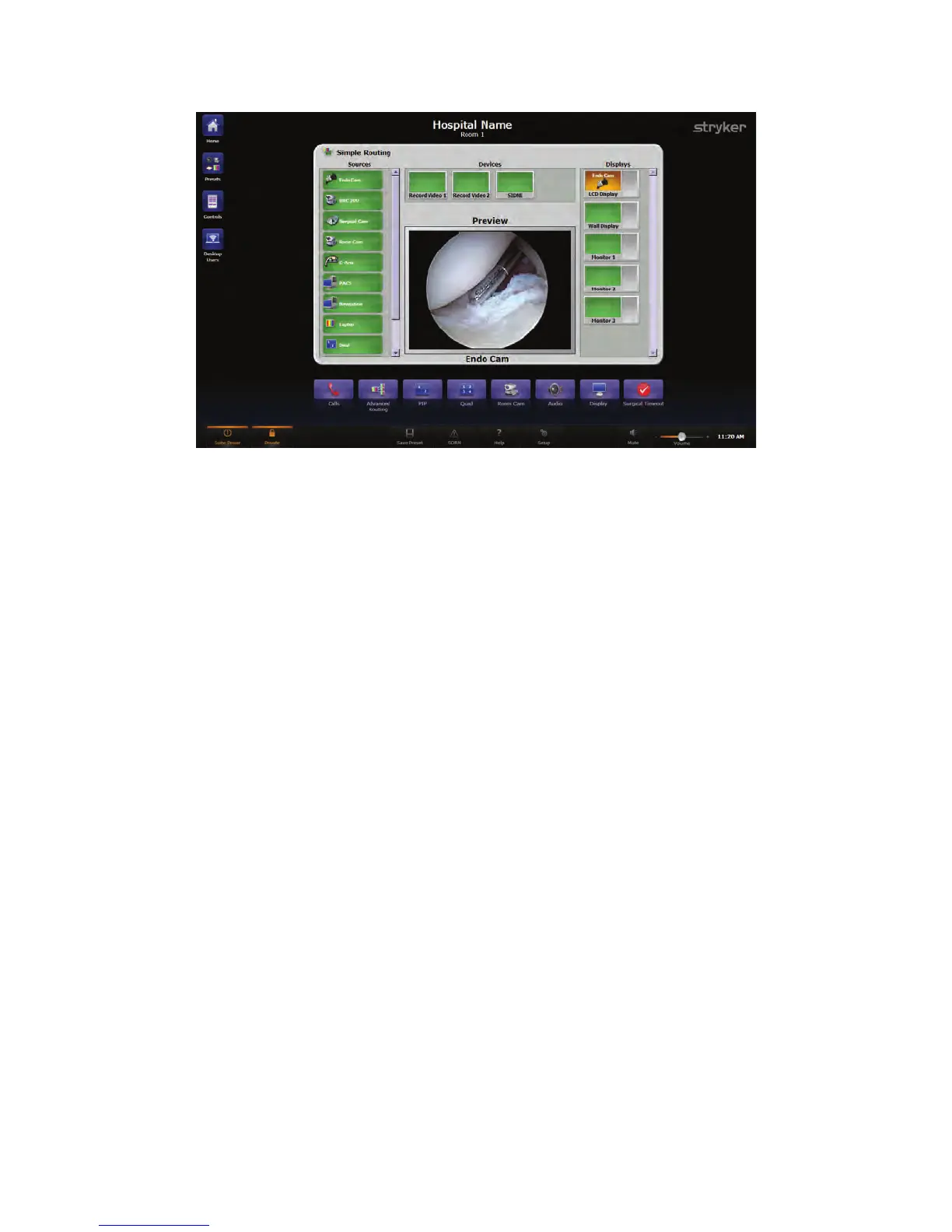
FFiigguurree 88.. VViieewwiinngg aa SSoouurrccee oonn aa DDiissppllaayy
RRoouuttiinngg TTwwoo SSuuiitteeSSttrreeaammss
If two SuiteStreams are configured, these can be used to route two independent
channels of video during a Room Call. The two SuiteStream devices will appear in both
the Sources and Displays menu. To route a local video source to the far side of the Room
Call, local video sources are routed to these SuiteStream displays in the same way as
when routing to other displays. To route a video source from the far side of the Room
Call, these SuiteStream sources are routed to local displays in the same way as when
routing from other sources.
NNoottee:: AA SSuuiitteeVViieeww DDeesskkttoopp vviieewweerr wwiillll oonnllyy bbee aabbllee ttoo vviieeww aa vviiddeeoo ssoouurrccee tthhaatt hhaass
bbeeeenn rroouutteedd ttoo tthhee ffiirrsstt SSuuiitteeSSttrreeaamm..
7.1.2 Viewing and Recording a Source on a Display
To select a source to view and record on a display, perform the following steps:
1. Select a source, such as the Endo Cam, from the Video Sources area located on the
left side of the screen.
2. Select a recording device through which to route the source, such as the SDC, from
the Devices area at the top of the screen. The icon for the video source being routed
through the device will be displayed on the device button.
3. Select a display, such as Monitor 2, from the Displays area located on the right side
of the screen. The icon for the video source being routed through the display will
appear on the display button.
4. The route has been completed.


 To Next Page