42
10.5 Active Call
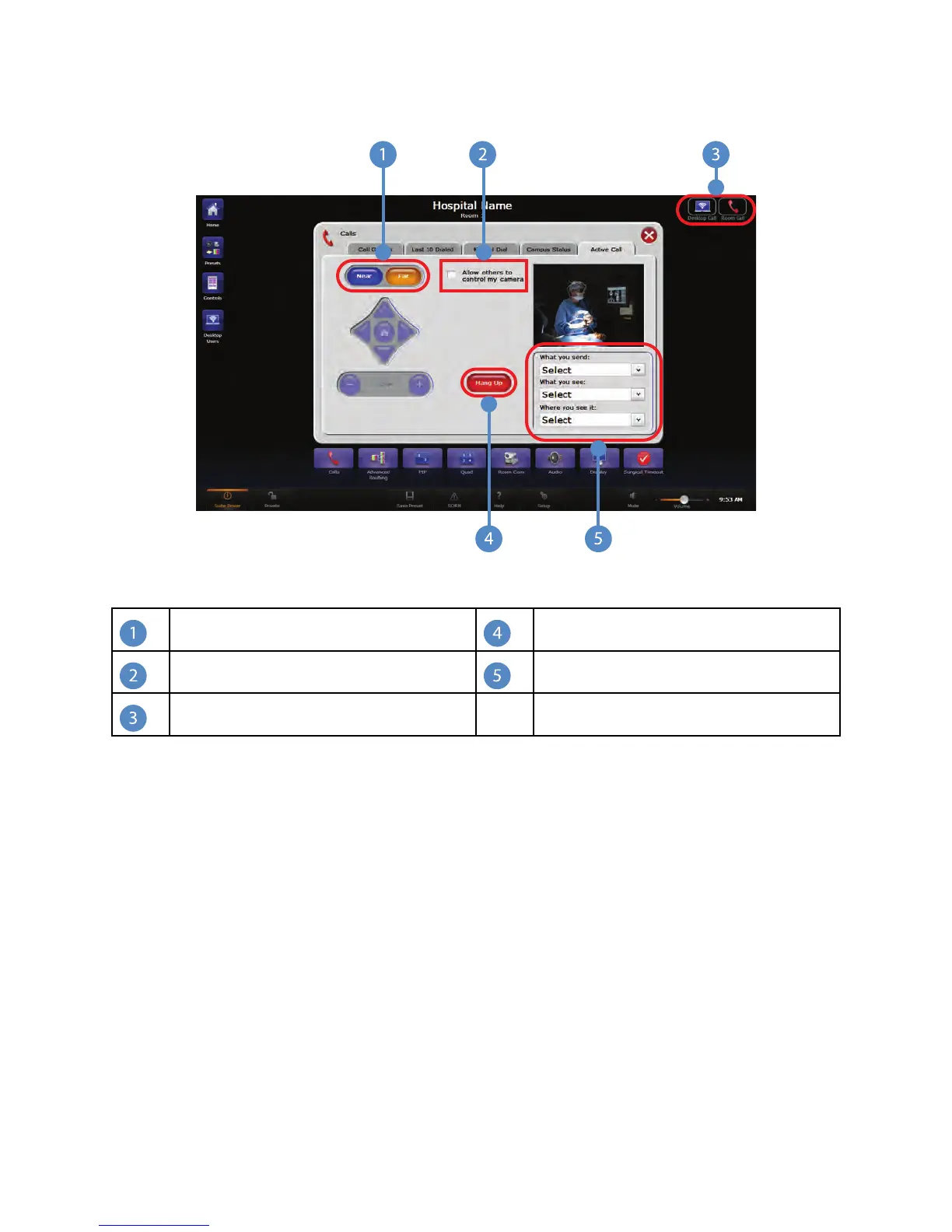
FFiigguurree 2233.. AAccttiivvee CCaallll SSccrreeeenn
Near and Far Buttons Hang Up Button
Camera Control Image Selection Drop Down Menus
Call Status Bubble
The Active Call page is displayed automatically after a call is connected. The Call Status
bubble will indicate whether the room is in a call, either with a Desktop User or with a
room. If the room is not in a call with either a Desktop User or another room, no bubble
will appear.
The NNeeaarr and FFaarr buttons on the Active Call screen are used to select which camera to
control during a call. The camera controls work in the same manner as the Room
Camera controls on the Room Camera interface.
The “What you send” and “Where you see it” drop down menus are convenient ways to
route video to and from the remote connection. The “What you send” option on the Active
Call screen displays a preview of the image being sent to the remote room’s local
display. When the far video is selected, the video preview pane will display the remote
image.
The “What you send” drop down menu contains a list of all configured sources and
devices for routing to the remote connection.
The “What you see” drop down menu lists all video sources from the remote room.


 To Next Page