39
10.2 Campus Status
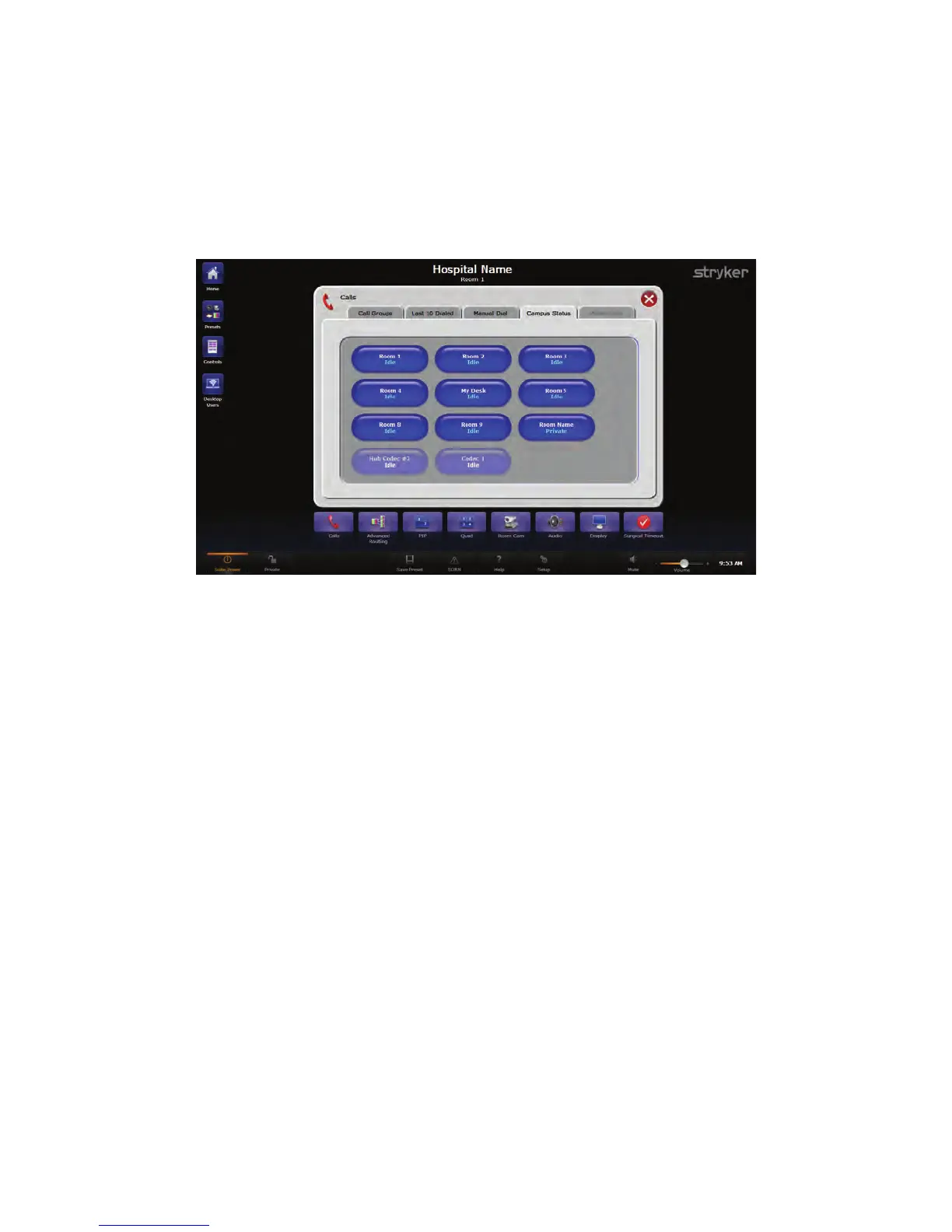
The Campus Status screen allows you to view the status of all registered Stryker
endpoints, and provides the ability to call any available endpoint using one-touch dialing.
Available endpoints are shown as “Idle.” Endpoints that are set to Private status are
shown as “Private.” Endpoints that are not currently connected or are powered off appear
grayed-out with an “Offline” status message.
FFiigguurree 1199.. CCaammppuuss SSttaattuuss SSccrreeeenn
To access the Campus Status screen, press the CCaallllss button on the Quick Button Bar
and press the Campus Status sub tab.
Selecting any room from the Campus Status interface will automatically initiate a call with
that room. If the call is successful, you will be taken to the Active Call screen.
NNoottee:: AAcccceessssiinngg tthhee ooffffssiittee CCooddeecc iiss nnoott aavvaaiillaabbllee ffrroomm tthhee ““CCaammppuuss SSttaattuuss””
iinntteerrffaaccee..
10.3 Campus Codec Call
NNoottee:: TThhiiss sseeccttiioonn iiss oonnllyy aapppplliiccaabbllee ttoo ssyysstteemmss wwiitthh SSuuiitteeLLiinnkk aanndd SSuuiitteeVViieeww..
Campus Codec calls allow video to be streamed and made accessible to other
authorized SuiteView users. Campus Codec calls must be initiated from the SPI3 or
SPI3-Lite user interface.
If the default connection speed (medium) is acceptable, it is preferable to use the
Campus Status option (see below) for video conferencing to other Stryker endpoints.
Campus Status allows you to view the current status of all registered endpoints and
make calls with one-touch dialing.
For a SuiteLink setup, the Manual Dial tab allows the ability to override the default
connection speed for Campus Codec calls only.
To make a Campus Codec Call:


 To Next Page