30
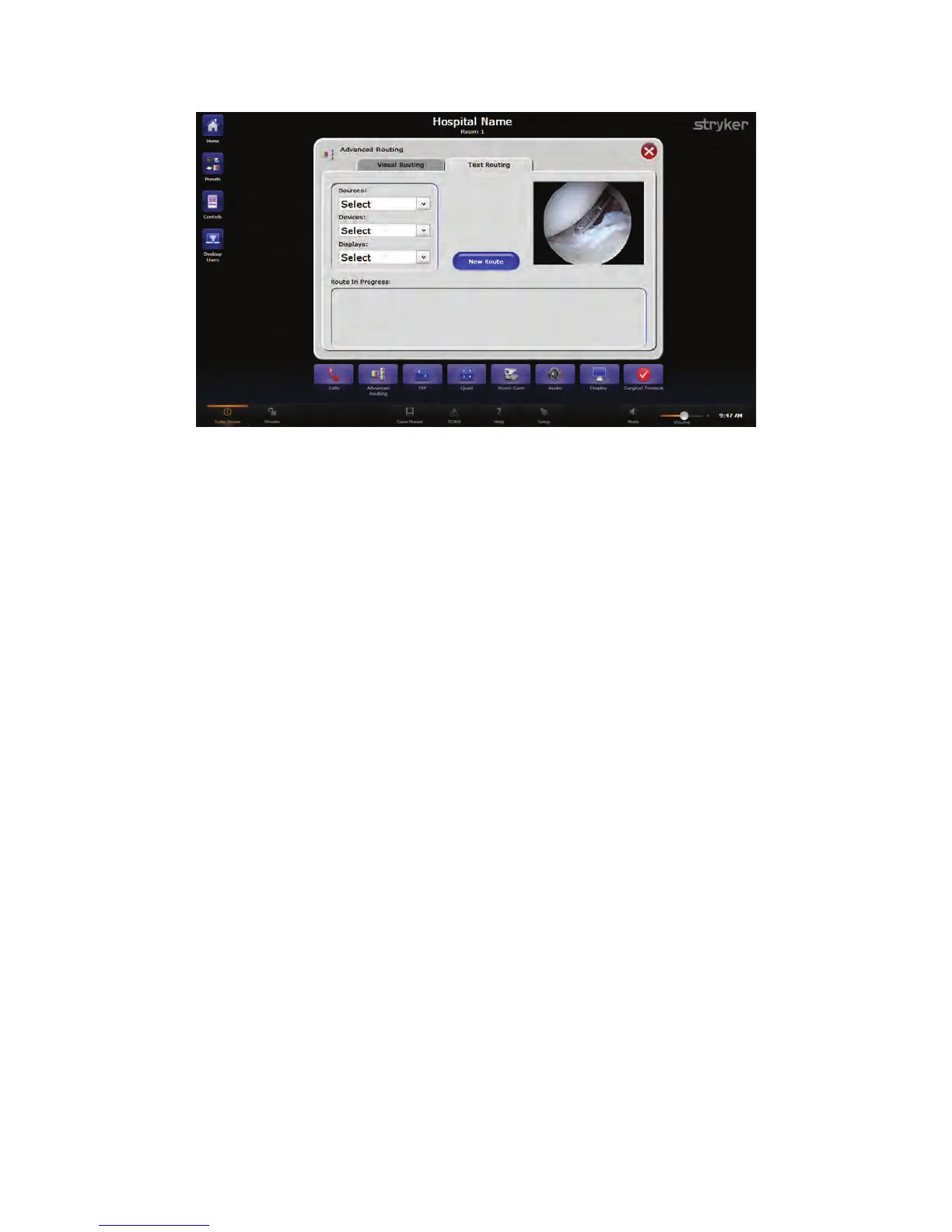
FFiigguurree 1111.. TTeexxtt RRoouuttiinngg
To begin a new route using the Text Routing option, perform the following steps:
1. Select a source corresponding to the video input you want to record or view from the
“Sources” drop down menu. A white button-like box listing the name of the source
that you selected will appear in the Route in Progress area at the bottom of the
window. The current video image from the selected source will be displayed in the
video preview pane located at the top right corner of the Text Routing window.
2. If desired, select a device to record to or redirect the video image using the “Devices”
drop down menu. The video source will be routed to the selected device, and the
output of that device will be available to route to another device or display.
3. Select a display to view the source or device from the “Displays” drop down menu.
The output from the source will immediately be visible on that display. You can
continue to choose other displays to route the video image to, or select another
source or device and begin the process all over again.
7.3.2 Creating a New Text Route
To create a new text route, press the NNeeww RRoouuttee button located in the middle of the Text
Routing tab on the Advanced Routing page. The current route will be cleared, and the
screen will be ready for the new route.
7.3.3 Saving a Text Route as a Preset
To save a current route as a preset, press the SSaavvee PPrreesseett button located in the Global
Taskbar.


 To Next Page