50
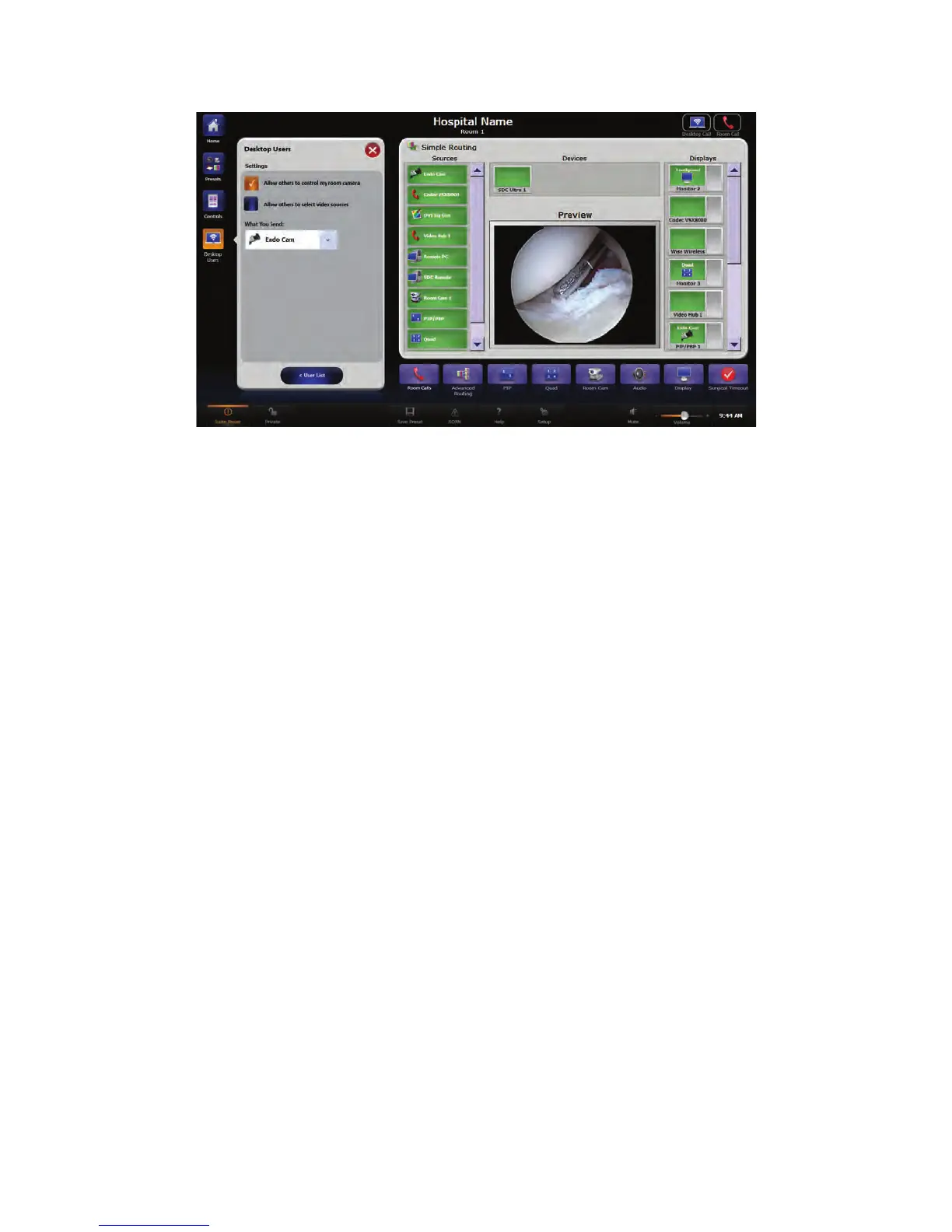
FFiigguurree 3300.. VViieeww SSeettttiinnggss MMeennuu
To allow users to control the camera, click in the respective box. An orange, checked box
indicates this setting is active.
To allow users to users to control the video sources they view, click in the respective box.
An orange, checked box indicates this setting is active.
To choose the video source to route to users, select it from the “What you Send” drop
down menu.
To return to the main Desktop Users menu, click the BBaacckk ttoo UUsseerrss button.
10.13Advanced Call Types
NNoottee:: TThhiiss sseeccttiioonn iiss oonnllyy aapppplliiccaabbllee ttoo ssyysstteemmss wwiitthh aa VViiddeeoo NNeettwwoorrkk HHuubb..
Broadcast and View call types allow a single direction video and audio call. The
broadcasting endpoint initiates a broadcast call and can select multiple endpoints to
broadcast to. Endpoints can also choose to participate in a broadcast call already in
progress by using the View call feature. Every endpoint connected to the Stryker hub can
view a Broadcast call.
10.13.1Broadcast
A Broadcast call is initiated from the Manual Dial interface or can be stored as a preset
and initiated from the Call Groups interface. To create a Broadcast call do the following:
1. Navigate to the Manual Dial interface and select Room Call from the “Connection
Type” drop down menu.
2. Select Broadcast from the “Connection Method” drop down menu.
3. Select an endpoint from the “Room Name” drop down menu.
4. Press the green CCaallll button to initiate the call.


 To Next Page