38
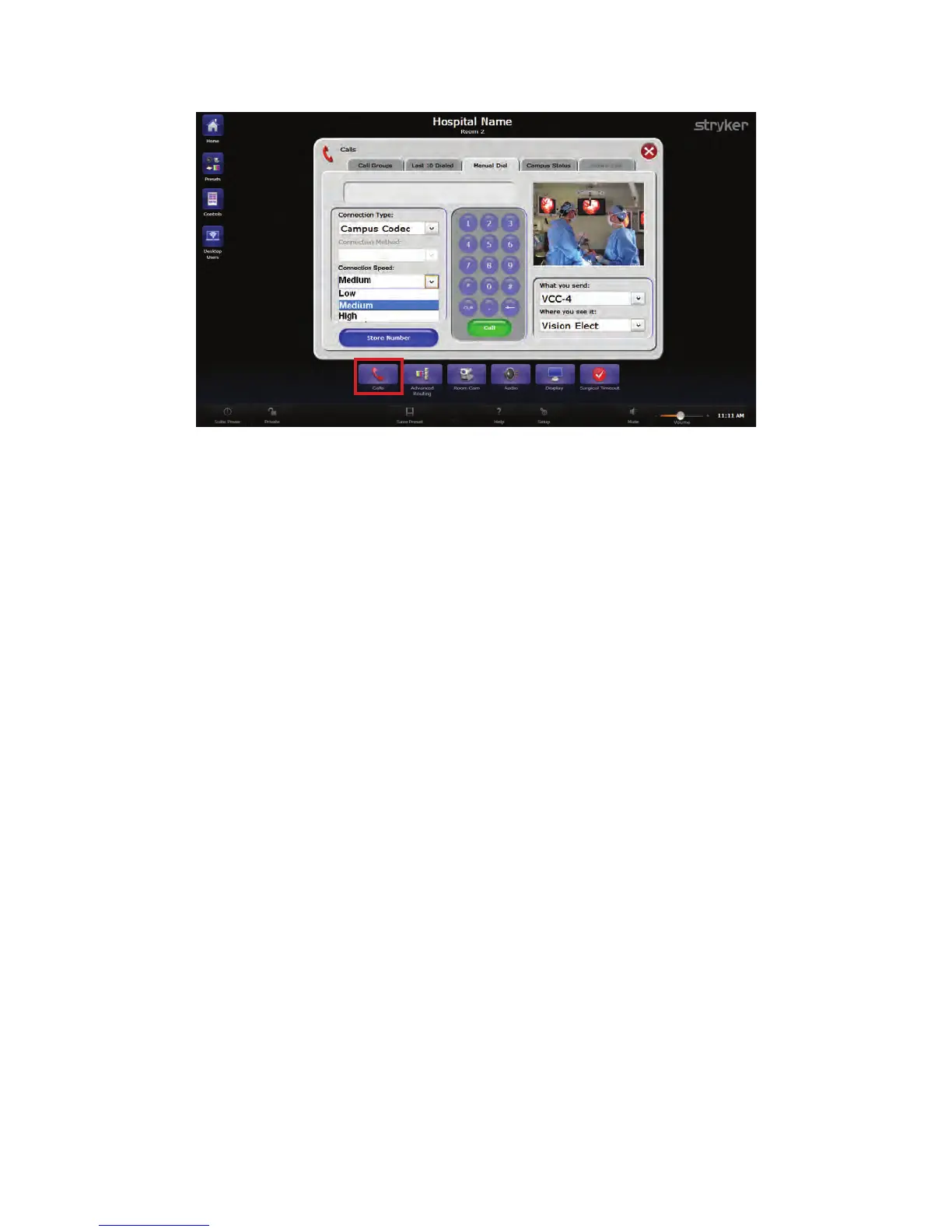
FFiigguurree 1188.. CCaallllss SSccrreeeenn
Before making a video call to another Stryker endpoint, prepare an image to send out of
the room. This is the image you initially want the far end to see. This image could be a
Room Camera view of the presenter or a wide view of the Operating Room. One video
source can be routed out of the iSuite OR and one video signal can be simultaneously
received from a remote room, via the SuiteLink and the Campus Codec or Video Network
Hub.
The “What you send” and “Where you see it” drop down menus are a convenient way to
route video to and from SuiteLink or to and from the Campus Codec when making a call.
The “What you send” drop down menu contains a list of all configured sources and
devices capable of being routed out of the room. When a source or device is selected
from the “What you send” list, it is previewed in the video preview frame above the drop
down menus. The “Where you see it” drop down menu lists all devices or displays on
which incoming video can be displayed.
When in an active call, the “What you see” drop down menu will be available, and will list
all of the available incoming video endpoints.
10.1 Manual Dial Tab
The Manual Dial tab allows you to make up to four different types of calls, depending on
your system setup, such as Room-to-Room, local Codec, Hub Codec, and Campus
Codec.
For a SuiteLink setup, the Manual Dial tab allows you to initiate a Campus Codec call or
a SuiteLink Hub Codec call if an offsite package is configured.
To access the Manual Dial tab, press the CCaallllss button on the Quick Button Bar and then
press the Manual Dial tab on the Calls screen.


 To Next Page