57
12
Control Panel
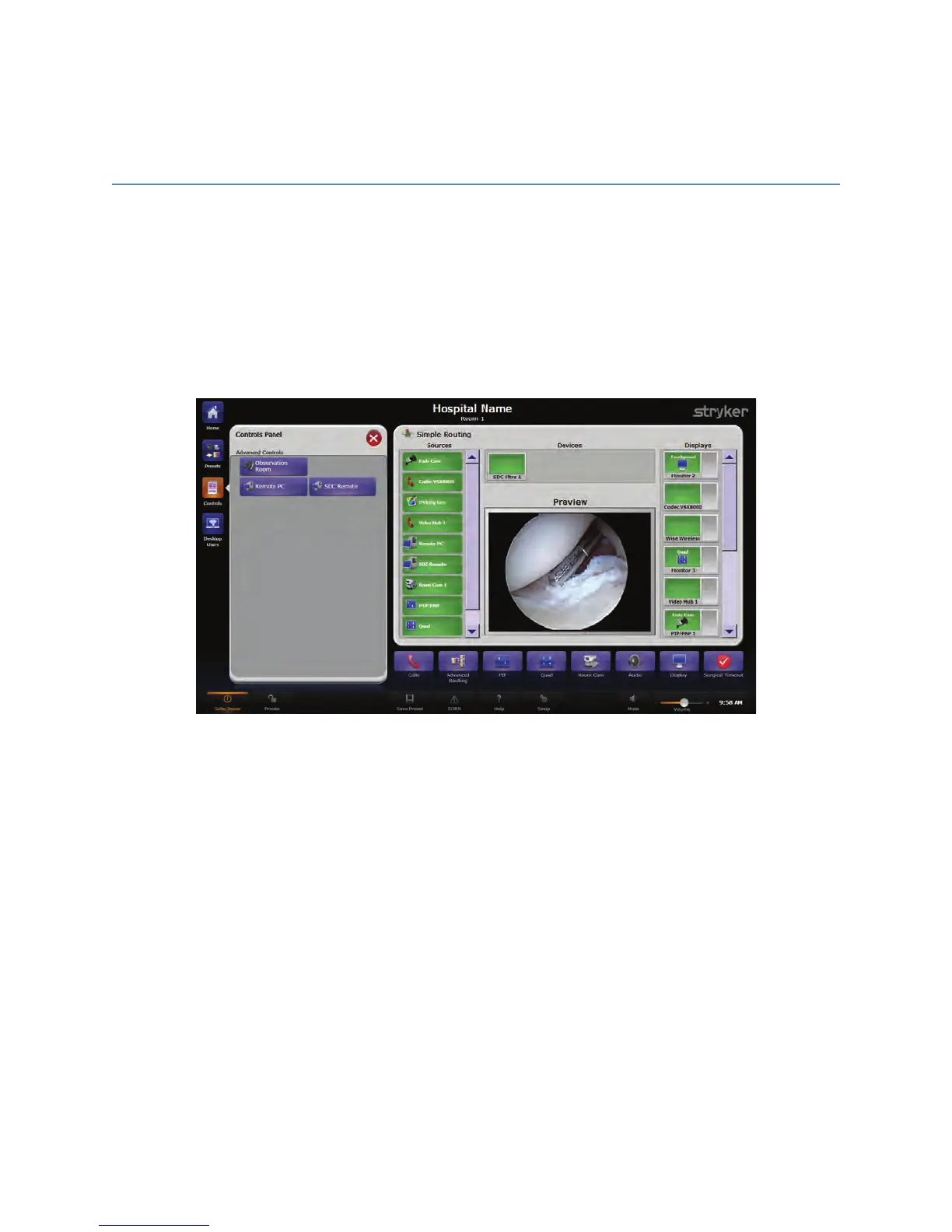
The Control Panel displays all PC Controls, Device Controls, and Advanced Controls
devices that are connected to the SwitchPoint Infinity 3 Control System. For example, the
AAddvvaanncceedd RRoouuttiinngg button controls all of the routing functions within the room while the
RRoooomm CCaammeerraa button sets up and operates the pan/tilt/zoom cameras located within the
room. To access the main Control Panel screen, press the CCoonnttrroollss button on the Quick
Button Bar.
FFiigguurree 3377.. CCoonnttrrooll PPaanneell
The Device Controls section shows buttons for surgical devices such as the Endoscopic
Camera, Insufflator, Light Source, Shaver, and Arthroscopy Pump that are controlled by
the optional SDC3 or Sidne Voice Activation System Voice Package. This section will not
display any device buttons if your system is not equipped or configured with an SDC3 or
Sidne. If there is an SDC3 or Sidne configured but it is turned off or the network is down,
the text “Sidne Not Connected” will be displayed in the Device Controls section. If there is
an SDC3 or Sidne configured and it is turned on but is not communicating with the
SwitchPoint Infinity 3 software, the surgical devices will not be able to be controlled
through the Touch Panel, but can still be controlled via the SDC3 or Sidne voice control,
if available.
The Advanced Controls section features buttons for Advanced Routing, Audio Levels,
Display, PIP/PBP, Quad View, Room Camera, and the Surgical Timeout functions.


 To Next Page