10 • Questions? Call or Text +1-801-658-0015
SUNSTONE CDDP-A USERS GUIDE
Chapter 3: User Interface Overview
This chapter will provide a brief overview of the dierent screens, parameters, and elements found on the
touchscreen interface of the welder.
NAVIGATION BAR
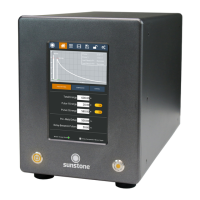
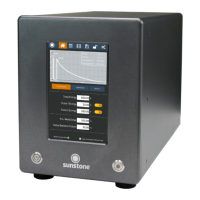
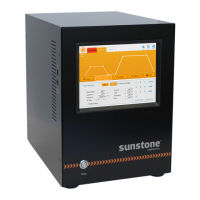
The Navigation Bar (A), as shown in Figure 11.1, runs across the top of the screen and allows operators to switch
between the following screens: Home, Communications, Media, Save/Load, Lock, Settings
HOME SCREEN
The Home Screen, as shown in Figure 11.1, includes all aspects relating to the weld energy, waveform, and tim-
ing delays. See Chapter 4 for specic details about elements of the Home Screen.
Waveform. The Waveform (B) display shows a graphical representation of the weld settings and parameters.
Pulse Settings Tab. When you click on the Pulse Settings tab, three additional energy settings tab will appear
below: Total Energy, Pulse 1 Energy, and Pulse 2 Energy. Pre-weld Delay and Delay Between Pulses settings will
also appear.
Comparator Tab. The Comparator tab allows operators to set acceptable values for Peak Voltage, Peak Cur-
rent, and Peak Power for each weld.
Control Tab. The Control tab allows operators to make changes to the weld head conguration and timing
options, as well as roll spot parameters.
COMMUNICATIONS
The Communications Screen, as shown in Figure 11.2, provides PLC controls for automation, settings for
Alarms, and features for Importing/Exporting pre-set welds. See Chapter 5 for specic details about elements
of the Communications Screen.
PLC. A Sunstone CDDP-A PLC’s capabilities were designed to be used with a Probotix or Janome robotic table.
Use this screen to enter the necessary instructions to control the table. See Chapter 5 for PLC instructions.


 To Next Page