28 • Questions? Call or Text +1-801-658-0015
SUNSTONE CDDP-A USERS GUIDE
Chapter 7: How to Save and Load Weld Schedules
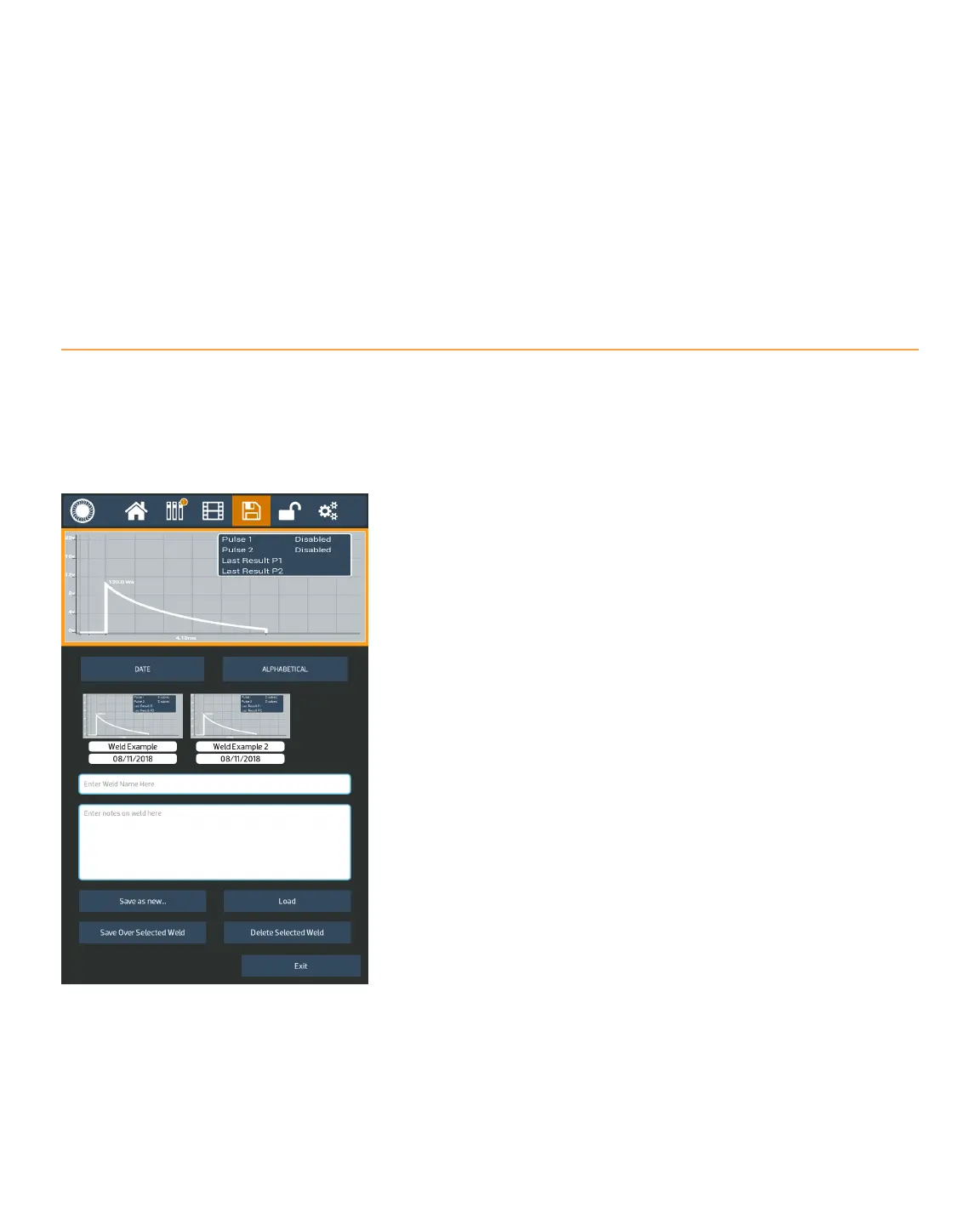
The Save/Load screen allows operators to save and load weld schedules. A weld schedule is the collection of all
settings for a particular weld, such as energy levels, delays, number of pulses, etc. Being able to save a sched-
ule saves you the time of having to re-enter preferred settings for a particular weld. The save and load options
are displayed on the same screen at the same time. See Figure 28.1
The top portion of the screen displays the waveform of the
current settings as programmed on the Home Screen, or the
selected settings of the previously saved weld schedule, if the
operator has tapped on a previously saved schedule. The previ-
ously saved schedules will be displayed along the very center
of the screen and can be scrolled through by swiping left or
right.
Operators can choose to list the saved schedules by date or by
alphabetical order by selecting one of the two buttons below
the waveform image and above the saved schedules.
To save a new schedule, type the desired name in the “Enter
Weld Name Here” box. Any custom notes can be typed into the
“Enter notes on weld here” box. Next, choose “Save as new…”.
The schedule will now be added and displayed in the list of
saved schedules.
To save over an existing weld, tap on the previously saved
schedule, edit the name and or notes, and then tap the “Save
Over Selected Weld” button. A message will popup on the
screen asking for conrmation before allowing the weld to be
edited and saved.
To load an existing weld schedule, tap on a previously saved
schedule and then tap the “Load” button.
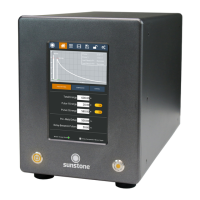
Figure 28.1. With the Sunstone CDDP-A you can
save a particular weld schedule and retrieve it at
any time.


 To Next Page