30 • Questions? Call or Text +1-801-658-0015
SUNSTONE CDDP-A USERS GUIDE
Chapter 8: Lock Screen
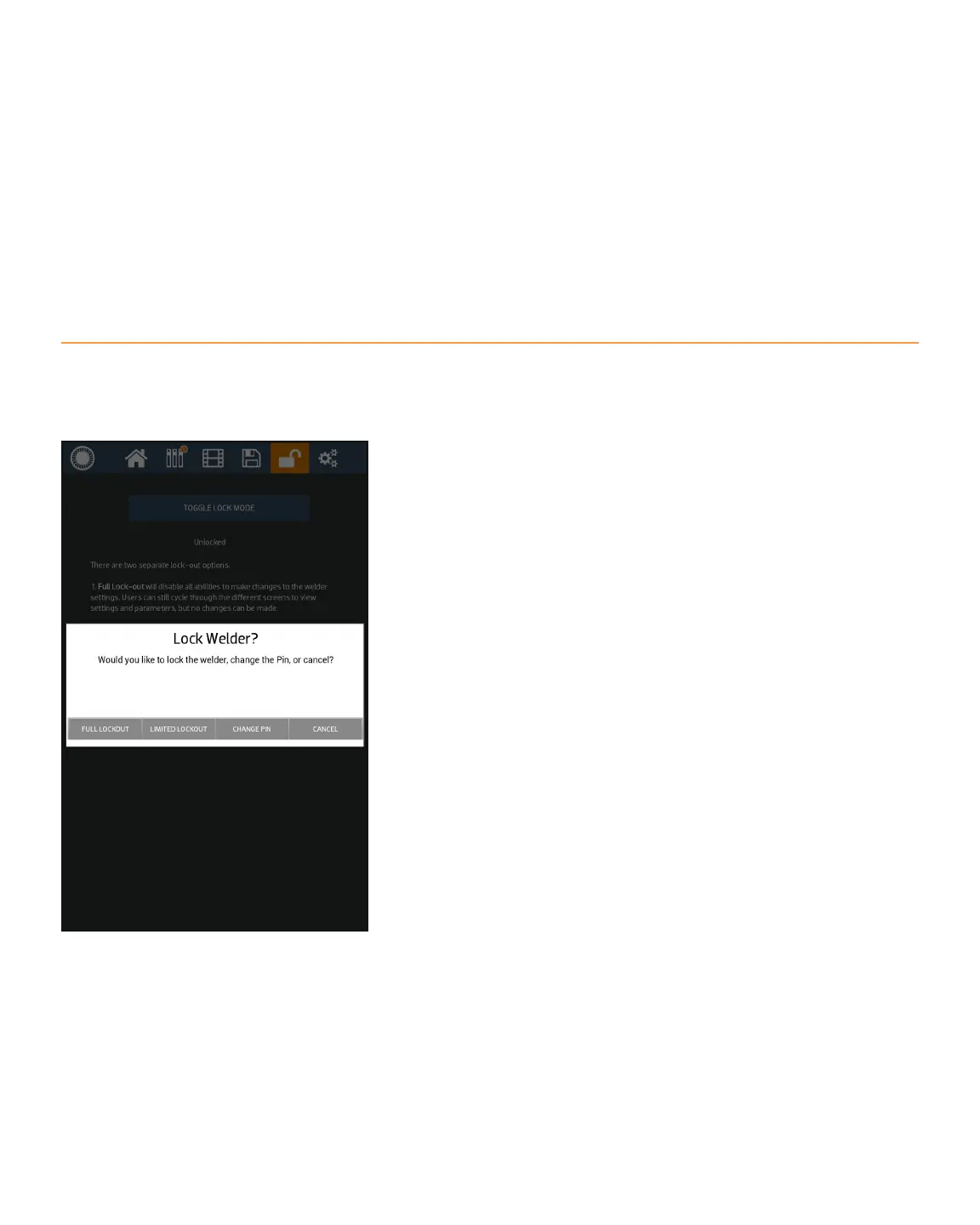
The Lock Screen can be used to limit an operator’s ability to make changes to the welder’s settings. To access
the Lock Screen, press the Lock Button in the Navigation Bar, as shown in Figure 30.1.
The welder has two lockout options: Full Lock, and Limited
Lock.
Full Lock blocks the operator from making changes to the
welder settings. Operators can still cycle through the dierent
screens to view settings and the parameters, but no changes
can be made.
Limited Lock blocks the operator from making changes to the
welder settings, with the exception that operators can load pre-
viously saved weld schedules. This option is best when opera-
tors need to weld with dierent schedules, but are not allowed
to make any changes to the schedules.
The current lock state is displayed on this screen below the
blue button. If neither lock option is turned on, the welder will
display that it is “Unlocked.”
How to Lock the Welder
• Tap on the blue bar at the top of this screen. A popup
message will appear and will show the dierent lock
options.
• Tap on the desired option and follow the screen
prompts. The options include: Full Lockout, Limited
Lockout, Change PIN, and Cancel.
• The CDDP-A will ask for you to enter a PIN (Personal
Identication Number) when you select Full Lockout,
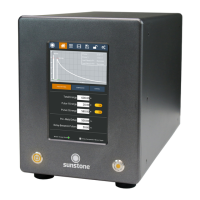
Figure 30.1. You can lock the CDDP-A, which
prevents other operators from either using the
welder or changing the weld settings.


 To Next Page