46 • Questions? Call or Text +1-801-658-0015
SUNSTONE CDDP-A USERS GUIDE
Using Simply Modbus TCP Client
As previously noted, the third piece of software to control the CDDP-A via an Ethernet connection is Simply
Modbus, which can be downloaded at https://www.simplymodbus.ca/TCPclient.htm. The free edition will allow
up to six messages before you will need to restart application as of when this users guide went to press.
SETUP A CONNECTION
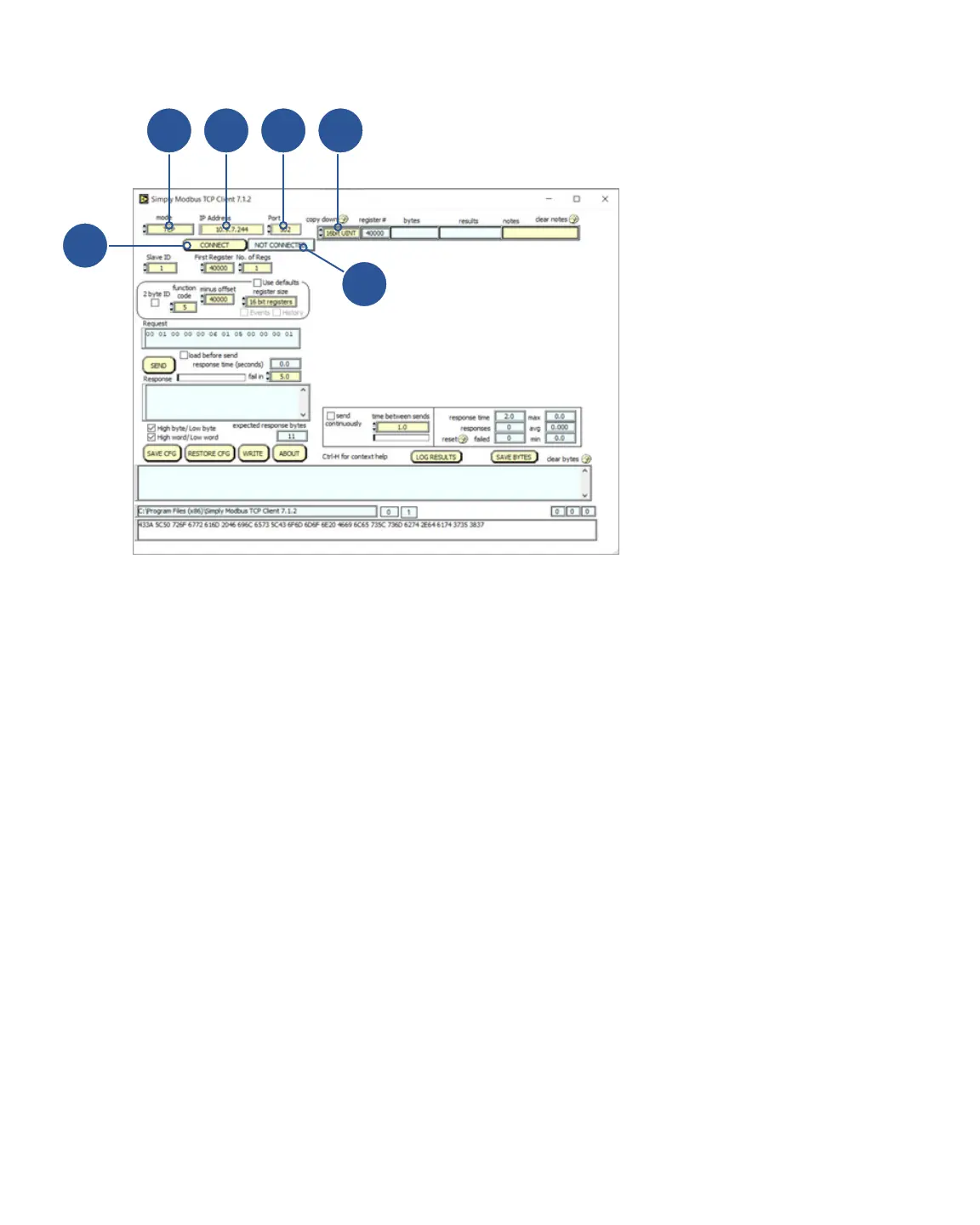
To connect the CDDP-A to the Simply Modbus TCP Client software, refer to Figure 46.1 and follow these in-
structions:
• Set Mode (A) to TCP.
• Enter the CDDP-A’s IP address (B).
• Make sure the Port (C) is 502, which is the default port value.
• Click on the Connect button (D). The Not Connected indicator (E) should change to Connected and turn
green.
READING A COIL
To read from a coil, and with the CDDP-A connected, refer to Figure 47.1 and follow these instructions:
• Verify the Slave ID is 1.
• Verify the value of the First Coil address is 40000.
A B C
D
Figure 46.1. Download the Simply Modbus
TCP Client software and then connect to the
CDDP-A. Use the TCP mode, enter the CDDP-
A’s IP address, make sure the Port is 502, and
then click on the Connect button. When the
CDDP-A is connected, the Not Connected
button with change to green and indicate
Connected.
E
F


 To Next Page