32 • Questions? Call or Text +1-801-658-0015
SUNSTONE CDDP-A USERS GUIDE
Chapter 9: How to Make System Changes
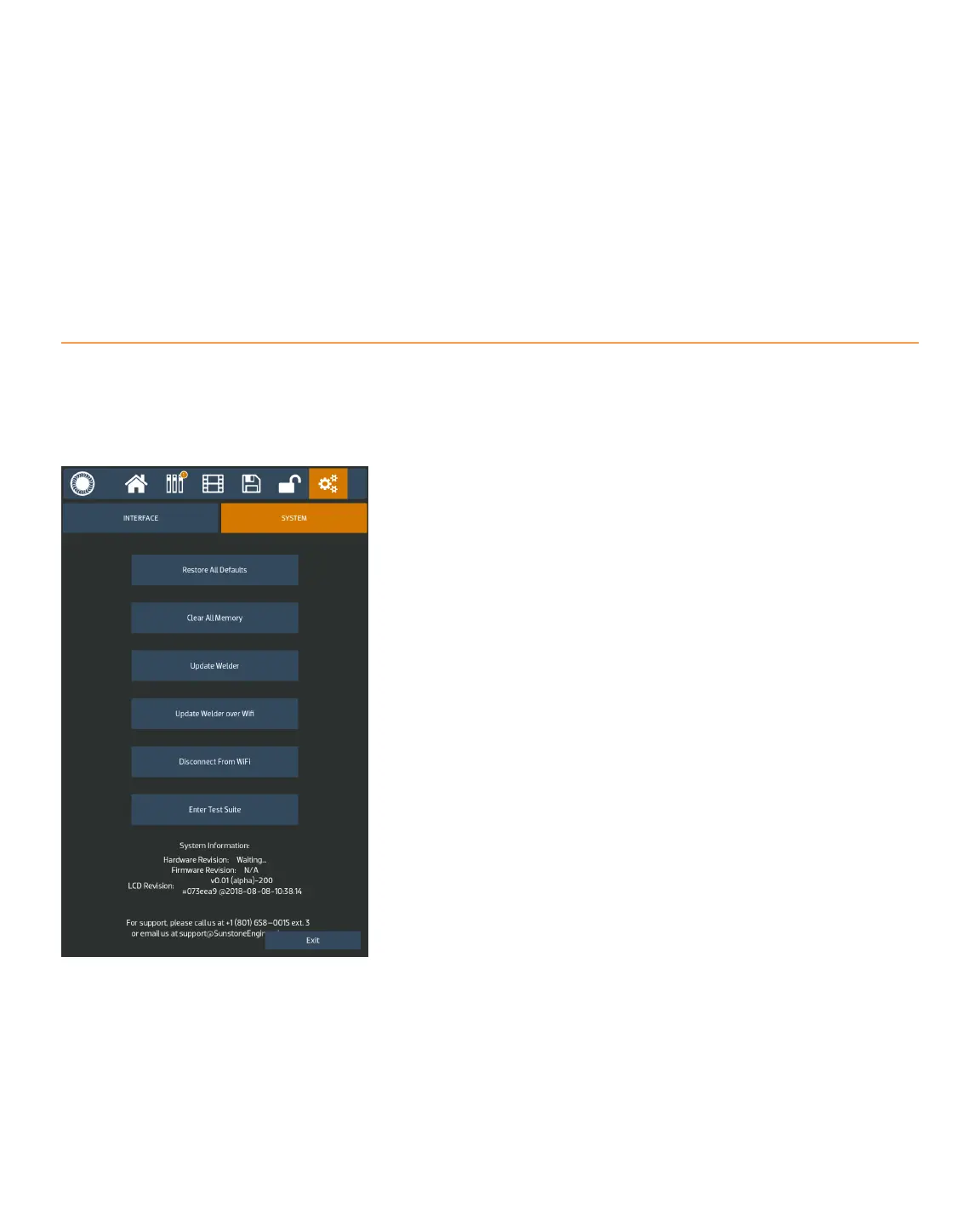
The Settings Screen can be used to make changes to the general power supply settings. To make changes to
the welder’s general settings, press the Settings Button in the Navigation Bar. The Settings Screen will appear,
as shown in Figure 32.1.
Interface Tab
Select the Interface Tab to choose the desired language,
speaker volume, and the brightness of the touchscreen.
System Tab
The System Tab has the following buttons:
Restore All Defaults. This button restores all settings to the
factory defaults.
Clear All Memory. This button clears all memory including
saved schedules.
Update Welder. This button will update the unit via inserting a
USB ash drive.
Update Welder over Wi-Fi. This button will update the unit via
a Wi-Fi connection. Note that the power supply must be con-
nected to a Wi-Fi connection with Internet access. A popup
message will appear with prompts and inputs to connect to a
Wi-Fi connection.
Enter Test Suite. The Test Suite is helpful for diagnostics and
technical support and can only be accessed with a password.
Contact Sunstone Support if this password is needed.
The System information is displayed at the bottom of the Set-
tings Screen.
Figure 32.1. The Settings Screen can be used
to make changes to the general power supply
settings.


 To Next Page