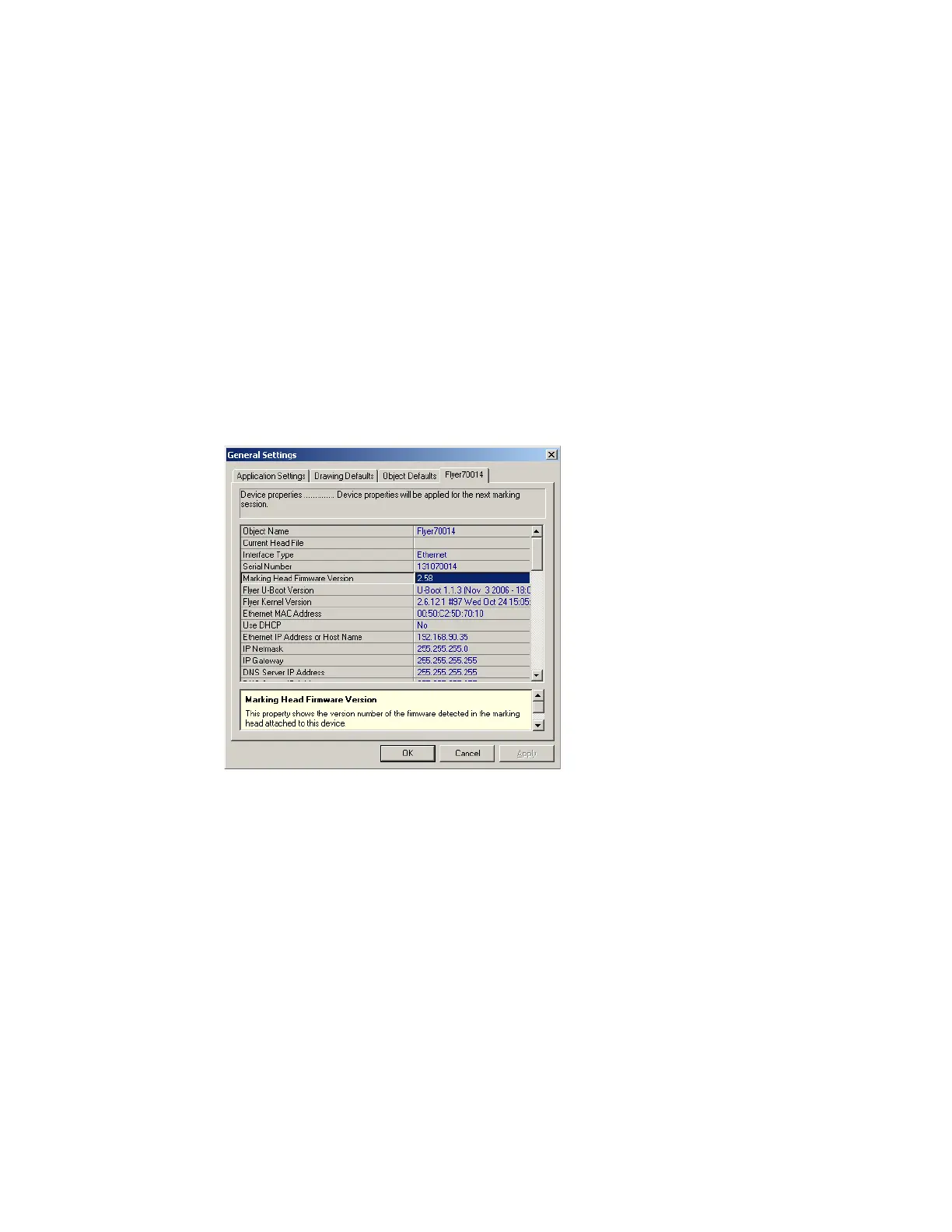
To access Flyer’s interface page, ensure Flyer’s Ethernet connection is established and then perform the
following steps:
1
Determine the IP address of your Flyer marking head if it diers from the factory default address of
192.168.100.100.
2
On your computer, open the web browser.
3
At the prompt, type “http://192.168.100.100” (without the quotes) and press Enter. Use your own
specic IP address if it diers from the factory default.
From the Marking Head Web page, you can start (Mark) and stop (Abort) a stand-alone mark session as
well as check Flyer status. The Options section provides links to Release Notes (including information on
using Flyer’s web interface), Marking Interface, System Parameters, and Flyer FAQs. The Logs section links
directly to Flyer’s Main and Last Bootup logs.
Note: In certain situations when Mark On Startup is enabled, Flyer may not exit stand-alone marking,
depending on the conguration of mark le automation. If this occurs, click the Marking Interface
or System Parameters link on the Marking Head Web page. Locate and click on the Mark On
Startup link (highlighted in green). Notice that the property value changes from ‘Yes’ to ‘No’.
Close the web page, reboot Flyer, and launch WinMark Pro to make mark le adjustments as
required.
Firmware upgrades
FH Flyer’s ash memory contains the operating code—rmware—that controls the marking head. As
improvements or changes are made to the rmware by SYNRAD Engineers, these rmware updates are
posted to the WinMark Pro web site (see FH Series Resources at http://www.winmark.com).
To perform a rmware upgrade, perform the following steps:
1
Power up the FH Flyer head and then open WinMark Pro v6.
SYNRAD FH Series Flyer Operator’s Manual Version 3.4
148



 To Next Page