getting started
SYNRAD FH Series Flyer Operator’s Manual Version 3.4
49
WinMark Pro v6 conguration
The WinMark Pro v6 conguration section includes subsections:
System requirements
WinMark/Flyer conguration
See the WinMark Pro User Guide or v6 Release Notes for Hardlock and software installation instructions.
Important Note: Install WinMark Pro v6 before you connect Flyer to your computer’s USB port and
power it up. If WinMark Pro is not installed rst, the Windows
®
operating system will
arbitrarily assign a USB driver that is not compatible with Flyer’s USB port protocols.
System requirements
WinMark Pro v6 Laser Marking Software runs on Microsoft
®
Windows
®
7, Vista, XP, and 2000 Operating
Systems. WinMark Pro software has the following minimum installation and operating requirements:
16-MB RAM 30-MB of free hard drive space
CD-ROM drive Two open USB ports
WinMark/Flyer conguration
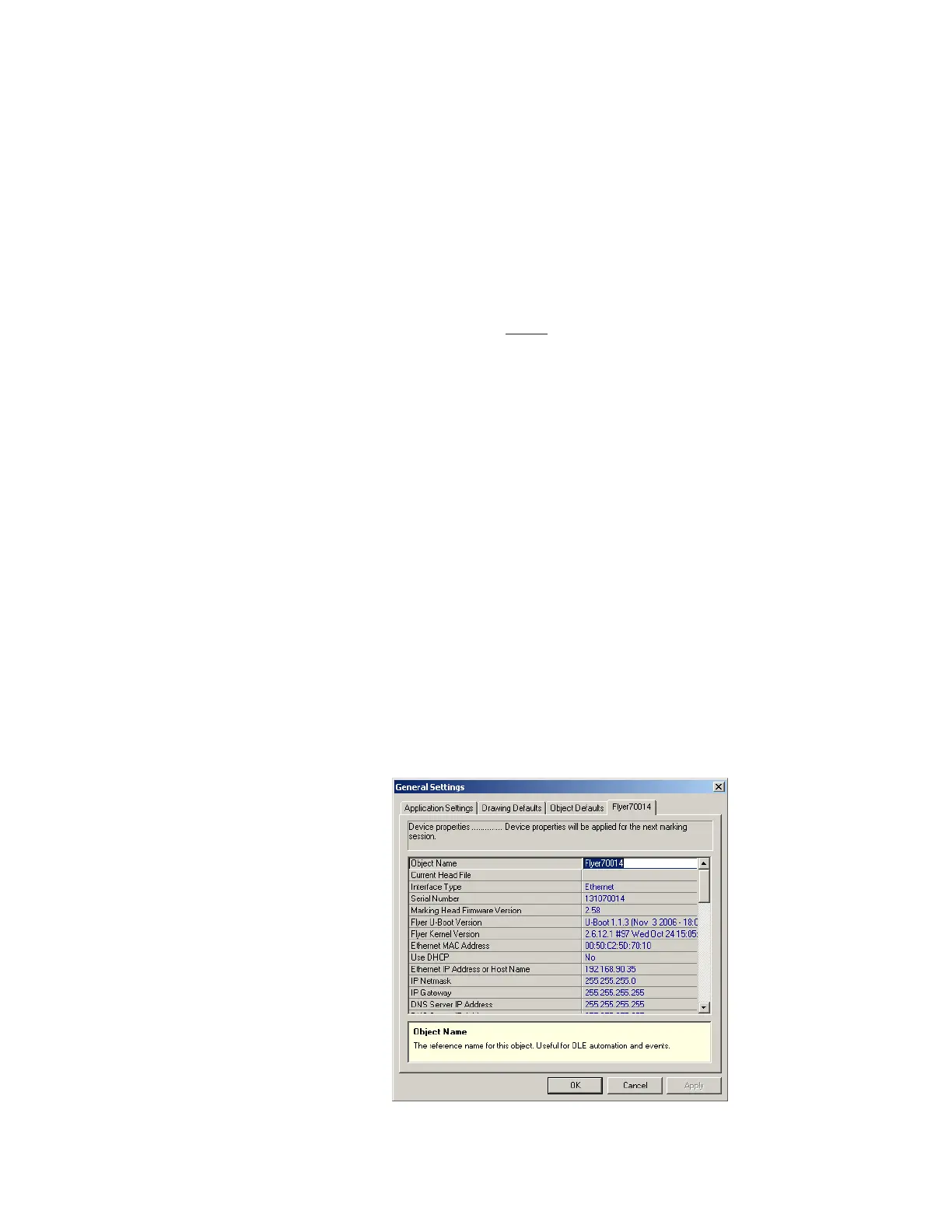
Object Name
The label of the “Device” tab corresponds to the Object Name given to the Flyer head. Every Flyer is
assigned a unique name based on the head’s serial number in the form “Flyerxxxxxx”; where “xxxxxx”
denotes the last six digits of the head’s serial number. In facilities operating multiple Flyers, you can give
each Flyer head a unique identity based on location or process. To edit the head’s Object Name property,
refer to Figure 1-12 and perform the following steps:
Figure 1-12 Creating a new Flyer device name



 To Next Page