stand-alone
operation
SYNRAD FH Series Flyer Operator’s Manual Version 3.4
81
WinMark Pro/FH Flyer interface
Stand-alone T oolbar
When WinMark Pro detects that an FH Flyer is connected and operating in stand-alone mode, several
changes occur in WinMark’s Drawing Editor. On the Mark button, the red laser starburst turns blue to
indicate stand-alone operation is
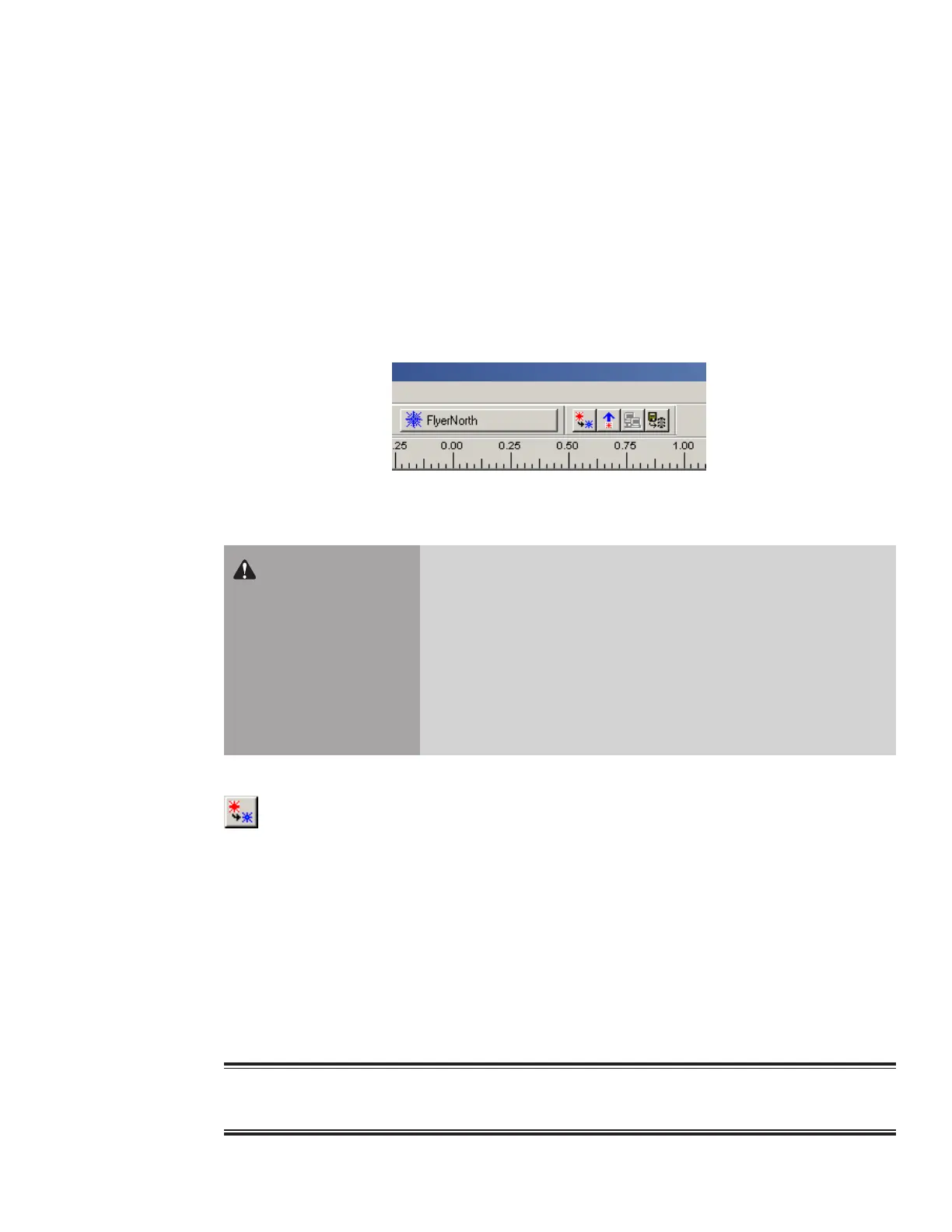
enabled. In addition, as shown in Figure 4-1, a toolbar consisting of
four additional buttons appears to the right of the Mark button. These buttons are described below.
Warning
serious
personal
injury
Pressing the Mark Current File on Canvas button forces FH Flyer to
begin marking immediately after the mark le is downloaded into
RAM.
Before pressing the Mark Current File on Canvas button, ensure that
all laser safety precautions described in this manual have been fol-
lowed. To prevent injury, always ensure that all personnel in the area
are wearing the appropriate protective eyewear and are physically
clear of the mark area before starting a mark session.
Figure 4-1 Stand-alone Toolbar
Mark Current File on Canvas
When a new le is created or opened on the Drawing Canvas, click the Mark Current File on
Canvas button to save the le to FH Flyer’s Filestore (to a default le named Canvas.mkh) and download
the le to temporary storage (RAM), where the vector elements are converted to microvectors and im-
mediately marked. This button is grayed out (inactive) when the Drawing Canvas is empty or when the le
shown was loaded from Flyer’s Filestore and has not been modied.
Important Note: This action overwrites the current Canvas.mkh le in the Filestore without warning.
Note: The WinMark Pro Hardlock (USB or parallel port type) must be installed on the computer run-
ning WinMark before this operation is allowed to proceed.
Tip: To view the lename of the mark le currently residing in RAM (the le that will be marked),
hover your cursor over the Mark button.



 To Next Page