stand-alone
operation
82
SYNRAD FH Series Flyer Operator’s Manual Version 3.4
WinMark Pro/FH Flyer interface
Upload Current Mark File
Click the Upload Current Mark File button to upload the le currently stored in FH Flyer RAM
to WinMark’s Drawing Canvas. This process allows you to view and/or change le properties. If permanent
modications are made, you must resave the le to the Filestore.
Open Network Mark File
When FH Flyer is congured for network sharing through the Ethernet port, use this button to
open an .mkh mark le stored on a network server or drive. The Open Network Mark File button down-
loads the le to FH Flyer’s temporary RAM for marking; however it does not save the le to the Filestore.
This button is grayed out (inactive) if a network is not available.
Save Current File to Filestore
Click the Save Current File to Filestore button to save the mark le displayed on the Drawing Can-
vas to the FH Flyer Filestore. You are prompted for a lename and can also specify a path, if one or more
subfolders exist in the Filestore.
Note: The WinMark Pro Hardlock (USB or parallel port type) must be installed on the computer run-
ning WinMark before this operation is allowed to proceed.
Filestore structure
FH Flyer’s Filestore is a hierarchical le system in ash memory, similar to the le system on your com-
puter. When Flyer is connected to your computer, you can view contents of the Filestore in the Flyer Files
window and you have the ability to create, move, or delete les, subfolders, and folders. If the Filestore
view is not shown when WinMark Pro connects to your FH Flyer head, click WinMark’s View menu and
then click Flyer Files.
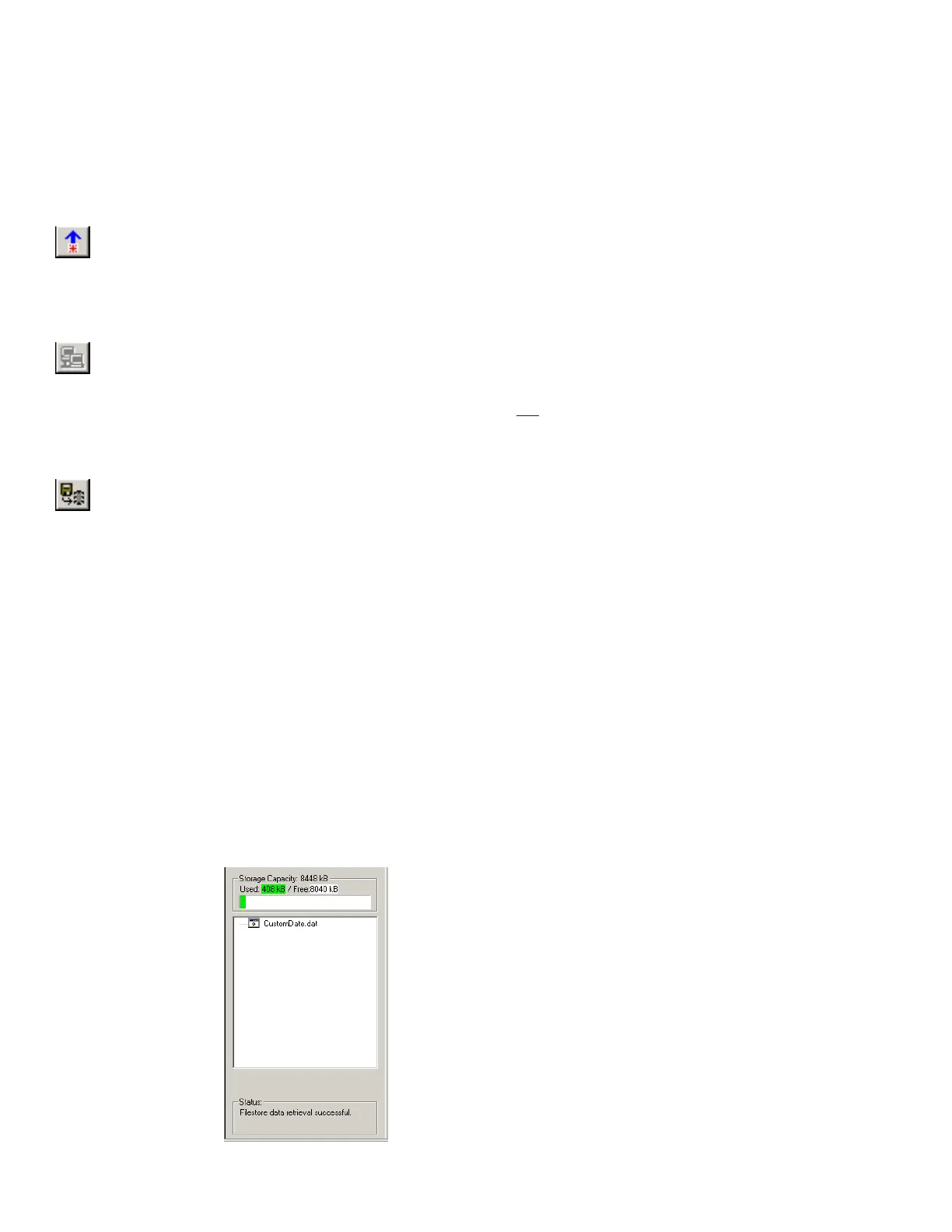
When shipped, FH Flyer’s Filestore contains only a single .dat file as shown in Figure 4-2. This particular
le saves any custom date code formats that are predened in mark les downloaded to the head.
Figure 4-2 Initial stand-alone Flyer Files window



 To Next Page