stand-alone
operation
SYNRAD FH Series Flyer Operator’s Manual Version 3.4
83
WinMark Pro/FH Flyer interface
Files added directly
to the Filestore—those les not contained within a folder or subfolder—are said to re-
side in the root directory (similar to copying a le to the C:\ drive on a computer). You can create folders
and subfolders as required to organize les required for your specic marking operation.
In stand-alone mode, double-clicking on a le in the Filestore loads it into Flyer RAM as the current mark
le and also displays the mark le on WinMark Pro’s Drawing Canvas.
A Storage Capacity message area, located at the top of the Flyer Files window, provides total le storage ca-
pacity in kilobytes (kB) and indicates lespace used and remaining free le storage space in Flyer memory.
A Status message area, located at the bottom of the window, provides information about the requested op-
eration. When a Reformat File System or Reboot Flyer command is issued, the Status message indicates
the state of the head. A “Filestore data retrieval successful” message after a format or reboot operation indi-
cates the head is ready for operation.
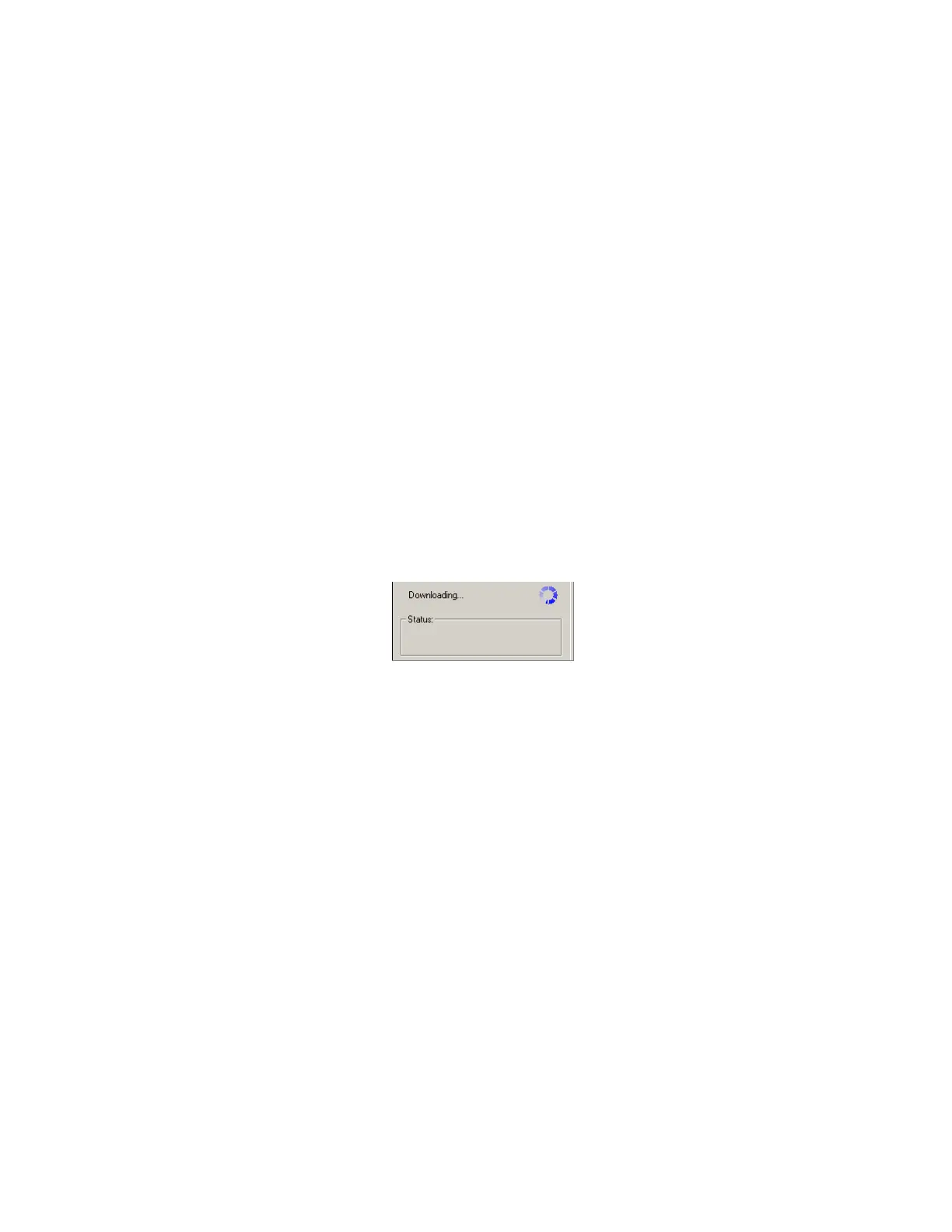
As shown in Figure 4-3, an indicator appears in the Status message area during extended file operations
as files are downloaded to, or uploaded from, the head. Allow Flyer to complete the requested file
operation before proceeding.
Figure 4-3 File operations indicator
Valid le types
Although you can save any le type to the Flyer Filestore, Flyer recognizes only four le types for marking
operations. These le types are: (1) mark les with an .mkh extension, (2) custom date code data les with
a .dat extension, (3) TrueType
®
fonts with a .ttf extension, and (4) a master control le named “master.ctl”.
See Master Control File mode in the Conguration section for details on using a master control le.
Saving les
When a le is open in WinMark’s Drawing Editor on the Drawing Canvas, click the Save Current File to
Filestore button, to save the currently active WinMark Pro mark le directly to the Filestore.
Important Note: When the Filestore contains a le with the same name as the le you are saving, the
existing le in the Filestore is overwritten without warning.
Note: The WinMark Pro Hardlock (USB or parallel port type) must be installed on the computer run-
ning WinMark before this operation is allowed to proceed.
Copying les
To copy an existing le within the Filestore, select the le and drag it to the appropriate folder or subfolder.
Note that a plus (+) sign appears below the le to indicate it is being copied. Flyer’s menu structure allows
les with the same name as long as they are stored in a dierent folder or subfolder.



 To Next Page