216
SYNRAD FH Series Flyer Operator’s Manual Version 3.4
Troubleshooting
Important Note: Before installing or upgrading WinMark Pro software, rst disconnect DC power or
unplug the USB cable from the Flyer head. This ensures that the Windows OS will
load and install the latest Flyer USB driver.
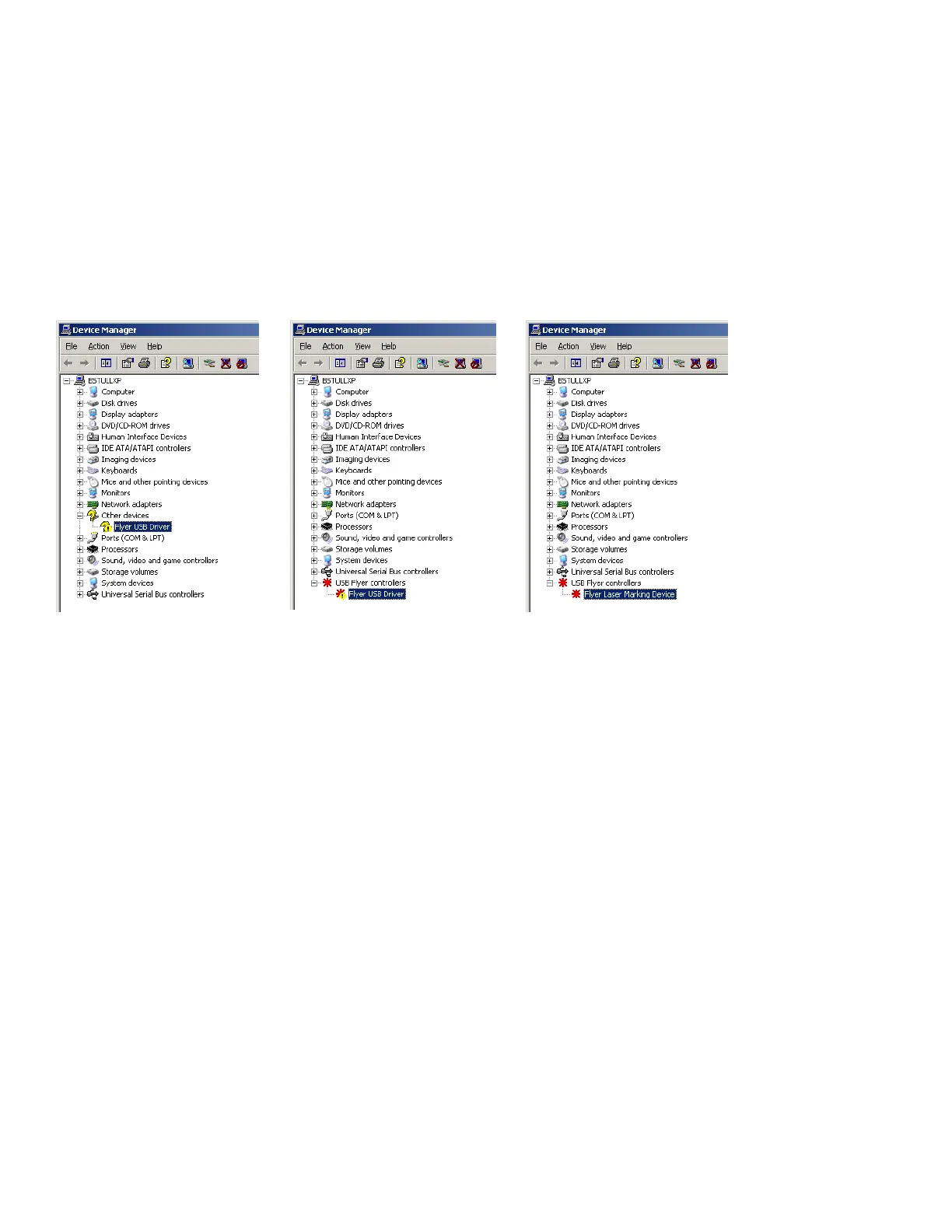
Figure
7-3 Windows Device Driver displays
Symptom:
Flyer and WinMark Pro v6 are connected via USB, WinMark is open, and Flyer is powered up (Status
light is green), but the Mark button is grayed out and does not indicate an active device.
Possible Causes:
Communications between Flyer and WinMark Pro are not synchronized.
In WinMark Pro, under the Devices menu, chose Flyer USB and select the appropriate Flyer device. If a
Flyer device is not available or the selection is grayed out, close and then re-open WinMark Pro while the
Flyer head is powered up. This forces WinMark Pro to re-initialize communications with Flyer. If com-
munication is not established after this step, then close WinMark, reboot your computer, power down the
Flyer head, wait 30 seconds, and then reapply power. When Flyer’s Status LED illuminates green, open
WinMark Pro.
Symptom:
Flyer and WinMark Pro are connected via USB, WinMark is open, and Flyer is powered up (the Status
light is green), but the Mark button (on the “Device” tab) displays “Device ID 0” and does not indicate
an active Flyer device.
Possible Causes:
Communication between Flyer and WinMark Pro is not synchronized and WinMark has recognized,
and defaulted to, a Fiber Link Controller Card (FLCC) previously installed in the marking computer.



 To Next Page