151
Chapter 17
Manage Your Mesh Device
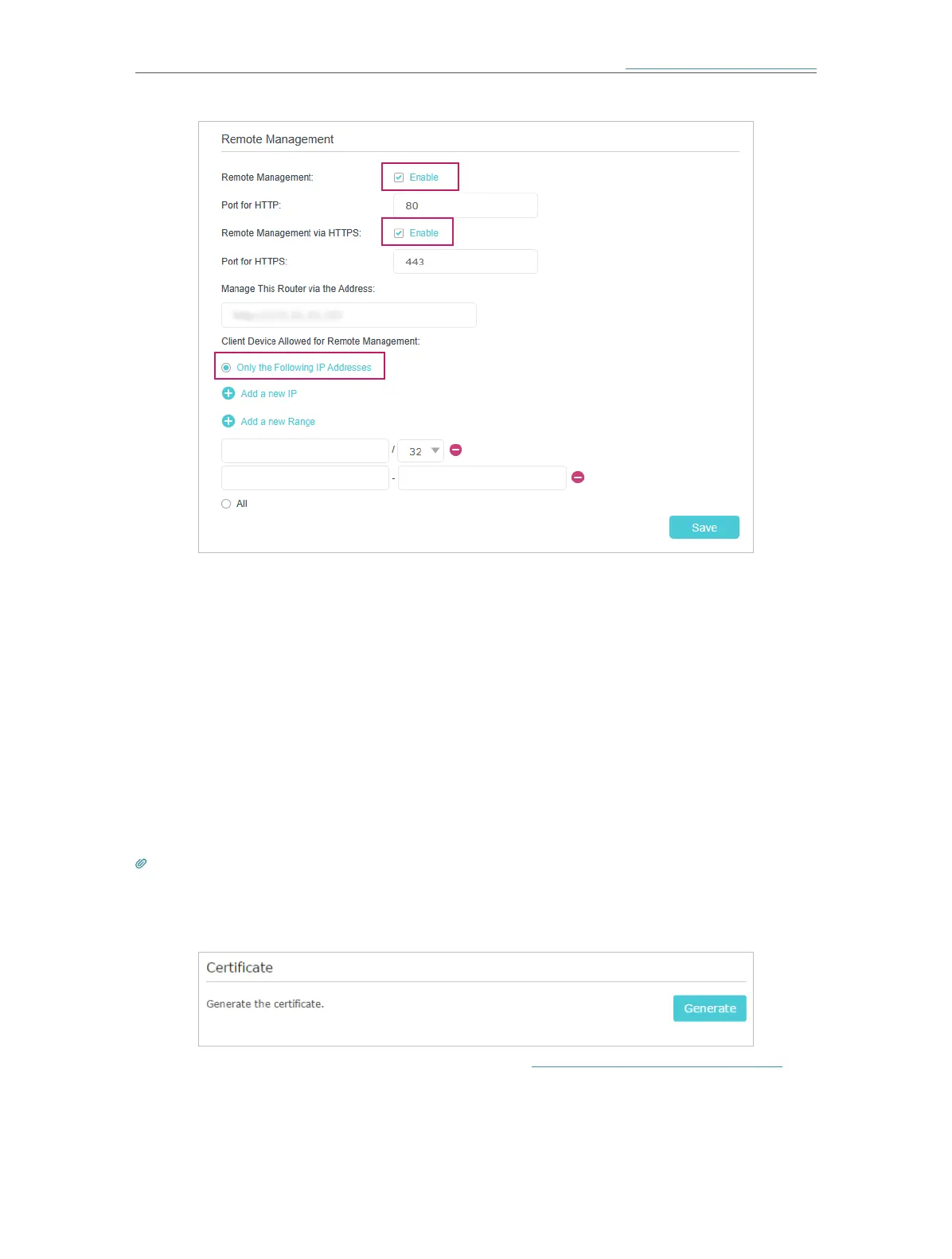
3. Enable Remote Management and Remote Management via HTTPS to allow for
HTTPS connection. Keep the Port as the default setting.
4. Set the client device allowed for remote management. Select All to allow all remote
devices to manage the mesh device. If you just want to allow a specific device to
manage the mesh device, select Only the Following IP/MAC Address and enter the
IP/MAC address of the remote device.
5. Click Save.
All devices or the specific device on the internet can log in to your mesh device using
the address displayed on the Manage This Mesh Device via the Address field to manage
the mesh device.
Tips:
1. If you were warned about the certificate when visiting the web management page remotely, click Trust (or a similar
option) to continue. To avoid this warning, you can download and install the certificate on the mesh device’s web
management page at Advanced > System Tools > Administration.
2. The mesh device’s WAN IP is usually a dynamic IP. Please refer to Configure IPv6 LAN Settings (Router Mode) if you
want to log in to the mesh device through a domain name.







 To Next Page