78
Chapter 8
8. 1. Register a TP-Link ID
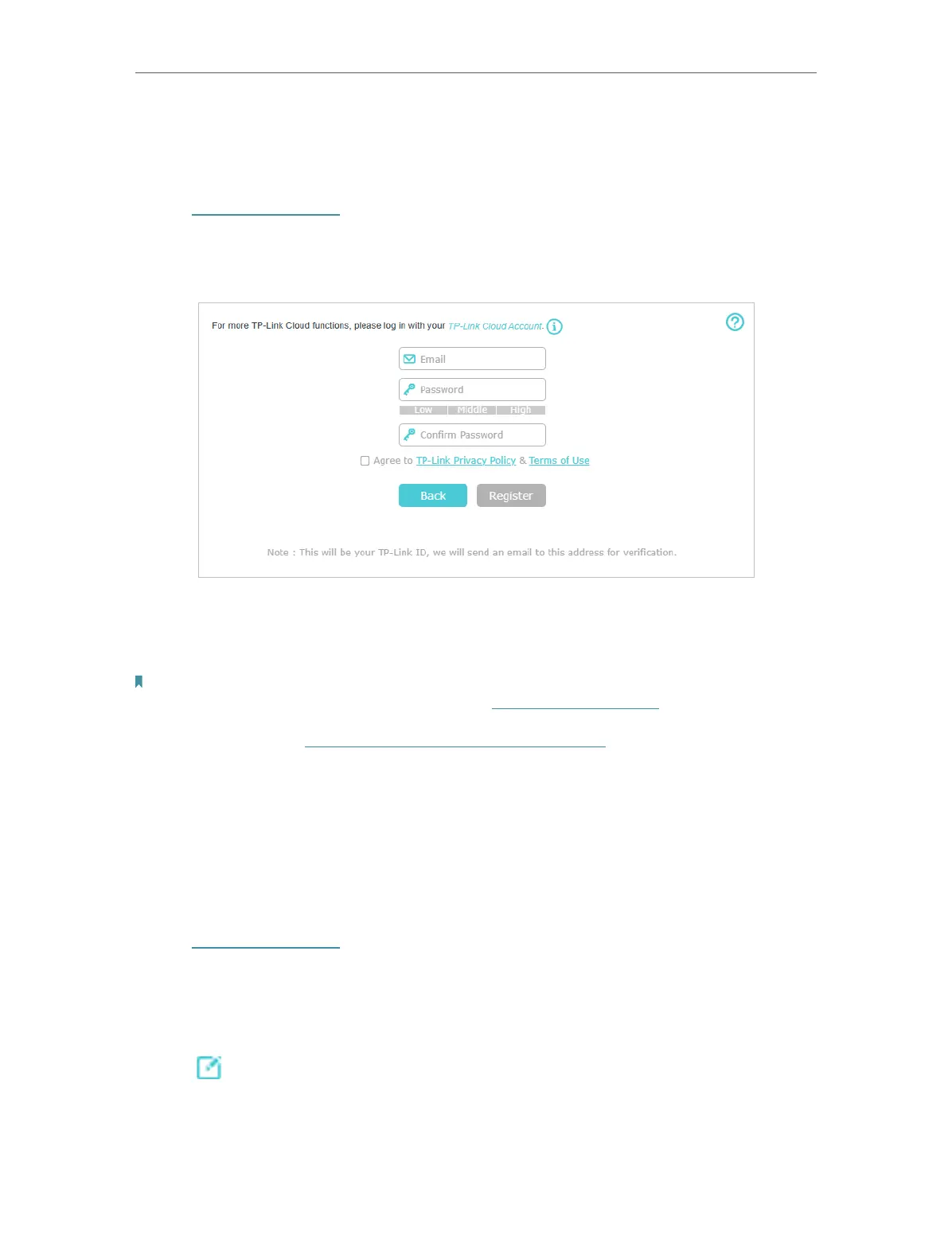
If you have skipped the registration during the Quick Setup process, you can:
1. Visit http://tplinkwifi.net and log in with the password you set for the mesh device.
2. Go to Setting > TP-Link Cloud (AP Mode) or Basic > TP-Link (Router Mode) .
3. Click Sign Up and follow the instructions to register a TP-Link ID.
4. After activating your TP-Link ID, come back to the TP-Link Cloud page to log in. The
TP-Link ID used to log in to the mesh device for the first time will be automatically
bound as an Admin.
Note:
• To learn more about the Admin and User TP-Link ID, refer to Manage the User TP-Link IDs.
• Once you have registered a TP-Link ID on the web management page, you can only register another TP-Link ID via the
Aginet APP. Please refer to Manage the Mesh Device via the TP-Link Aginet App to install the app.
• If you want to unbind the admin TP-Link ID from your mesh device, please go to Basic > TP-Link Cloud, an click Unbind
in the Device Information section.
8. 2. Change Your TP-Link ID Information
Follow the steps below to change your email address and password of your TP-Link ID
as needed.
1. Visit http://tplinkwifi.net and log in with your TP-Link ID.
2. Go to Setting > TP-Link Cloud (AP Mode) or Basic > TP-Link (Router Mode), then focus
on the Account Information section.
¾ To change your email address:
1. Click
behind the Email.
2. Enter the password of your TP-Link ID, then a new email address. And click Save.







 To Next Page