88
Chapter 10
10. 1. Create a Network for Guests
1. Visit http://tplinkwifi.net and log in with your TP-Link ID or the password you set for
the mesh device.
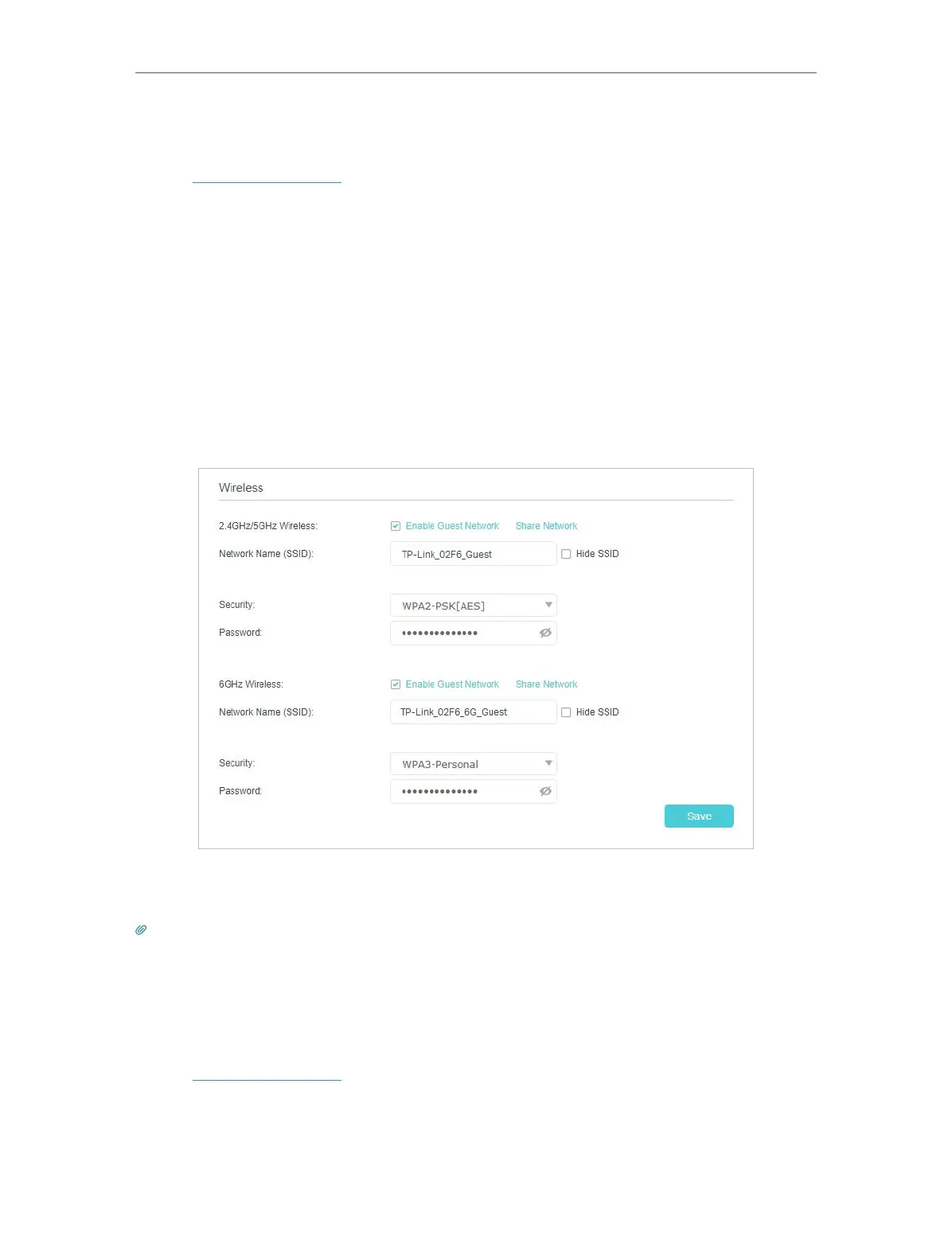
2. Go to Setting > Guest Network (AP Mode) or Advanced > Guest Network (Router
Mode). Locate the Wireless section.
3. Create a guest network as needed.
1 ) Tick the Enable checkbox for the 2.4GHz/5GHz or 6GHz wireless network.
2 ) Customize the SSID. Don‘t select Hide SSID unless you want your guests to
manually input the SSID for guest network access.
3 ) Select the Security type and customize your own password. If No security is
selected, no password is needed to access your guest network.
4. Click Save. Now your guests can access your guest network using the SSID and
password you set!
Tips:
To view guest network information, go to Network Map and locate the Guest Network section. You can turn on or off the
guest network function conveniently.
10. 2. Customize Guest Network Options
1. Visit http://tplinkwifi.net and log in with your TP-Link ID or the password you set for
the mesh device.
2. Go to Setting > Guest Network (AP Mode) or Advanced > Guest Network (Router
Mode). Locate the Settings section.







 To Next Page