55
Chapter 6
Customize Your Network Settings
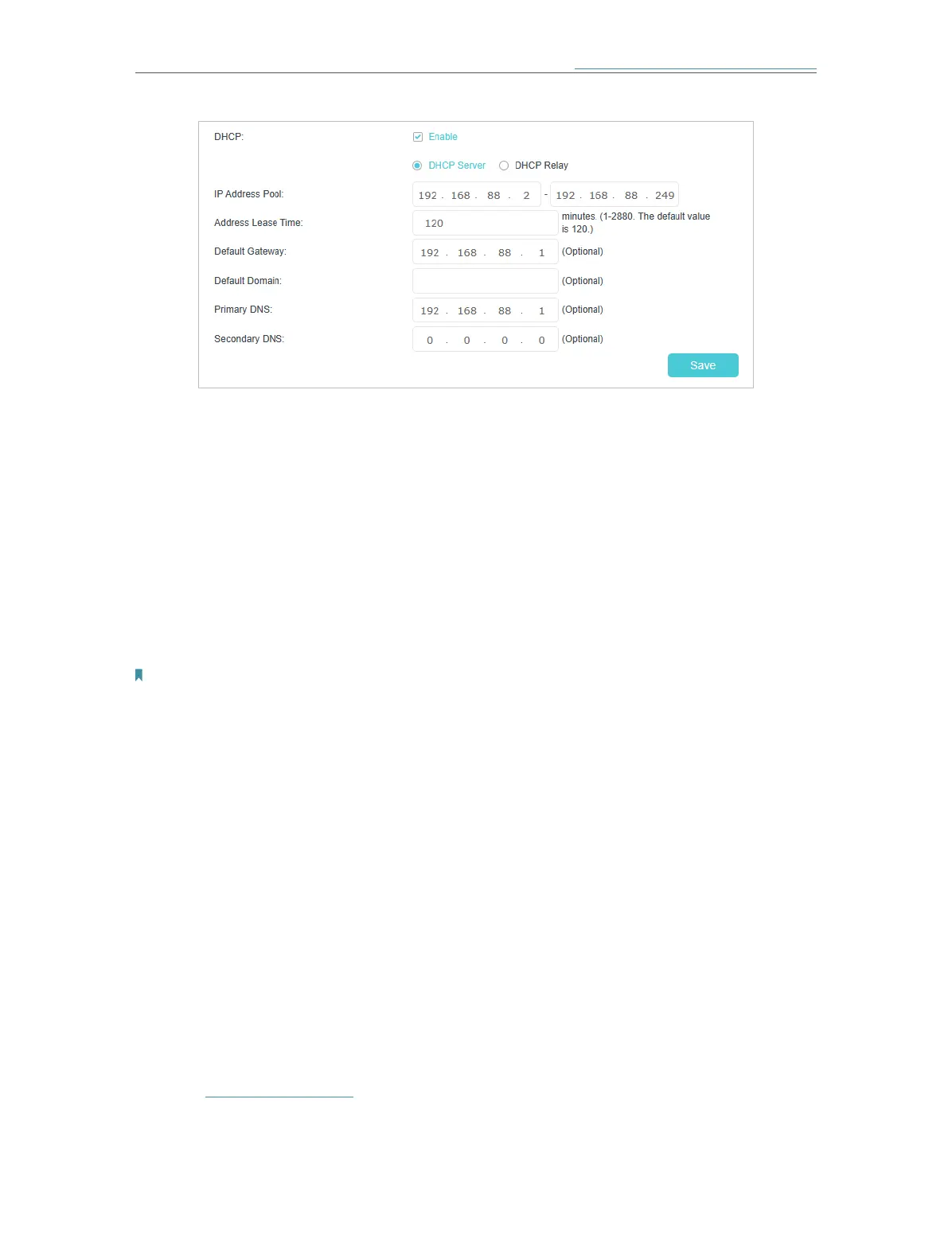
3. Enable DHCP function and select DHCP Server.
4. Specify the IP Address Pool, the start address and end address must be on the same
subnet with LAN IP. The mesh device will assign addresses within this specified
range to its clients. It is from 192.168.88.2 to 192.168.88.249 by default.
5. Enter a time duration in the Address Lease Time field. The Address Lease Time is
the amount of time in which a DHCP client can lease its current dynamic IP address
assigned by the mesh device. After the dynamic IP address expires, the user will be
automatically assigned a new dynamic IP address.
6. Keep the rest settings as the default settings and click Save.
Note:
1. The mesh device can be configured to work as a DHCP Relay. A DHCP relay is a computer that forwards DHCP data
between computers that request IP addresses and the DHCP server that assigns the addresses. Each of the device’s
interfaces can be configured as a DHCP relay. If it is enabled, the DHCP requests from local PCs will be forwarded to
the DHCP server that runs on WAN side.
2. You can also appoint IP addresses within a specified range to devices of the same type by using Condition Pool
feature. For example, you can assign IP addresses within the range (192.168.88.50 to192.168.88.80) to Camera
devices, thus facilitating the network management. Enable DHCP feature and configure the parameters according to
your situation on the Advanced > Network > LAN Settings page.
6. 1. 5. Reserve LAN IP Addresses (Router Mode)
You can view and add a reserved address for a client. When you specify an IP address
for a device on the LAN, that device will always receive the same IP address each time
when it accesses the DHCP server. If there are some devices in the LAN that require
permanent IP addresses, please configure Address Reservation on the mesh device
for the purpose.
Follow the steps below to reserve an IP address for your devices.
1. Visit http://tplinkwifi.net and log in with the password you set for the mesh device.
2. Go to Advanced > Network > LAN Settings page, and select IPv4.







 To Next Page