52
Chapter 6
Customize Your Network Settings
6. 1. Configure LAN Settings
6. 1. 1. Change the LAN IP Address (AP Mode)
The mesh device is preset with a default LAN IP 192.168.88.1, which you can use to log
in to its web management page. The LAN IP address together with the Subnet Mask
also defines the subnet that the connected devices are on. If the IP address conflicts
with another device in your local network or your network requires a specific IP subnet,
you can change it.
Follow the steps below to change your IP address.
1. Visit http://tplinkwifi.net and log in with the password you set for the mesh device.
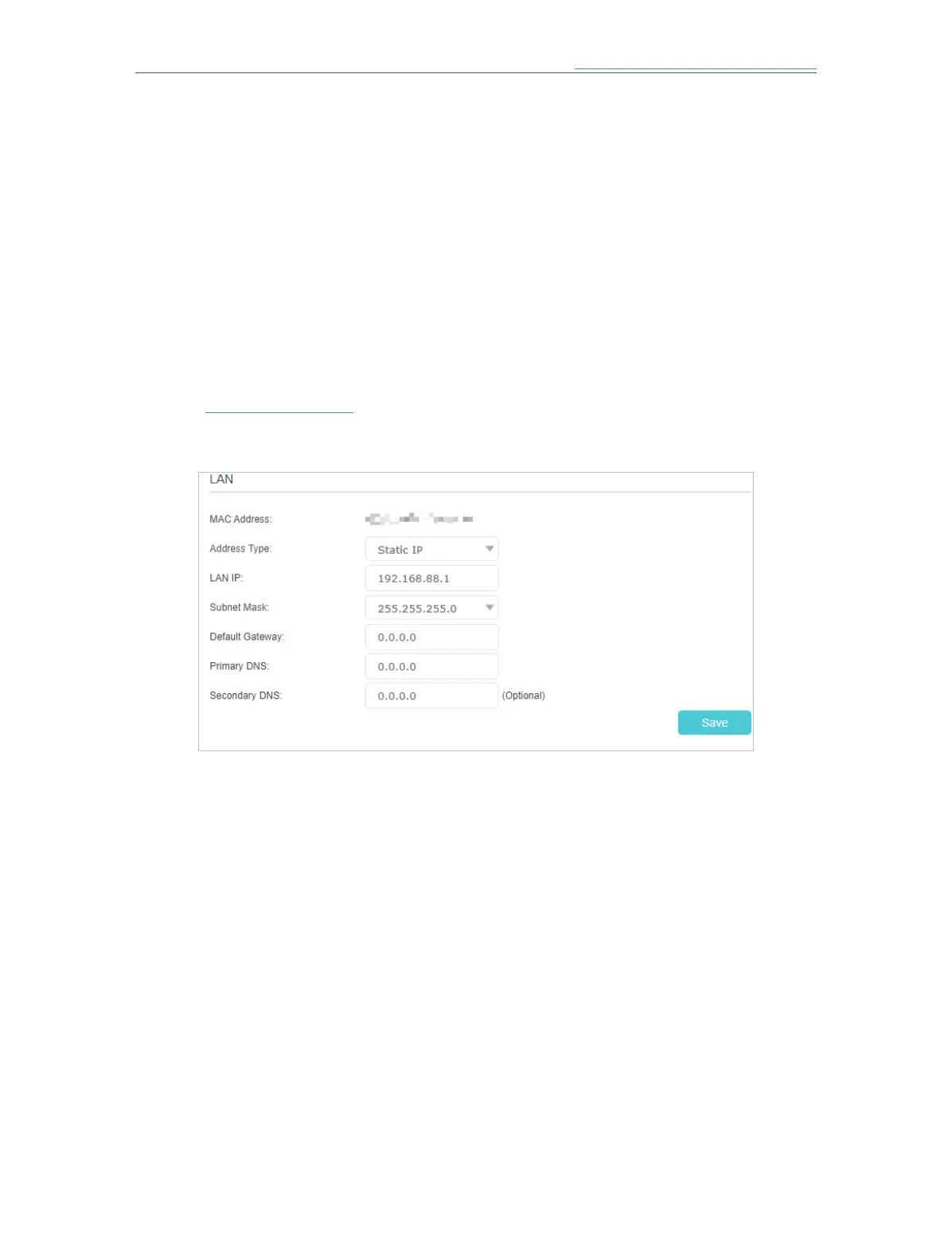
2. Go to Setting > Network > LAN Settings page and select Static IP.
3. Enter a new IP Address appropriate to your needs.
4. Select the Subnet Mask from the drop-down list. The subnet mask together with
the IP address identifies the local IP subnet.
5. Enter Default Gateway and Primary DNS.
6. Keep the rest settings as the default settings.
7. Click Save to make the settings effective.
6. 1. 2. Change the LAN IP Address (Router Mode)
The mesh device is preset with a default LAN IP 192.168.88.1, which you can use to log
in to its web management page. The LAN IP address together with the Subnet Mask
also defines the subnet that the connected devices are on. If the IP address conflicts
with another device in your local network or your network requires a specific IP subnet,
you can change it.







 To Next Page