INSTALLATION
17
Connecting via WLAN
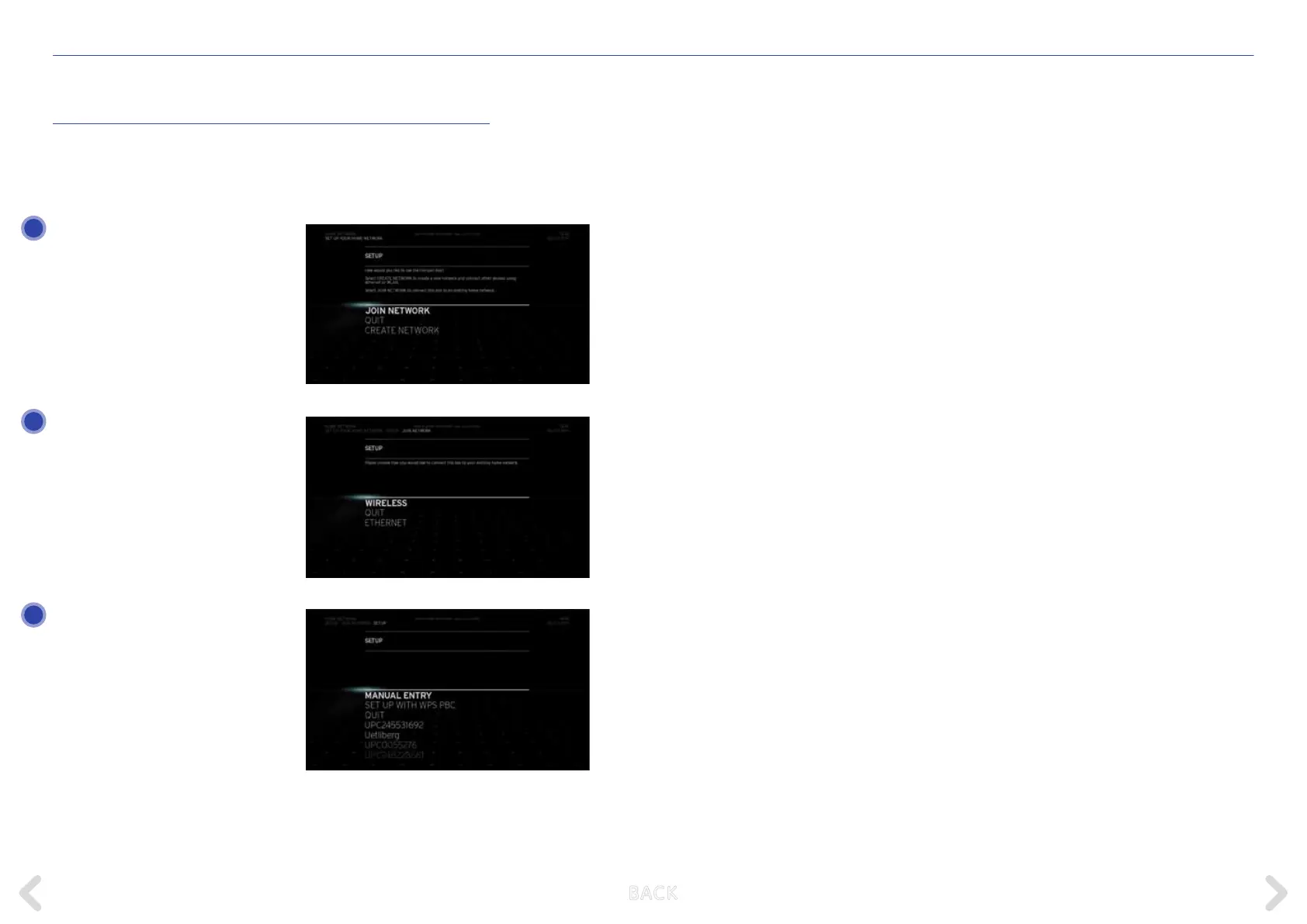
To connect the Horizon box to your existing router via WLAN go to:
MAIN MENU > TOOLBOX > SETTINGS > HOME NETWORK SETTINGS
> SET UP YOUR HOME NETWORK
Select JOIN NETWORK. The Horizon
box searches the network for a DHCP
server to obtain an IP address.
Since the Horizon box is not di-
rectly connected to the router via an
Ethernet cable, the search will not
be successful and you will be oered
the option of selecting your preferred
connection.
Now you can select WLAN from the
displayed options.
You are then given multiple options
for connecting your box via WLAN:
– Select from a list of available
WLAN networks
– SET UP WITH WPS PBC
– MANUAL ENTRY
Select from a list of available WLAN networks
Select the SSID of the existing WLAN router you wish to connect.
Enter the PASSWORD for the WLAN router, select CONFIRM and press
OK. The Horizon box will now connect to the router.
Set up with WPS PBC
The SET UP WITH WPS PBC option provides an easy connection method
if your existing router has auto pairing conguration capabilities. Check
your router’s user manual for auto pairing setup instructions.
When the router is searching for devices, select SET UP WITH WPS PBC.
The Horizon box and your existing router will then connect.
Manual Entry
The MANUAL ENTRY option requires you to enter the SSID of your
existing router manually. The Horizon box then scans for this network.
Enter the PASSWORD for your existing router, then select CONFIRM
and press OK. The Horizon box connects to your existing router.
At this point, you can set up your media catalogue by selecting
SET UP CATALOGUE.
Refer to SETTING UP HOME MEDIA to continue.
1
3
2
B ACK


 To Next Page