INSTALLATION
18
Setting up home media
Once you have successfully connected the Horizon box to your home
network, you can set up your media catalogue of music and videos
stored on your connected devices. Make sure your DLNA-certied
devices are connected to the home network using either WLAN or
Ethernet before continuing. If your device does not support DLNA you
should install a DLNA server such as Twonky. Twonky is available for PC,
Mac, tablet PCs and smartphones. As a UPC customer, you can down-
load Twonky software (PC and Mac) for free from the UPC website
(upc.ch.ch/twonky). Download Twonky software for tablet PCs and
smartphones from an app store (e.g. Apple App Store or Google Play
Store).
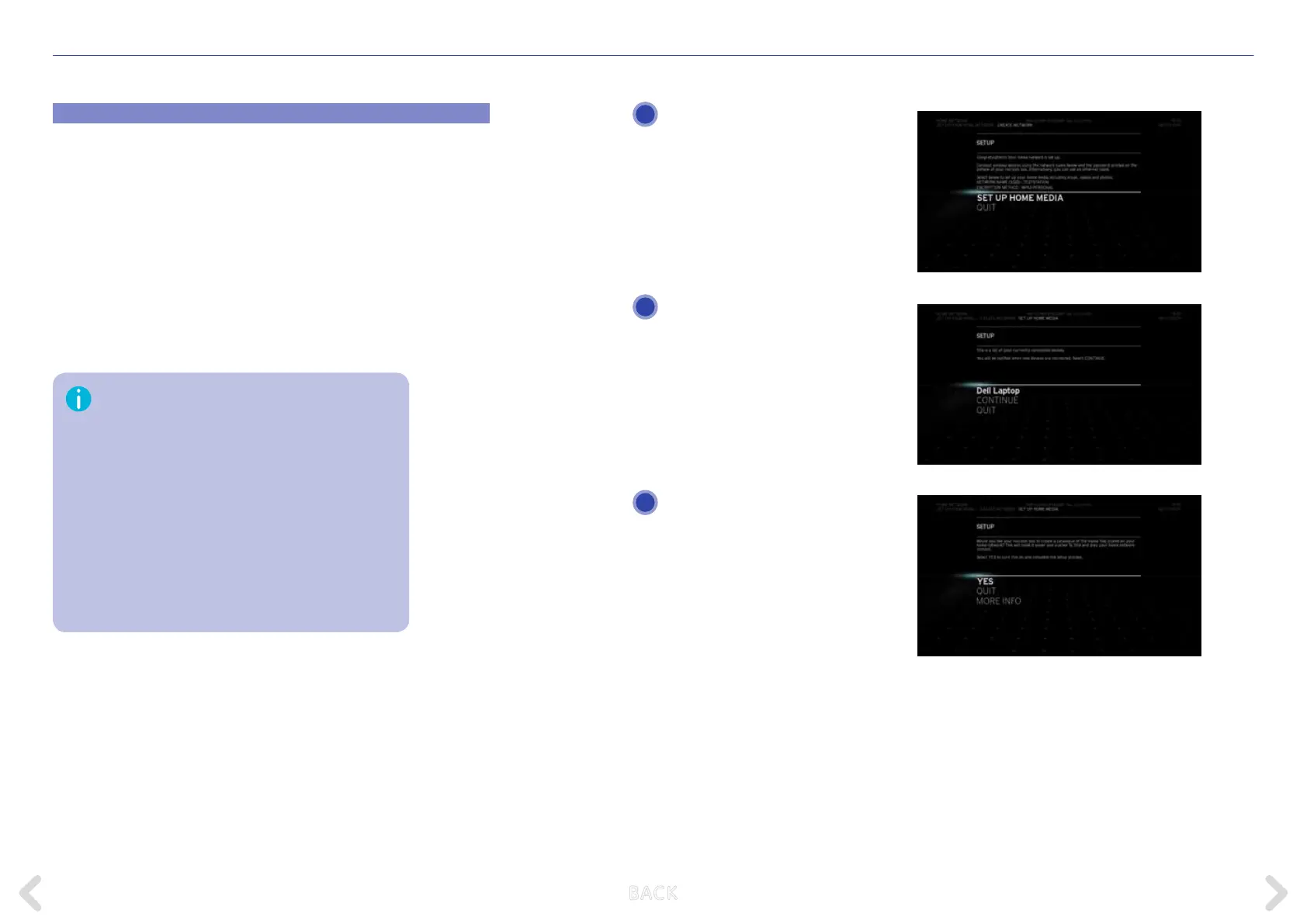
After setting up the home network
you can set up your media catalogue.
Select SET UP HOME MEDIA and
press OK.
If DLNA devices are found, the
Horizon box will display a list of the
connected devices.
Select CONTINUE and press OK to
continue with the next step.
You will be asked if you would like
your Horizon box to create a cata-
logue of the music and videos stored
on your home network. This will make
it easier and quicker to nd and play
your home network content. Select
YES to turn this on and complete
the setup process.Your lms and
TV series will then be available in
MY LIBRARY > MY VIDEOS.
1
3
2
Horizon’s DLNA functionality is currently limited. If you
possess a large number of photos, videos or audio con-
tent, the box may freeze or respond very slowly.
We recommend you use a LAN cable to connect Horizon
to your home network or else use fewer than 1,000 les.
If your box nevertheless exhibits problems, we recom-
mend restoring Horizon’s default settings and forgoing
use of the media playback function from the home
network for the time being.
We are working with our technology partners to extend
the number of compatible formats and improve the
cataloguing of media content from the home network.
B ACK


 To Next Page