Administering Cameras
82
When an HTTP server is configured you receive the alarm data, with option of
also receiving the alarm clip.
You must be logged into View as a supervisor to configure these settings.
Note: Ensure that the appropriate ports are open in the firewall to allow the
server to receive alarm clips and/or data from the camera.
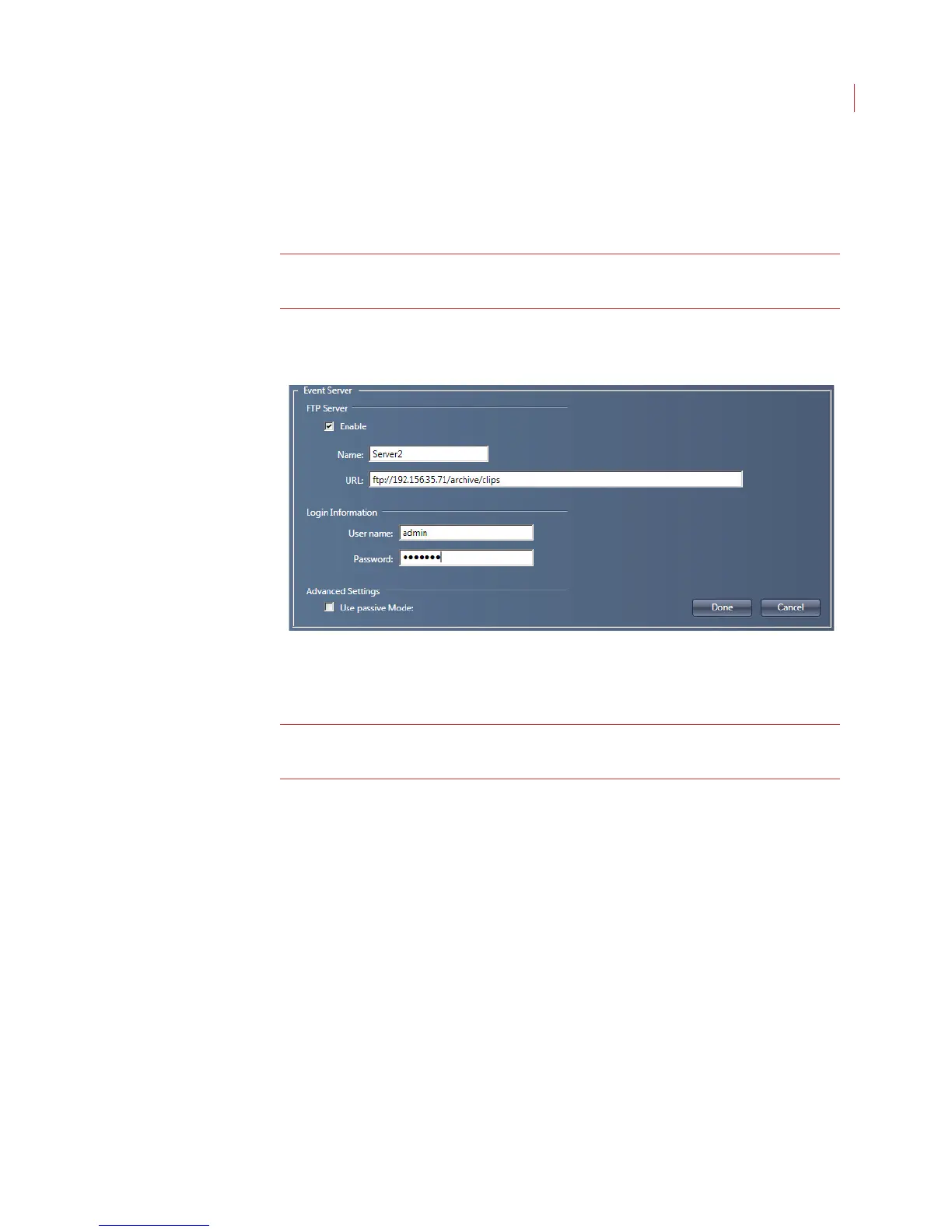
Configuring FTP
1. Click Add FTP.
2. Check the Enable box.
Note: If you have multiple ftp servers set up in View, each with the Enable box
checked, alarms clips will be sent to each server.
3. To organize servers in the Event Servers field, enter a Name.
4. Enter the address of the server in the URL field. You can enter a full directory
path to store all alarm clips in a specific directory.
5. Enter the User name and Password used to login into the server.
6. Click the Test button. If the fields are configured correctly a file will be
transfered to your ftp server.
7. Check Use passive Mode to send the alarm clip in passive mode; uncheck
the box to send in active mode.
8. Click Done, then click Apply.



 To Next Page