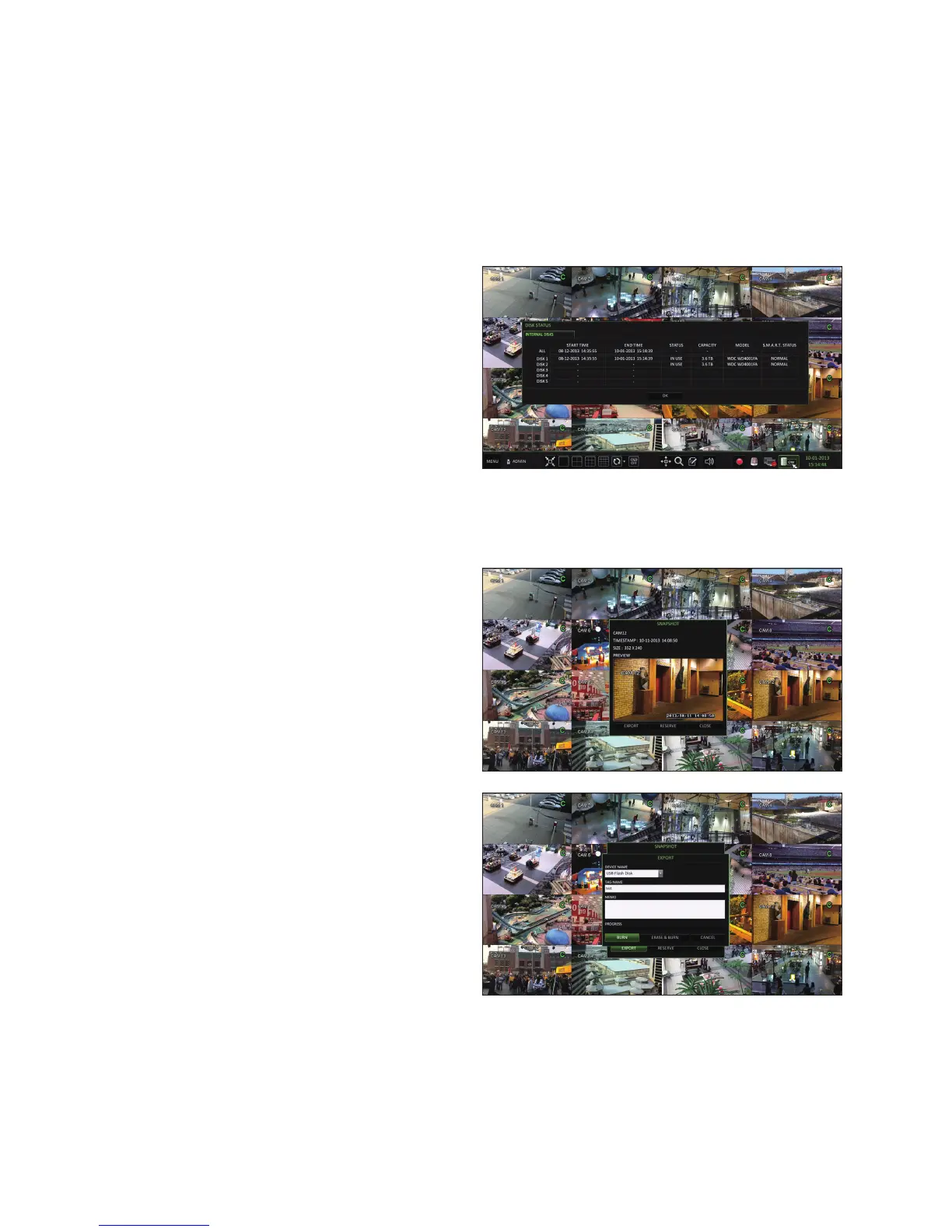
currently connected to the system.
Click <OK> to close the window.
For more information, refer to "Disk Information".
(page 50).
Saving Captured Snapshots
You can capture the current video screen and save or export it to a connected storage device.
1.
Select a channel first, and right click to open popup menu, and select <SNAPSHOT> menu item, or press the
[SNAPSHOT] button of the remote control.
2.
Connect a storage device, and click the <EXPORT>
button.
To save the captured image to the built-in HDD, press
the <RESERVE> button.
Saved image can be found in the “Archive > Reserved data
management” and can be backed up later. (Page 74)
3.
Enter the <TAG NAME> and <MEMO> and press
<BURN> or <ERASE & BURN> button.
A progress bar appears and indicates the progress
of exporting to storage device.
BURN : Snapshot is stored in the connected USB
storage device.
ERASE & BURN : Deletes all files in the connected
USB storage and then saves the snapshot.
•
Note that <ERASE & BURN> option erases all data on the USB storage device.


 To Next Page