50
Storage
You can configure and view the disk settings.
Disk Information
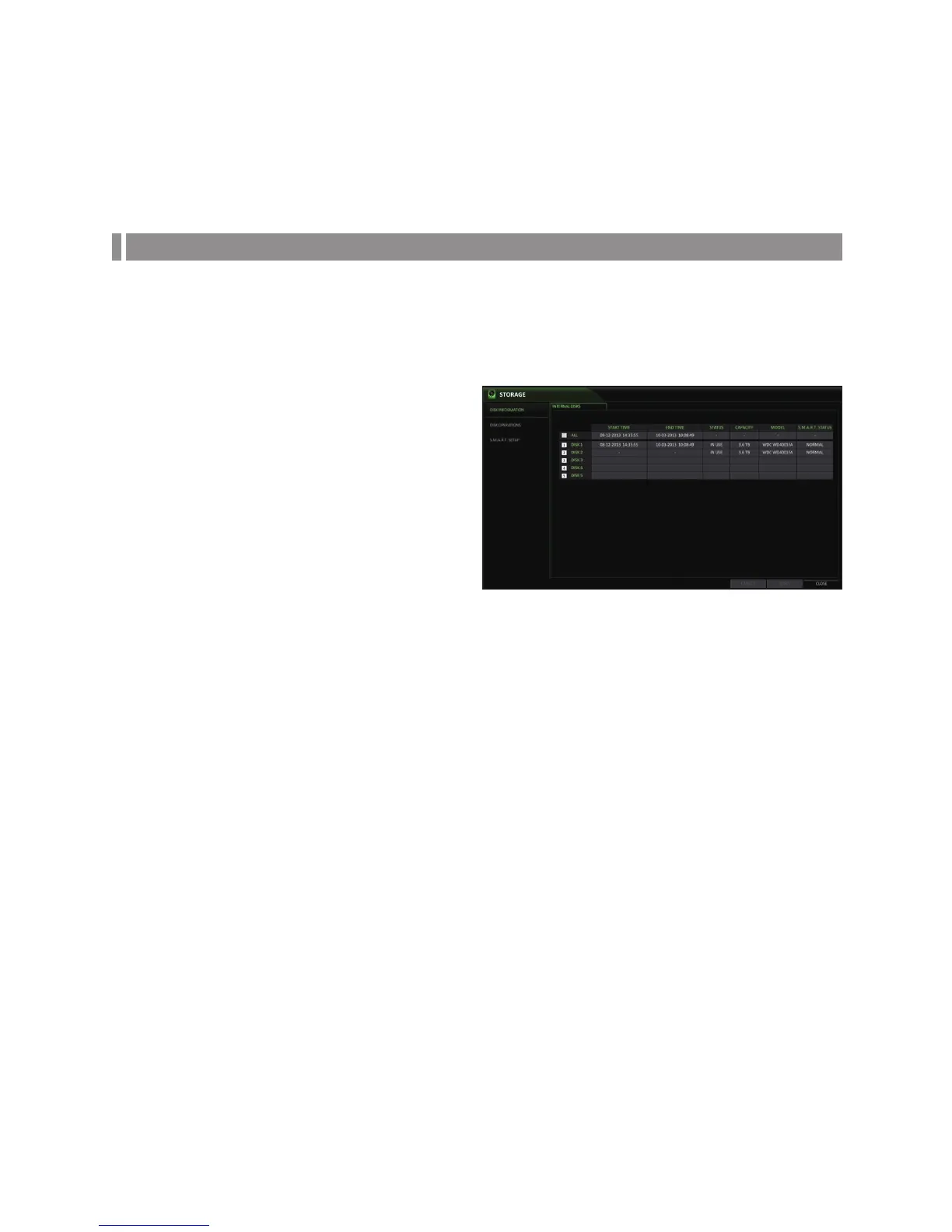
It will show information about the connected disk.
1.
From <SYSTEM SETUP> - <STORAGE>, select <DISK
INFORMATION>.
2.
Use [▲▼◀ ▶/ENTER] buttons of the remote or the mouse
to check each connected hard drive.
START / END TIME : show the start time and end
time of data stored on each disk.
STATUS : check if the connected disk is being used
by the DVR. If there is a problem with the disk, the
DVR will terminate the connection to the disk and
mark it as ‘Not In Use’.
CAPACITY : show the capacity of the disk.
MODEL : indicate the disk model.
S.M.A.R.T STATUS : Read the S.M.A.R.T information of the disk and displays disk status.
-
NORMAL : The disk is in a normal state.
-
CHECK : The disk has an error; check the disk and/or the connection cables.
If you leave the problem unresolved, it may affect the recording; it is recommended that you replace the disk
immediately.
-
ERROR : The disk has failed, and should be replaced immediately. Contact the retailer or service technician.
3.
When done, press the [EXIT] button on the remote control or click <CLOSE> in the lower screen to return to the
previous menu.


 To Next Page