72
Reserved data management
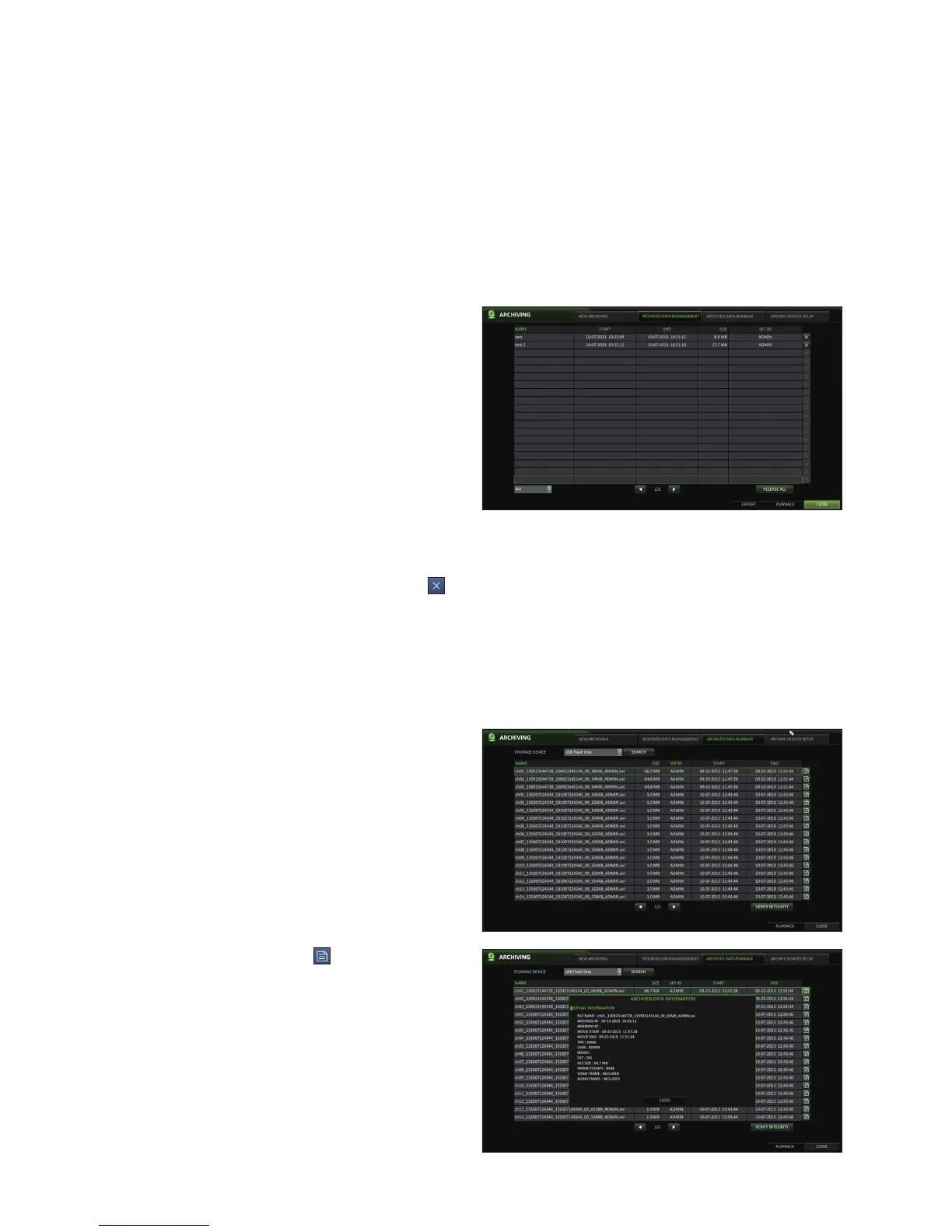
You can search for the reserved data and delete or export it to a storage device.
1.
From the <ARCHIVING> menu, select <RESERVED
DATA MANAGEMENT>.
The reserved data will be listed.
2.
Select a data type from <AVI> and <Snapshot
Capture>.
AVI : Searches AVI video files stored in the DVR.
SNAPSHOT CAPTURE : Searches captured
snapshots stored in the DVR.
3.
If you want to play the data, double-click a desired
data item or click it and select <PLAYBACK>.
If selecting <Snapshot Capture>, the <PLAYBACK> button
will be disabled--you cannot playback a snapshot.
4.
If you want to export to a storage device, connect it to the DVR and click <EXPORT>.
5.
If you want to delete the reserved data, click < > next to the list. Click <CANCEL ALL> to cancel reserving the whole
page at once.
6.
To exit the Archive menu, click <CLOSE>.
Playing the archived data
You can play archived data from a USB storage device. In addition, you can check the details and integrity of the data.
1.
While in <ARCHIVED DATA PLAYBACK> connect the
USB storage device containing the archived data.
2.
When the storage device is recognized in <STORAGE
DEVICE>, click <SEARCH>.
3.
To view the details, click < > next to the list.
Click <VERIFY INTEGRITY> to check if the data is corrupt
or incomplete.
4.
Select an item to play from the list, either double-click
an item, or select an item then click <PLAYBACK>.
5.
To exit the Archive menu, click <CLOSE>.


 To Next Page