63
5.
When done, press the [EXIT] button on the remote control or click <CLOSE> in the lower screen. The confirmation
message appears and you will return to the previous menu.
Alarm Recording
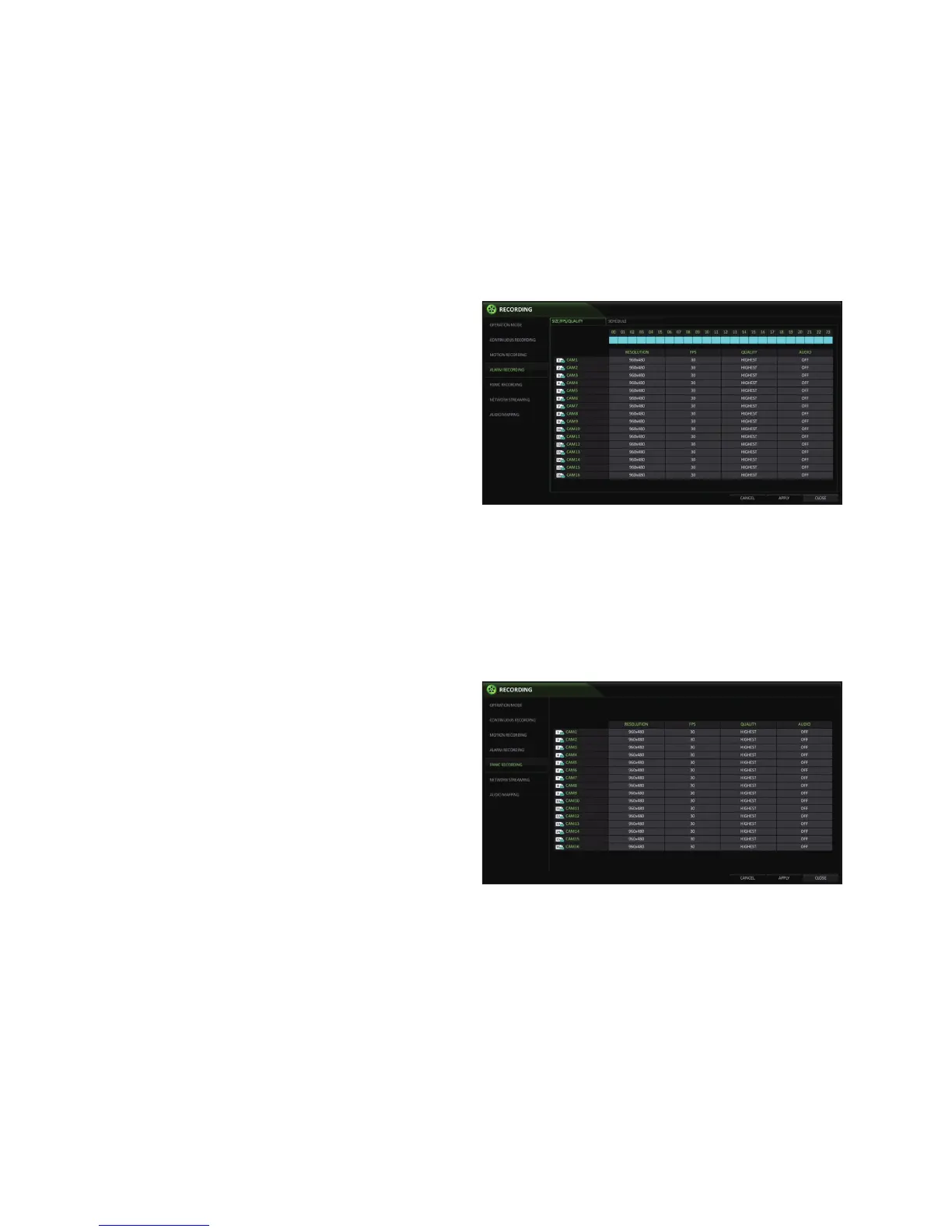
You can configure the settings of: alarm recording time,
recording size, frame rate per second and quality
1.
From the <RECORDING> menu, select <ALARM
RECORDING>
2.
Use the [▲▼◀ ▶] buttons on the remote control or use
the mouse to select either <SIZE/FPS/QUALITY> or
<SCHEDULE>.
3.
Set each item of <RESOLUTION>, <FPS>, <QUALITY>
and use of the <AUDIO> for the alarm recording.
For more information, see the "Continuous Recording". (page 61)
4.
To apply the change, click <APPLY> in the bottom of the screen.
5.
When done, press the [EXIT] button on the remote control or click <CLOSE> in the lower screen. The confirmation
message appears and you will return to the previous menu.
Panic Recording
You can configure the settings of: panic recording time,
recording size, frame rate per second and quality
1.
From the <RECORDING> menu, select <PANIC
RECORDING>.
2.
Set each item of <RESOLUTION>, <FPS>, <QUALITY>
and use of the <AUDIO> for the panic recording.
For more information, see the "Continuous Recording".
(page 61)
3.
To apply the change, click <APPLY> in the bottom of
the screen.
4.
When done, press the [EXIT] button on the remote control or click <CLOSE> in the lower screen. The confirmation


 To Next Page