35
Display Setting
You can configure screen display setup for the On-screen Display, Sequence, and SPOT Out.
OSD
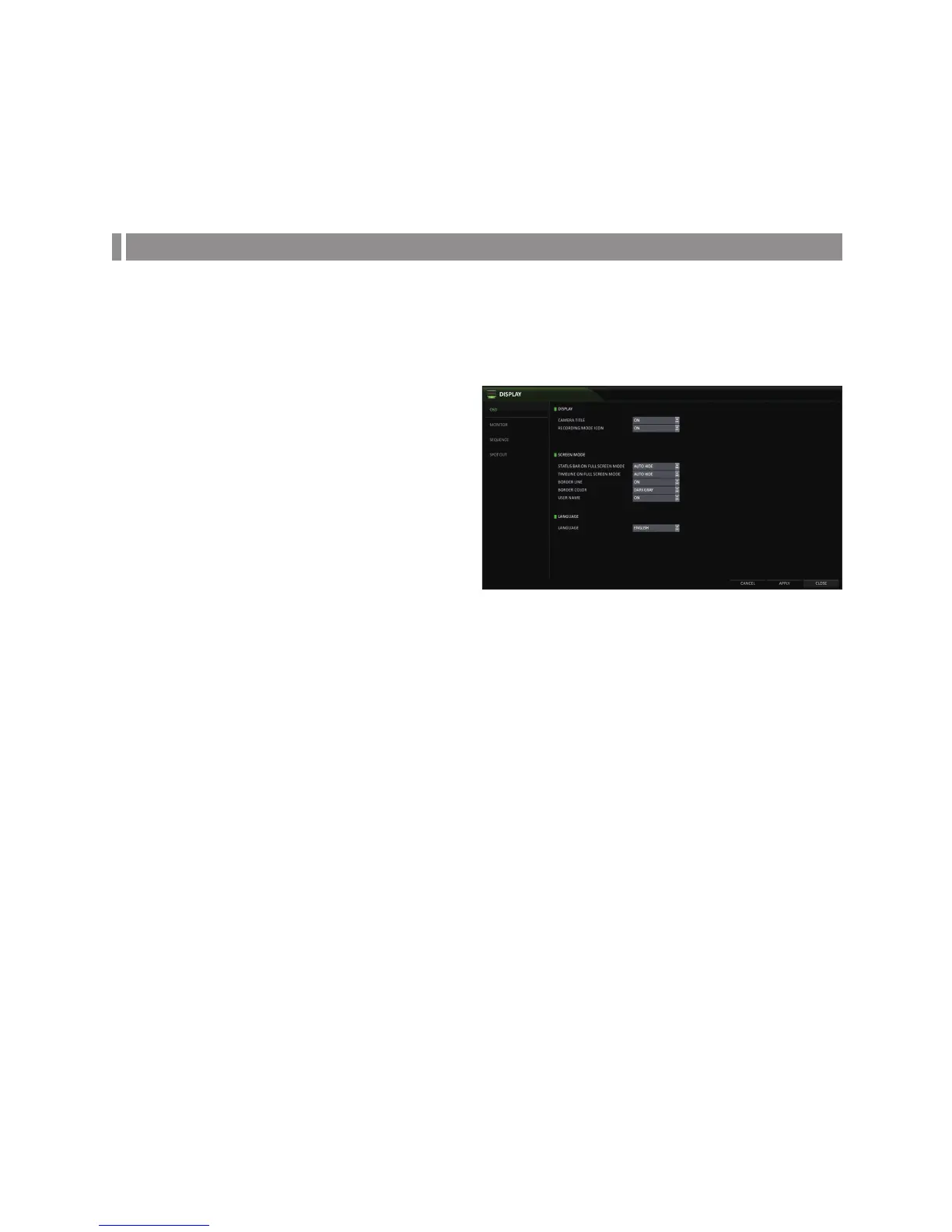
You can set the Camera Name, Icon, Status Bar, Timeline, Borderline, User Name and Language.
1.
From <SYSTEM SETUP> - <DISPLAY>, select <OSD>.
2.
Use the [▲▼◀ ▶/ENTER] buttons on the remote control
or use the mouse to set each option of the OSD item.
CAMERA TITLE : specify the display of the camera
title on the screen.
RECORDING MODE ICON : shows/hides the record
mode icon on the screen.
STATUS BAR ON FULL SCREEN MODE : select to
show or hide the status bar in full screen mode.
-
AUTO HIDE : move the cursor to the lower area
of the screen to display the status bar. When
moving the cursor up, the status bar will disappear.
-
ALWAYS ON : The status bar will be displayed at all times.
-
5 SEC ~1 MIN : If no mouse movement is detected from 5 seconds to 1 minute, the status bar will disappear.
TIMELINE ON FULL SCREEN MODE : shows/hides the timeline in full screen mode.
-
AUTO HIDE : move the cursor to the right margin to display the timeline. Move the cursor to the left to hide the
timeline.
-
ALWAYS ON : The timeline will be displayed at all times.
-
ALWAYS OFF : The timeline will not be displayed.
BORDER LINE : displays the cross-border between channels in split mode
BORDER COLOR : select a color for the border.
USER NAME : displays the currently logged-in users on the status bar.
LANGUAGE : select a menu display language.
3.
To apply the change, click <APPLY> in the bottom of the screen.
4.
When done, press the [EXIT] button on the remote control or click <CLOSE> in the lower screen. The confirmation
message appears and you will return to the previous menu.


 To Next Page