33
Motion Sensor
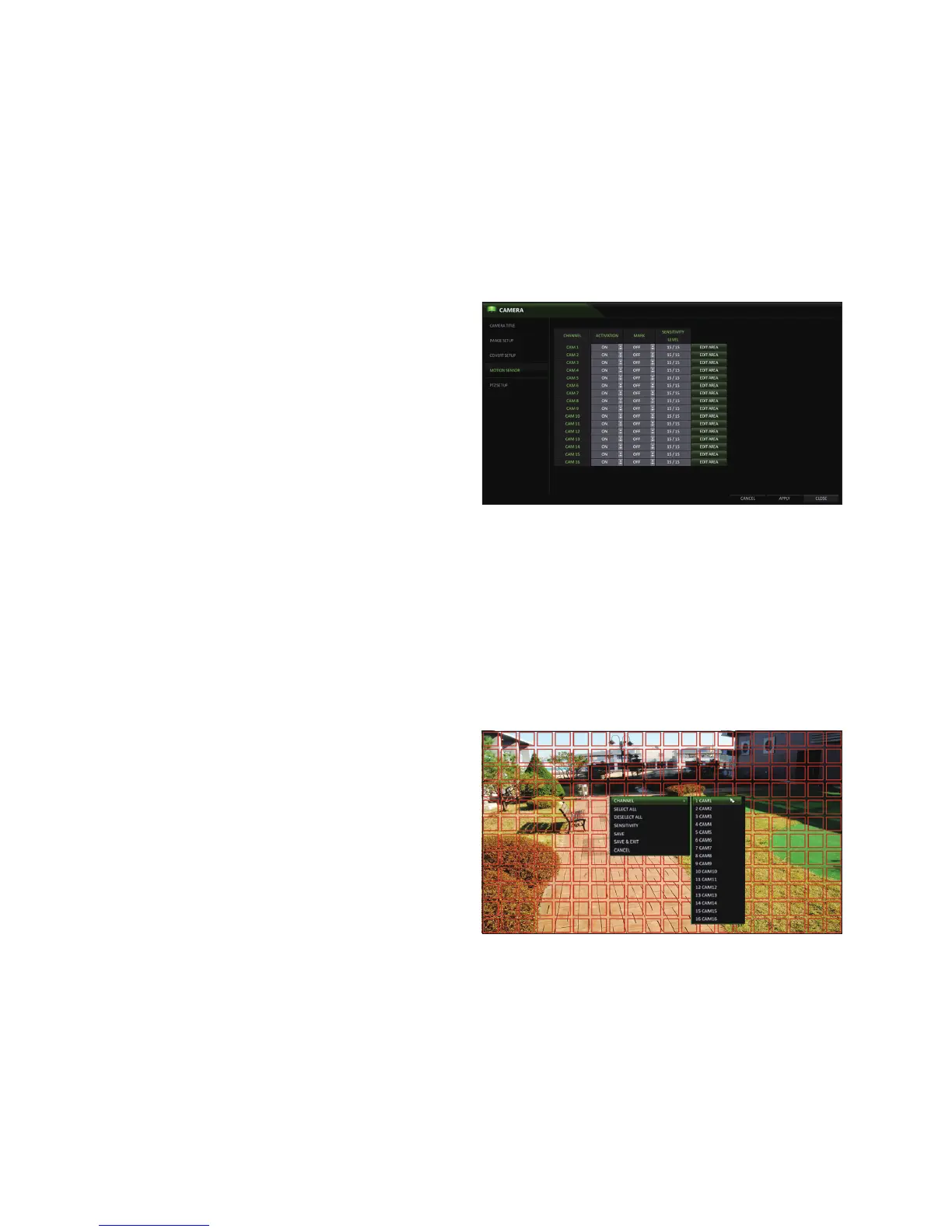
Set the motion sensor of the camera .
1.
From <SYSTEM SETUP> - <CAMERA>, select
<MOTION SENSOR>.
2.
Use the [▲▼◀ ▶/ENTER] buttons on the remote control
or use the mouse to specify the use of each option
item.
ACTIVATION : turn on or off the motion sensor.
MARK : Set to <ON> to display the motion detection
indicator on each video tile.
SENSITIVITY : Set the sensitivity level of the motion
sensor to either Daytime or Nighttime.
EDIT AREA : Specify the motion detection area.
3.
To apply the change, click <APPLY> in the bottom of the screen.
4.
When done, press the [EXIT] button on the remote control or click <CLOSE> in the lower screen. The confirmation
message appears and you will return to the previous menu.
•
The motion detection sensitivity may differ depending on the characteristics of the connected camera or the installation environment.
Motion Area Setup
From the motion setup window, click <EDIT AREA> to display the area setup screen.
1.
Click <EDIT AREA> to move to the motion area setup screen.
2.
If using the remote control, press the [ENTER] button
to initiate the process.
3.
Use the arrow buttons to move to a desired block and
press [ENTER]. The area setup will begin.
Then, use the arrow buttons to specify the area. Press
[ENTER] to select/deselect the area.
Alternatively, when using a mouse you can use the drag-
and-drop method to specify or release the area.
4.
If you select the specified area again, it will be
released.


 To Next Page