78
To save the video
1.
Click < > to start saving.
2.
The video from the selected channel will be saved to the PC in the AVI format. (Default path: C:\SaveFolder)
Click < > again to stop saving. Click <ActiveX Setting ( )> to change the saving path.
Print
1.
Click < >.
2.
The current screen will be printed with the printer connected to the PC.
Screen capture
1.
Click < >.
2.
The current screen of the selected channel will be saved to the PC. (Default path: C:\SaveFolder)
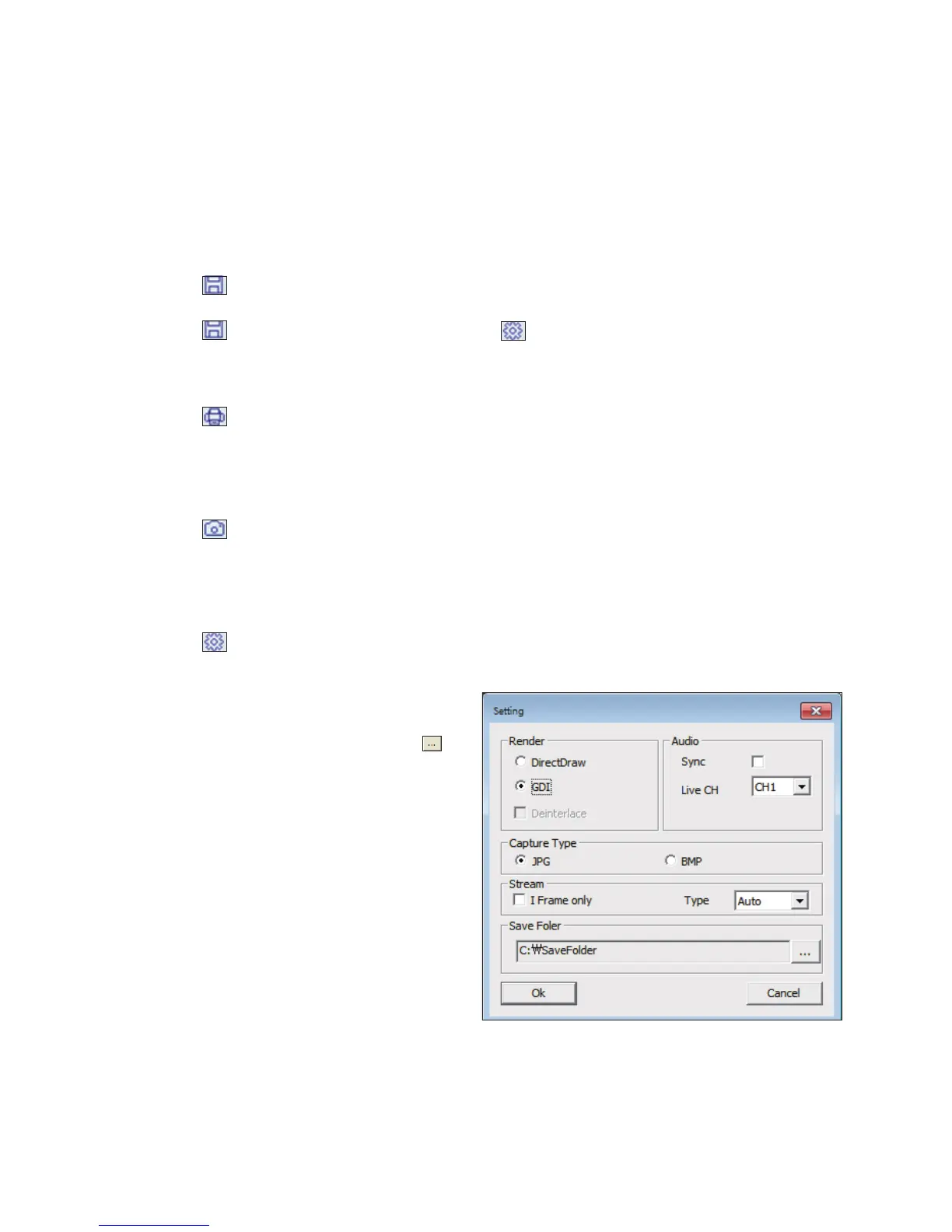
ActiveX Settings
1.
Click < >.
2.
When the setup screen appears, you can change the settings of the render type, audio, capture and saving path as well
as the video streaming.
Render : DirectDraw is recommended in order to
enable the hardware acceleration.
3.
If you want to change the saving path, click < >
(Save Folder) and specify a new path.
(User cannot change the save path in Windows Vista)
4.
Change the streaming settings according to the PC
specification and network environment.
Auto mode is recommended.
Sync : If this option is set, the audio signal will be
synchronized with the video signal.
However, you may encounter a delay due to
buffering for the synchronization.
Live CH : Set the audio signal to use in live
monitoring mode.
I Frame Only : Only the I frames (key frames) will be
transferred.
Type
-
Auto : The DVR will optimize the quality and FPS
to the network status and specification of the
connected PC before transferring the data.
-
Main : The video will be transferred in higher definition.
-
Second : The video will be transferred in a medium definition.
5.
When done, click <APPLY> to save your settings.


 To Next Page