61
Continuous Recording
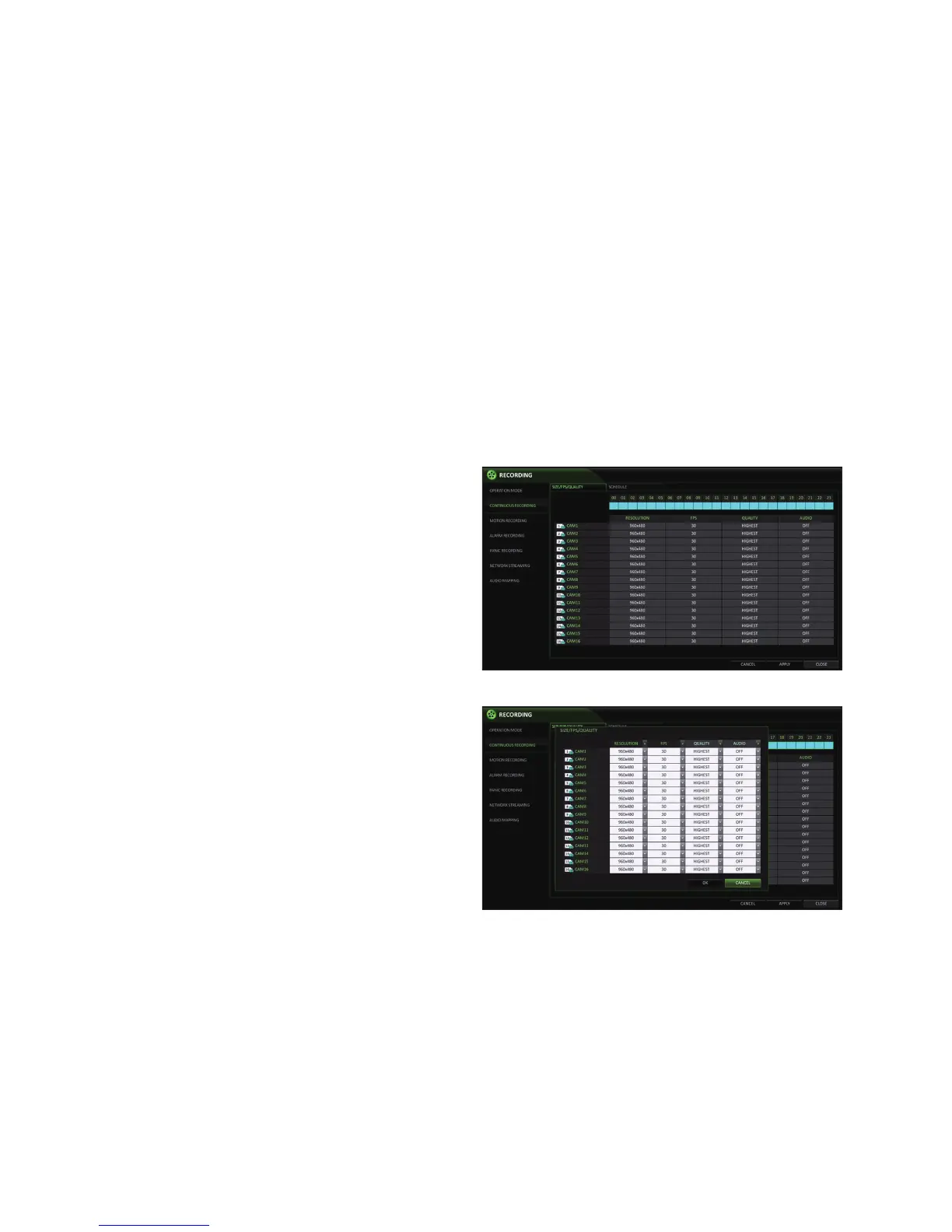
You can configure the settings of: continuous recording time, recording size, frame rate per second and quality.
1.
From the <RECORDING> menu, select <CONTINUOUS RECORDING>.
From <OPERATION MODE>, you must set <RECORDING CONFIGURATION MODE> to <MANUAL CONFIGURATION> before you can
set the <CONTINUOUS RECORDING>.
2.
Use the [▲▼◀ ▶] buttons on the remote control or use the mouse to select either <SIZE/FPS/QUALITY> or <SCHEDULE>.
Size/FPS/Quality Setting
1.
Please select the day of the week to perform continuous recording.
From <OPERATION MODE>, you must set
the <SCHEDULE MODE> of the <MANUAL
CONFIGURATION OPTIONS> to <WEEKLY> before
you can specify the <DAY>.
NOTE: If you want to configure every day with the
same record settings set the <SCHEDULE MODE> to
<DAILY>
2.
Click a time cell from which you want to edit the SIZE/
FPS/Quality and drag it to a desired cell.
Or use the [▲▼◀ ▶] buttons on the remote control to
move to the cell and press [ENTER]. Then, use the
[▲▼◀ ▶] buttons to move to a desired cell and press
[ENTER] again.
3.
When the cell selection is complete, the "SIZE/FPS/
QUALITY" table appears.
•
Specify the <RESOLUTION>, <FPS>, <QUALITY> and use
of the <AUDIO> recording for each channel.
RESOLUTION : set the size of the video recording.
FPS : set the frame rate per second.
QUALITY : set the recording quality.
AUDIO : specify the use of the audio recording.
4.
When done, click <OK>.
You can check the recording size in the size table under the time selection bar.
•
The video resolution and the FPS option may differ depending on the specification of the camera.


 To Next Page