81
No. Item Description
h
REFRESH Reload the time line.
PL AY Play the video that satisfies your search criteria.
Backup Archive the video that satisfies your search criteria.
i
Channel Selection Select a channel listed in the screen.
j
Screen Print out the current screen.
Image Capture Capture the selected image.
ActiveX Settings Configure the ActiveX settings or specify the default save location for archiving.
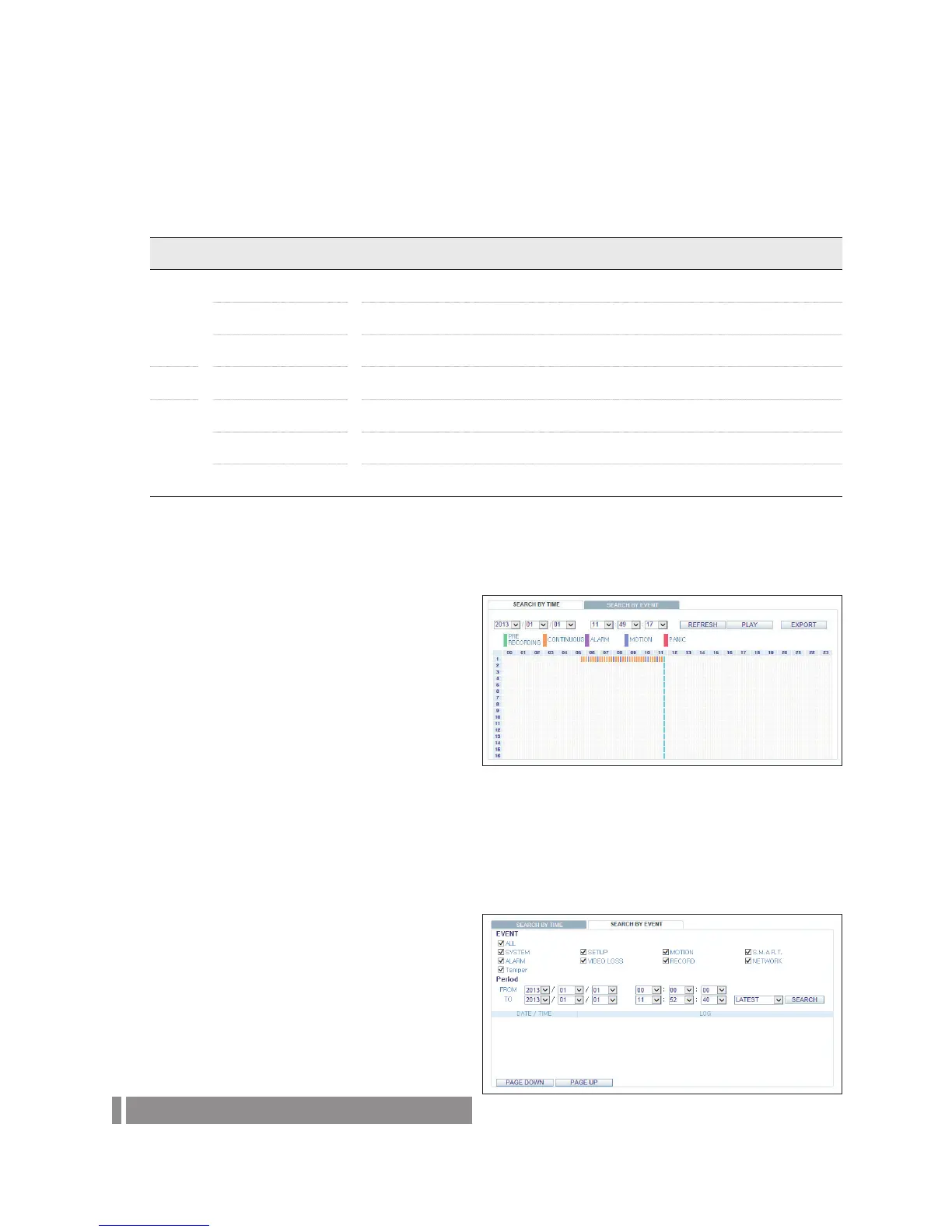
Search by time
Use the timeline to search for the data recorded in the DVR.
1.
Select a date that you want to search..
2.
Check the recording data in the bottom time line and
specify the time range for your search.
You can specify
the start time by moving the time bar.
3.
Click <PLAY>.
REFRESH : Refreshes the search criteria to the
current date/time.
PLAY : Play the searched video.
Backup : Archive the recorded video.
Search by event
You can sort the recording data by event.
1.
Mark the checkbox of the event that you want to search for.
2.
Specify the start and end dates for your search.
3.
Set the display order of the items found.
LATEST : The most recent event will be listed on
top.
OLDEST : The earliest event will be listed on top.
4.
Click <SEARCH>.
5.
Select an item to play.



 To Next Page