32
Image Setup
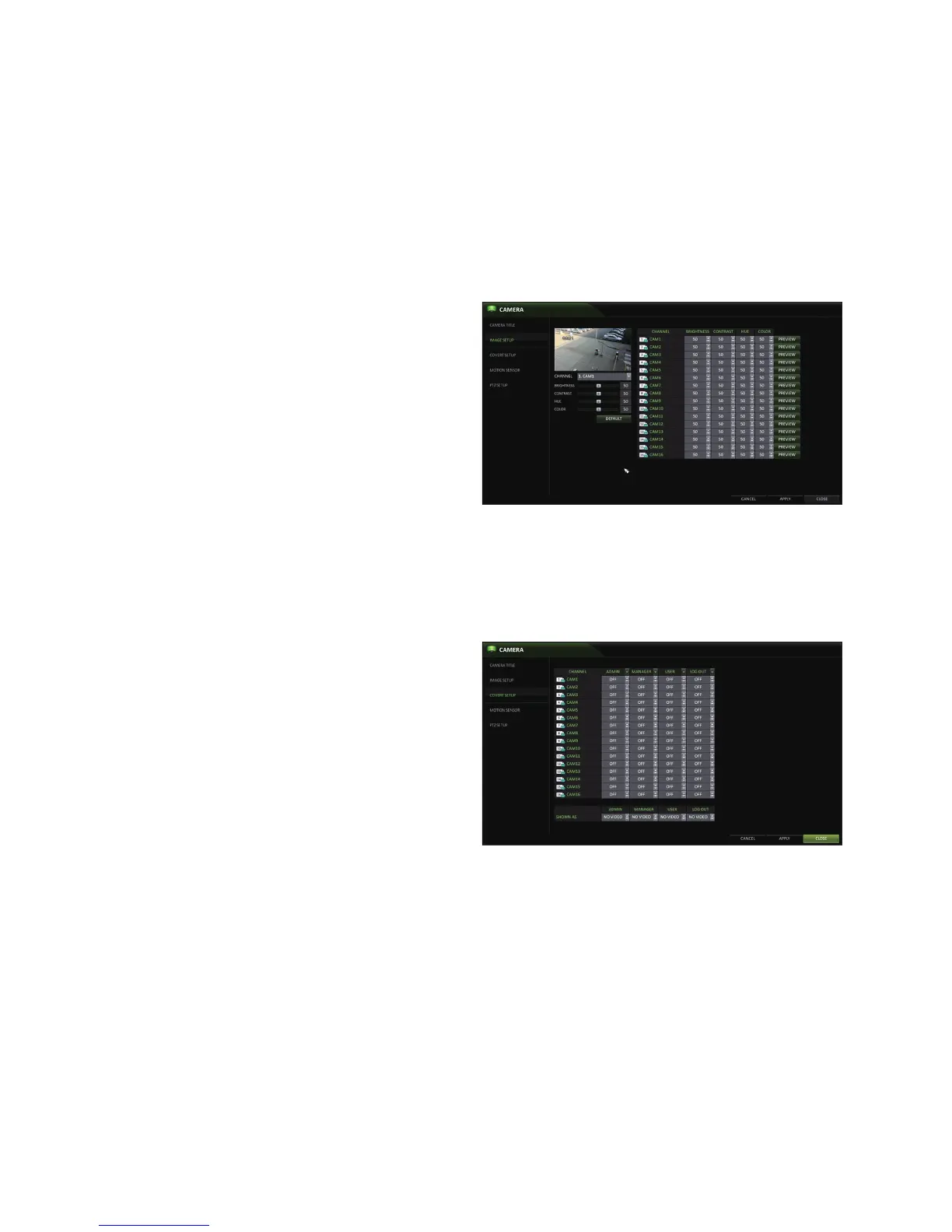
You can adjust the brightness, contrast, color, and quality setting of each channel’s camera.
1.
From <SYSTEM SETUP> - <CAMERA>, select <IMAGE
SETUP>.
2.
Use [▲▼◀ ▶/ENTER] buttons of the remote control or
mouse to edit settings.
3.
To apply your changes, click <APPLY> button.
4.
Once completed, press the [EXIT] button of the remote
control or click the <CLOSE> button on the bottom of
the screen. A confirmation dialog appears and returns
to the previous menu.
Covert Setup
You can make selected cameras "covert" so that specific users or user groups can not view the camera images.
1.
From <SYSTEM SETUP> - <CAMERA>, select <COVERT SETUP>.
2.
Use the [▲▼◀ ▶/ENTER] buttons on the remote control or use the mouse to select a covert channel(s) for a specific user
group.
ADMIN, MANAGER, USER : Set them to <ON>.
The selected channel(s) will be covert from the
applicable user account.
LOG OUT : Set it to <ON>. When the user logs out,
the current channel will be set to a covert channel.
3.
To apply the change, click <APPLY> in the bottom of
the screen.
4.
When done, press the [EXIT] button on the remote
control or click <CLOSE> in the lower screen. The
confirmation message appears and you will return to
the previous menu.
5.
To set specific channels to COVERT for specific users, go to
[USER], [MANAGEMENT], and select a USER ID. On the EDIT screen, you can assign what cameas are COVERT.


 To Next Page