47
System Management
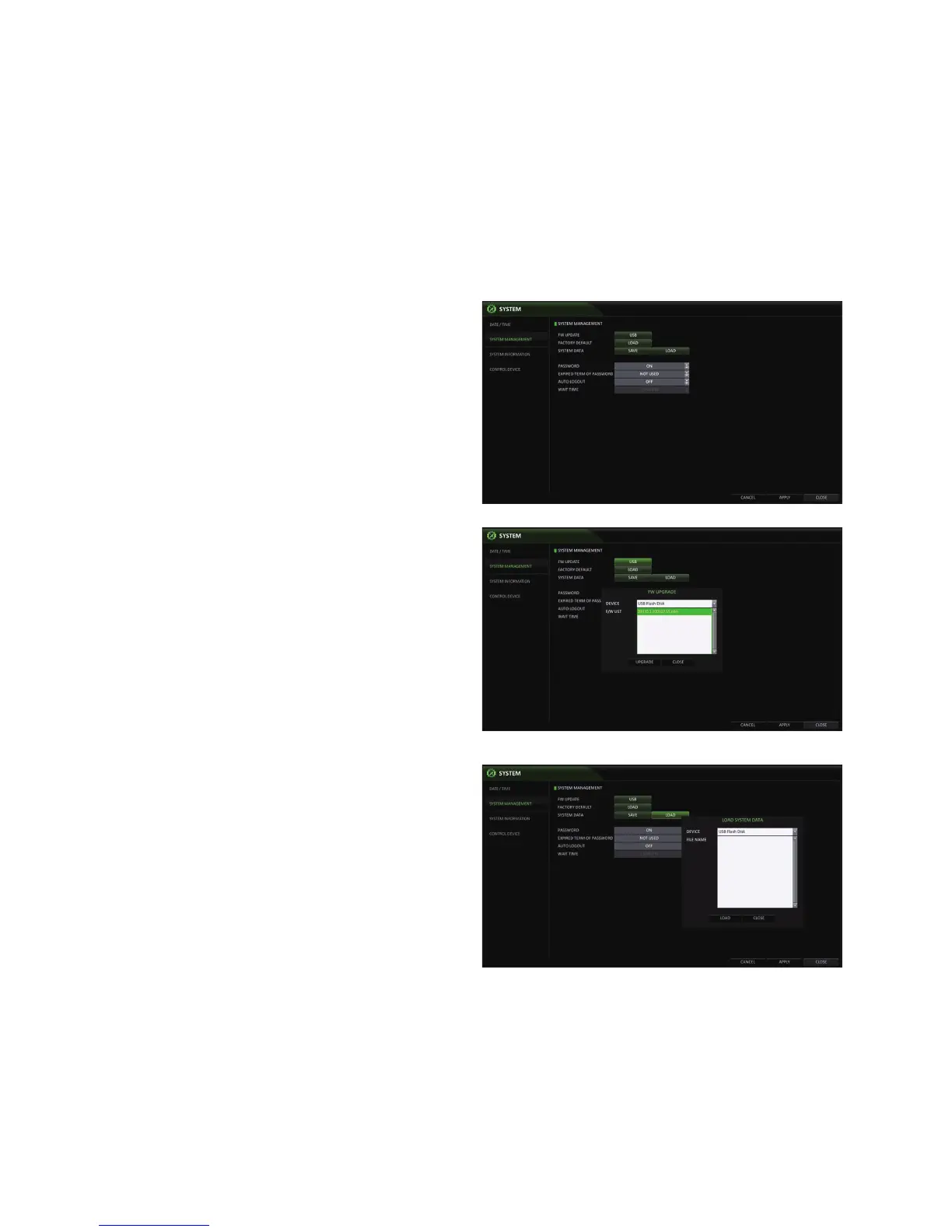
You can check, update or reset the system information.
1.
From <SYSTEM SETUP> - <SYSTEM>, select <SYSTEM
MANAGEMENT>.
2.
Use the [▲▼◀ ▶/ENTER] buttons on the remote control
or use the mouse to set each option of the system
management.
FW UPDATE : you can update the current firmware
with the latest version.
FACTORY DEFAULT : Return the DVR settings to
the factory default.
•
If you proceed with the firmware upgrade or select to reset
to the factory default, all current settings of the DVR will be
erased. In such a case, you must configure the network,
time and recording settings again.
SYSTEM DATA : Save the system settings or get
the system information from other device.
-
SAVE : Store the DVR settings to a USB storage
device.
-
LOAD : Apply the settings of the USB storage
device to the DVR.
PASSWORD : The DVR will prompt the user for a
password when accessing any of the menus: quit,
system settings, record settings, backup, and
search.
•
If it is set to <Off>, note that the ADMIN account is only
effective and access to all menus will be restricted.
EXPIRED TERM OF PASSWORD : You will be
prompted to change the current password after a
certain period of time.
AUTO LOGOUT : If there is no user input for a
certain period of time, you can set the DVR to log out automatically.
WAIT TIME : Specify the waiting time for Auto Logout.
3.
When done, press the [EXIT] button on the remote control or click <CLOSE> in the lower screen to return to the
previous menu.


 To Next Page