39
SPOT OUT
You can configure the Spot Out to display a Live channel in various live view types.
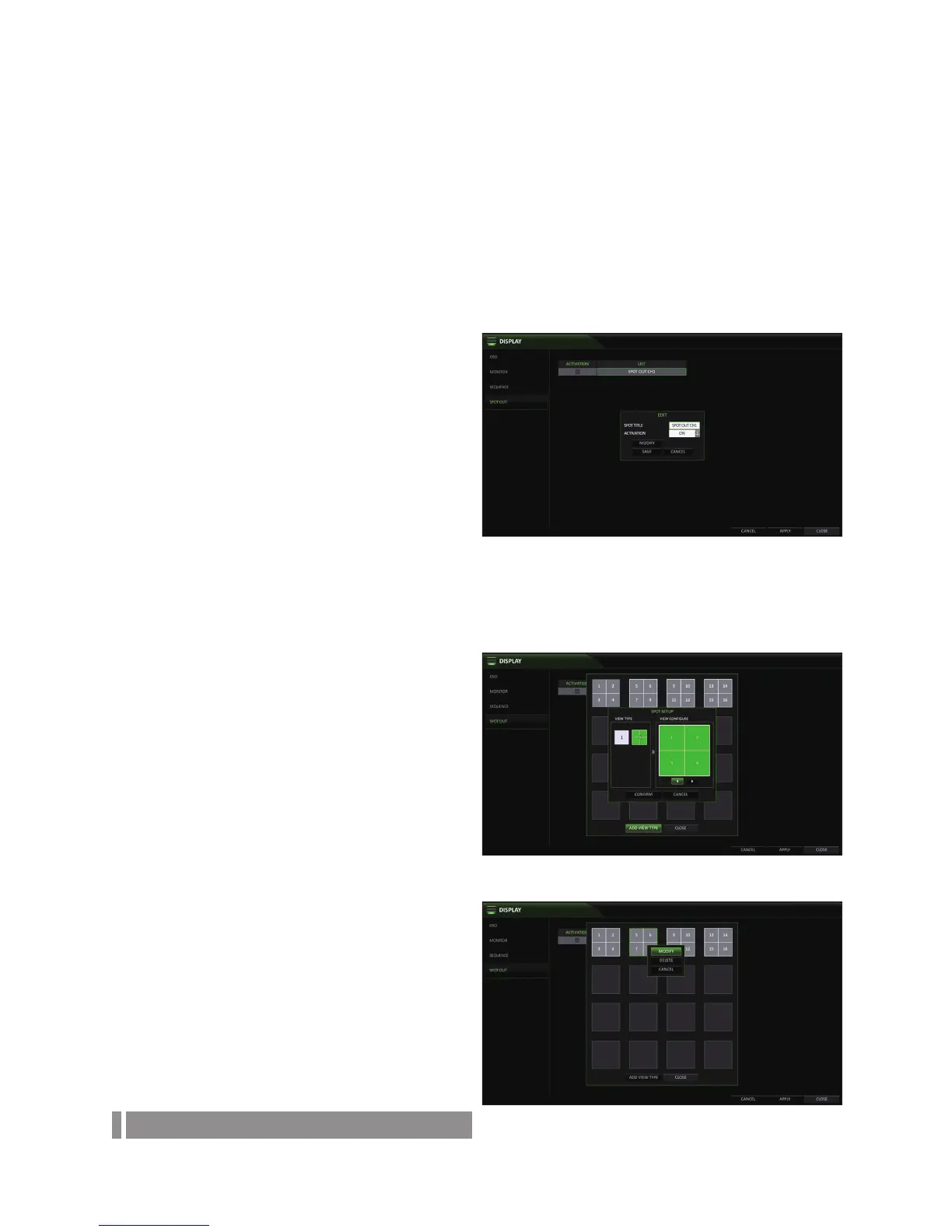
From <SYSTEM SETUP> - <DISPLAY>, select <SPOT OUT>.
8.
Use [▲▼◀ ▶/ENTER] button of the remote control or mouse to edit Spot Out properties.
SPOT TITLE : Name the Spot Out.
ACTIVATION : Activates / deactivates the spot out.
MODIFY : Edit the view type of the spot output.
SAVE : Save the changes of spot output settings.
9.
To apply your changes, click <APPLY> button.
10.
Once completed with setup, press [EXIT] button of
the remote control or click <CLOSE> button on the
bottom of the screen. A confirmation dialog appears
and returns to the previous menu.
To add a View Type to a Spot Out
1.
Select the SPOT Output from the list.
2.
The “EDIT” window appears, click <MODIFY> button.
3.
When the View Type selection window appears, click
<ADD VIEW TYPE> button.
4.
Select the desired View Type and configuration, and
click <OK> button.
5.
Complete adding and click <CLOSE> to close the edit
window
To edit or delete View Type of the SPOT
Output
1.
Select the SPOT Output from the list.
2.
The “EDIT” window appears, click <MODIFY> button.
3.
When the View Type selection window appears, select
the desired View Type to be edited or deleted, and
press [ENTER] button of the remote control or right
click on it.
MODIFY : Displays “SPOT SETUP” window for
editing View Type and other properties.
DELETE : Deletes the selected View Type.
4.
Complete editing and click <CLOSE> to close the
edit
window.
Audio Setup
You can configure audio related settings (channel and network transfer) and signal beep for remote control operations.


 To Next Page